

Math Components
Reference for the two math components, inline math and block math, written in LaTeX and rendered with KaTeX in the web editor and on your published site.
Overview
This page covers the two math components:
- The Inline math component puts math inside a sentence.
- The Block math component puts math on its own line.
You write both in LaTeX, and Documentation.AI renders them with KaTeX in the web editor and on your published site, in both light and dark themes. Copying rendered math gives its LaTeX, and search, the Markdown export and AI tools read the LaTeX source.
The area of a circle is , and the integral below works out to one third:
Math is off until you turn it on for your site with Render math, or math.latex in documentation.json. While it is off, dollar signs in your pages stay plain text.
You can add either component in two ways:
| Component | Web Editor slash command | Code Editor (MDX) |
|---|---|---|
| Inline math | Inline math | $…$ inside a line of text |
| Block math | Block math | $$ on the line before and the line after |
Using with Web Editor
Turn on math
-
Open Site Config in the editor's top toolbar.
-
Go to Brand & Theme.
-
Under Math, turn on Render math.
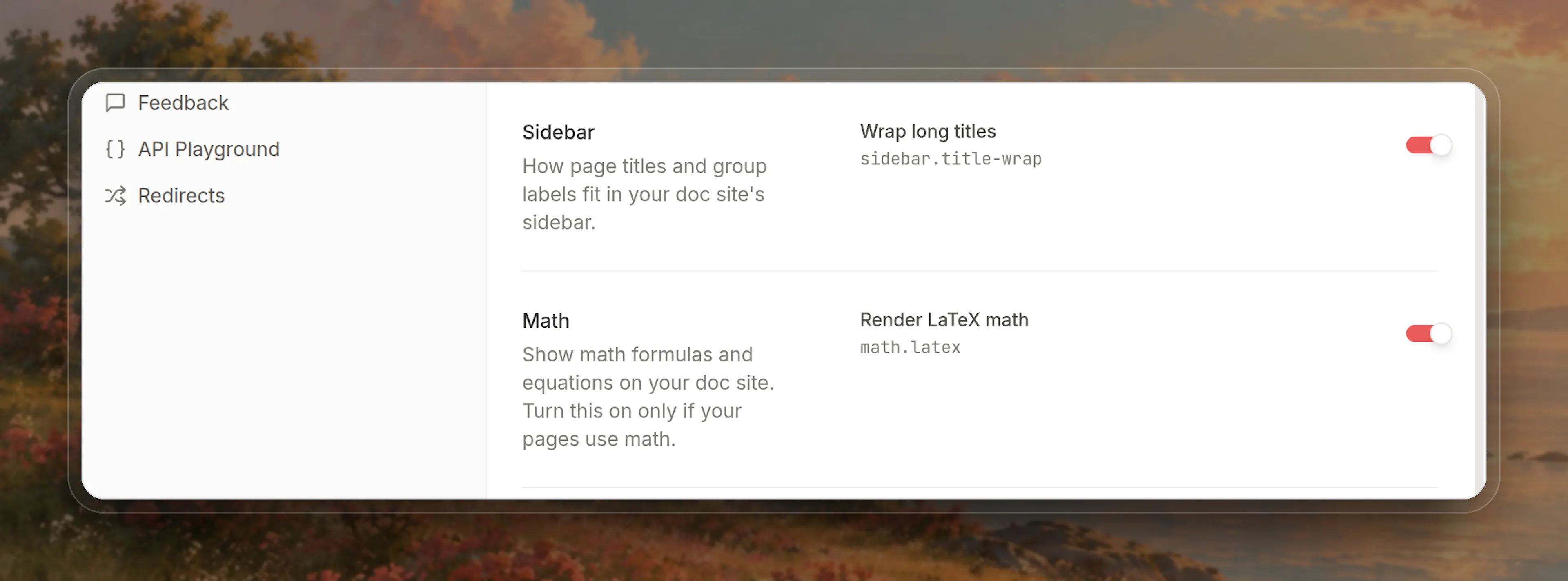
- Publish to apply the setting to your site.
While math is off, the Web Editor shows any math already written in a page as plain text, with a note that your site shows it as text too. Turning the setting on renders it in the editor straight away. Your pages are not changed either way.
Insert the Inline math component
-
Place the cursor where the math goes and type /.
-
Choose Inline math.
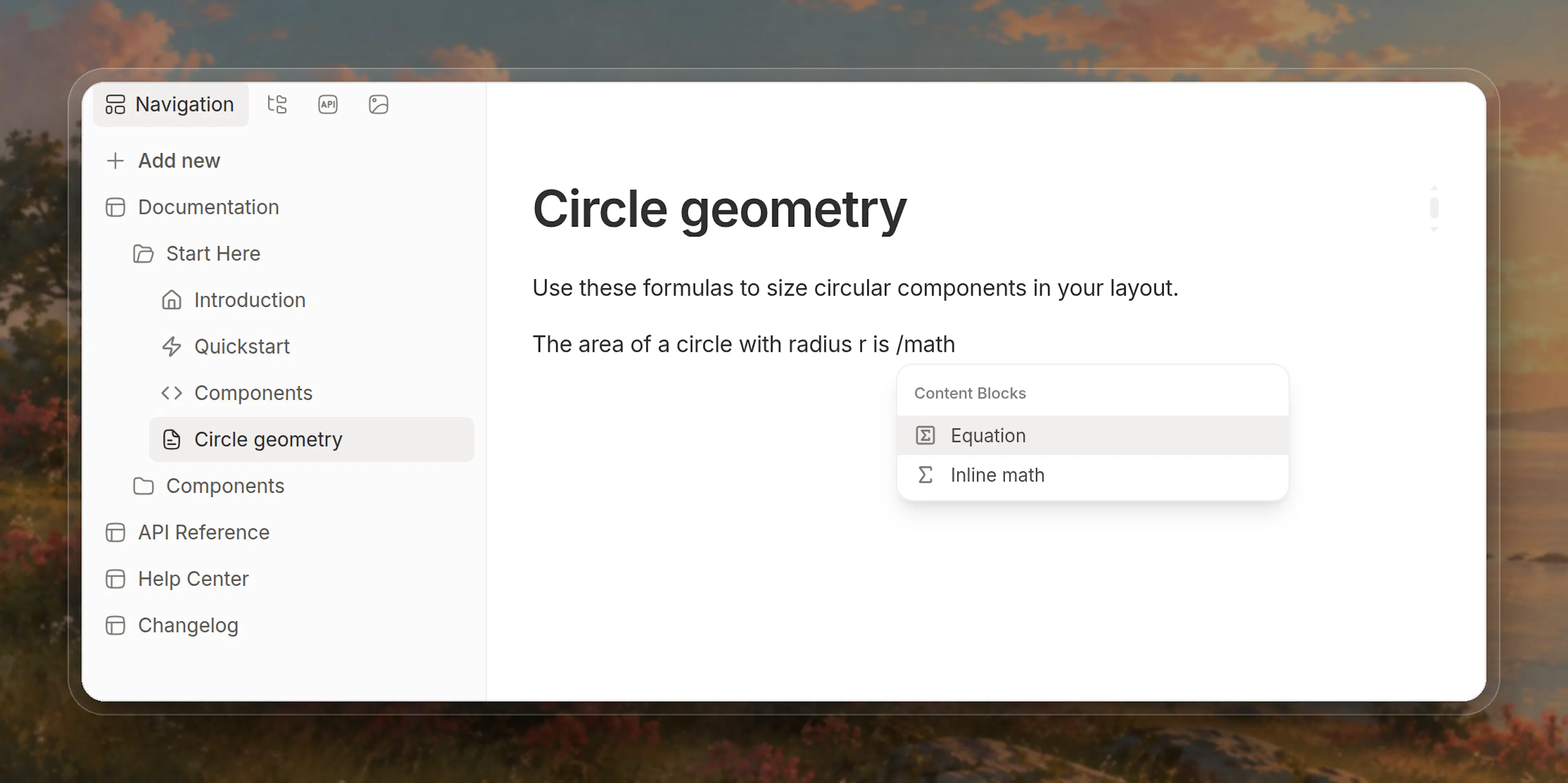
- Type the LaTeX, without dollar signs. The math in your text updates as you type.
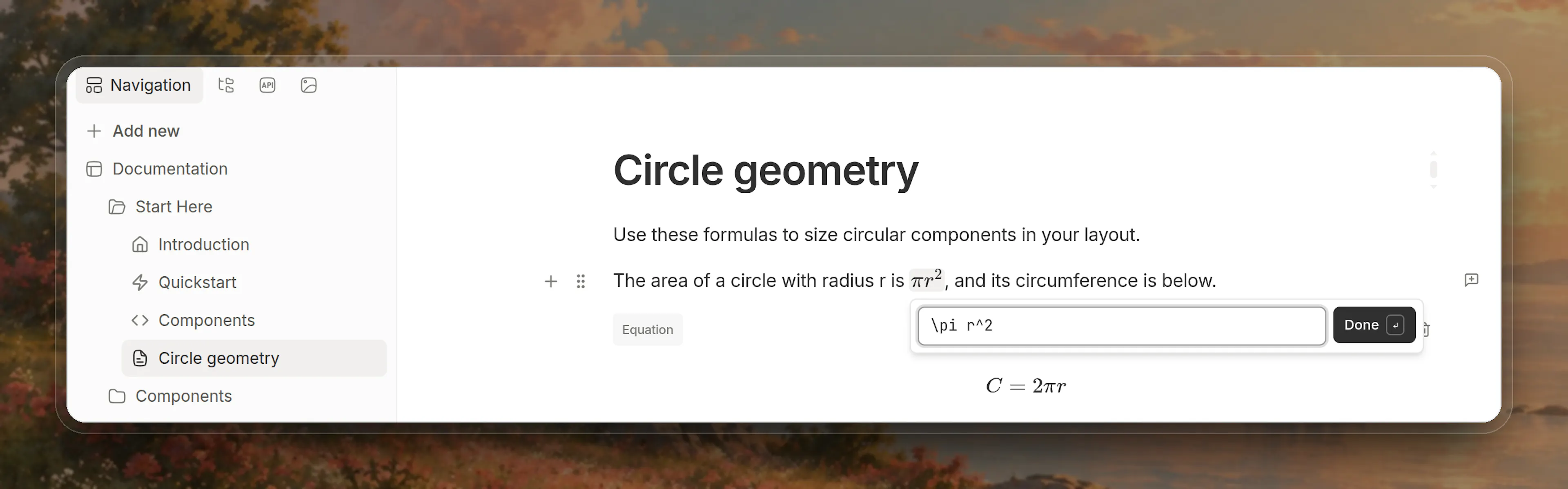
- Press Enter or click Done to save, or press Esc to cancel. If the LaTeX has an error, a message under the field says what is wrong, and Enter or Done saves only once it is fixed.
To change inline math, click it. Saving it empty removes it.
Insert the Block math component
-
On an empty line, type / and choose Block math.
-
Type the LaTeX, without the
$$lines. A preview shows below as you type.
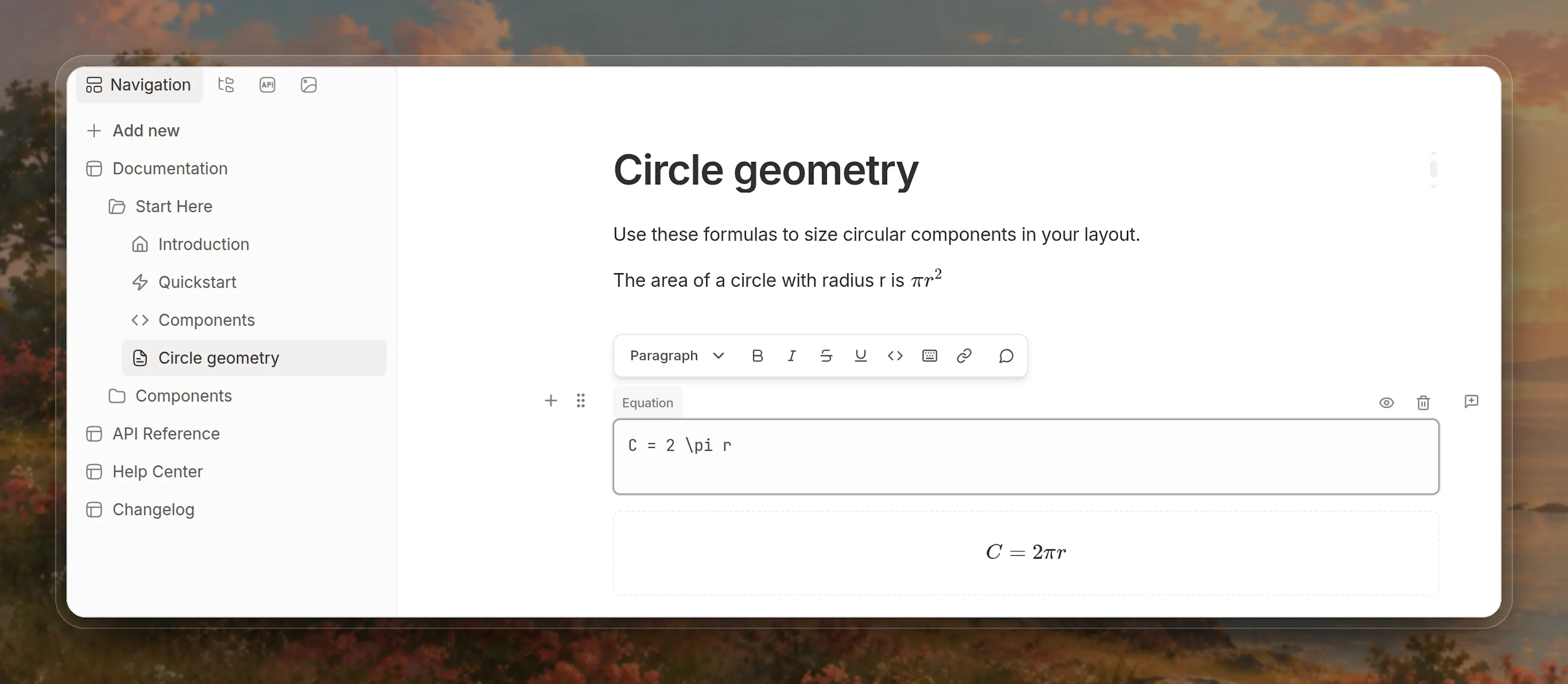
- Click outside the block, or press Ctrl+Enter (Cmd+Enter on Mac), to save. Press Esc to cancel. If the LaTeX has an error, a message under the field says what is wrong.
To change block math, click it. To remove it, click the trash icon (Delete block math) in its toolbar.
If math is off, the slash menu does not offer math, and dollar signs in a page are plain text, the way your site shows them.
Prefer writing in code?
You can switch to MDX view inside the Web Editor to write math with the same syntax as the Code Editor. A dollar sign you type as text in the visual editor is saved so it never turns into math: when it is the only one in its paragraph, heading or table cell it is saved as typed, and when it could pair up with another it is saved as \$. Both show as $ on your site.
Using with Code Editor
Turn on math
Set latex to true under math in documentation.json:
{
  "math": {
    "latex": true
  }
}
See Site Configuration.
Inline math component
Write the Inline math component between single dollar signs, inside a line of text:
The area of a circle is $\pi r^2$.
- Inline math stays within its paragraph: it cannot cross a blank line.
$$…$$written inside a line of text renders like inline math.- Separate two pieces of inline math with a space, as in
$a$ $b$. Written as$a$$b$, they read as one.
Block math component
Write the Block math component between two $$ lines:
$$
\int_0^1 x^2 \, dx = \frac{1}{3}
$$
- Block math shows centered on its own line. Put each
$$on a line of its own. - A fenced code block with the language
mathalso renders as block math on your site. The Web Editor shows it as a code block.
Rules for both components
- Write math between dollar signs.
\(…\)and\[…\]are not supported. - Both work in lists, tables, headings and inside components such as
<Callout>. - In a table cell, write a vertical bar as
\vert, because|ends the cell.
Dollar signs
With math on, two dollar signs in the same paragraph pair up as math. Prices are the exception: a pair whose text is plain (no formatting, links, code or LaTeX), starts with a number, and whose closing $ is followed by a number stays text, so this line needs no changes:
Pro is $20/month and Team is $50/month.
Write any other dollar sign that is not math as \$. That includes prices with formatting or a link between them:
Set \$HOME and \$PATH before you run the script.

Pro is **\$20** and Team is **\$50**.
A dollar sign that is the only one in its paragraph, heading or table cell never needs escaping, so It costs $5 today. and a price table with one price in each cell stay as they are.
Dollar signs in inline code and code blocks are never math, so `echo $HOME` needs no escaping.
To put a dollar sign inside inline math, write it between $$ instead, because a $ inside $…$ ends it:
The fee is $$\text{costs } \$5$$ per seat.
A line that starts with $$ followed by text, such as $$100 per seat, opens block math that runs to the next $$ or the end of the page. The Web Editor shows an error for it, naming the line. Write those dollar signs as \$\$.
Advanced options
Specifications
- Renderer: KaTeX, which supports most math-mode LaTeX. The link lists every supported command.
- Themes: math takes the color of the text around it, in light and dark themes.
- Errors: LaTeX that does not parse shows in red, with the reason when you hover it, instead of breaking the page.
- Links and images: commands that add links or load files, such as
\href,\urland\includegraphics, show in red and do not render. - Copying: copying rendered math copies its LaTeX between dollar signs.
- Markdown export and AI tools: a page's Markdown export,
llms.txtand the AI assistant read the LaTeX source. - PDF export: math renders in PDF exports, and block math wider than the page shrinks to fit it.
- Turning math off: math would show as plain LaTeX text, and LaTeX braces such as those in
\frac{a}{b}are read as code, which can break the page. So the publish that turns math off checks every page and snippet, and stops at the first one that still uses math, naming it. Remove that math, or turn math back on.