

Banners
Show a message across the top of your docs pages, such as a release, planned maintenance, or an outage, on the whole site or on some products, versions, and languages.
Use a banner to tell readers something before they start reading: a new release, planned maintenance, or an outage. A banner runs across the top of your docs pages and stays there as readers scroll.
Banners go live as soon as you save them. There's no publish step.
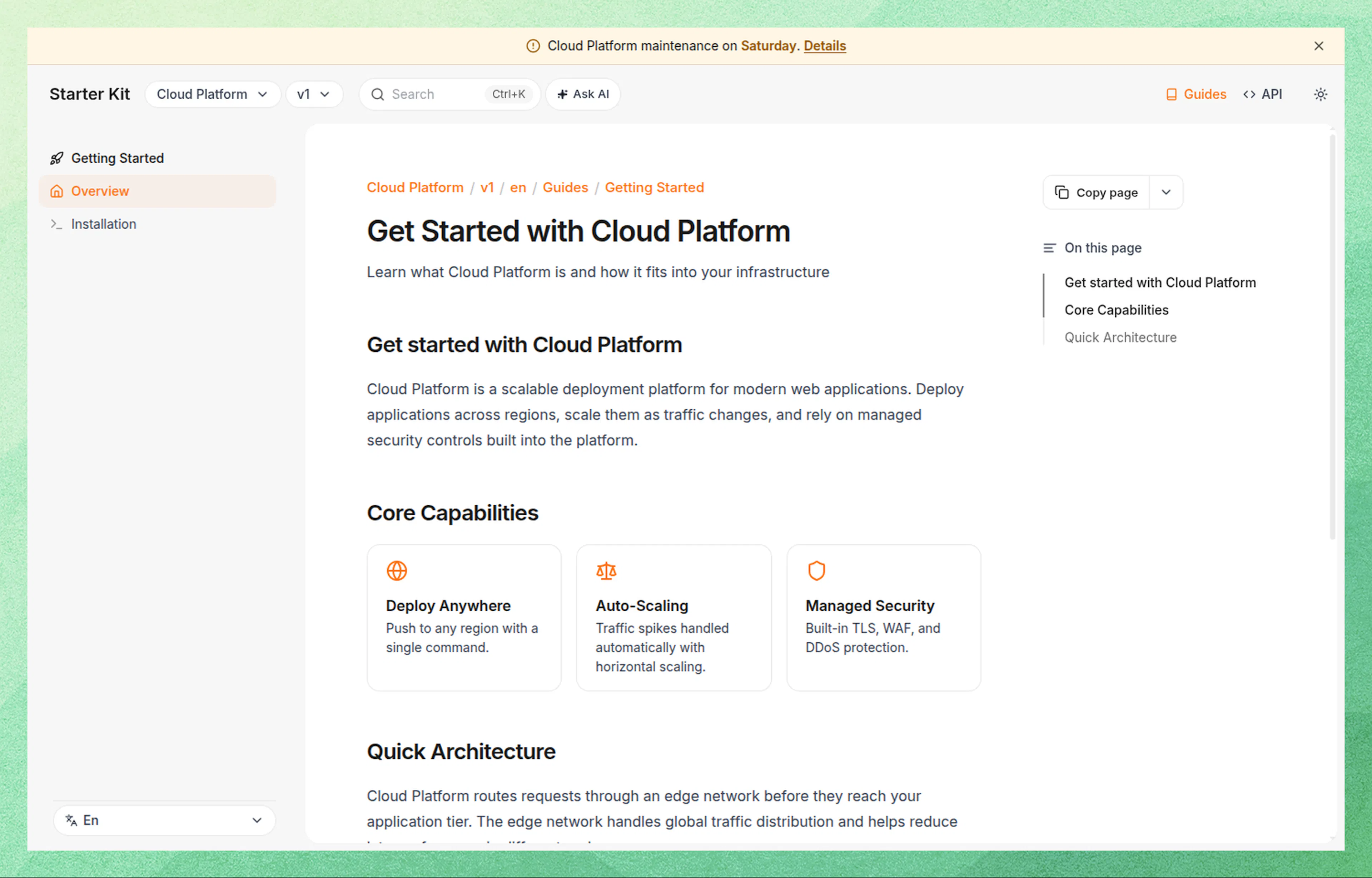
How banners work
- Each banner has a line of text, a type, and optionally its own background colour.
- A banner covers the whole site, or only some of your products, versions, and languages.
- Readers see one banner at a time. When a reader closes it, the next banner that covers the page takes its place. See Which banner readers see.
- Banners belong to your live site. They aren't part of
documentation.jsonor any branch, and publishing doesn't change them. - Embedded docs don't show banners.
You need the Editor or Admin role to add or change banners.
Add a banner
Open Banners
In the dashboard, go to Settings > Banners and click Add banner.
Write the text
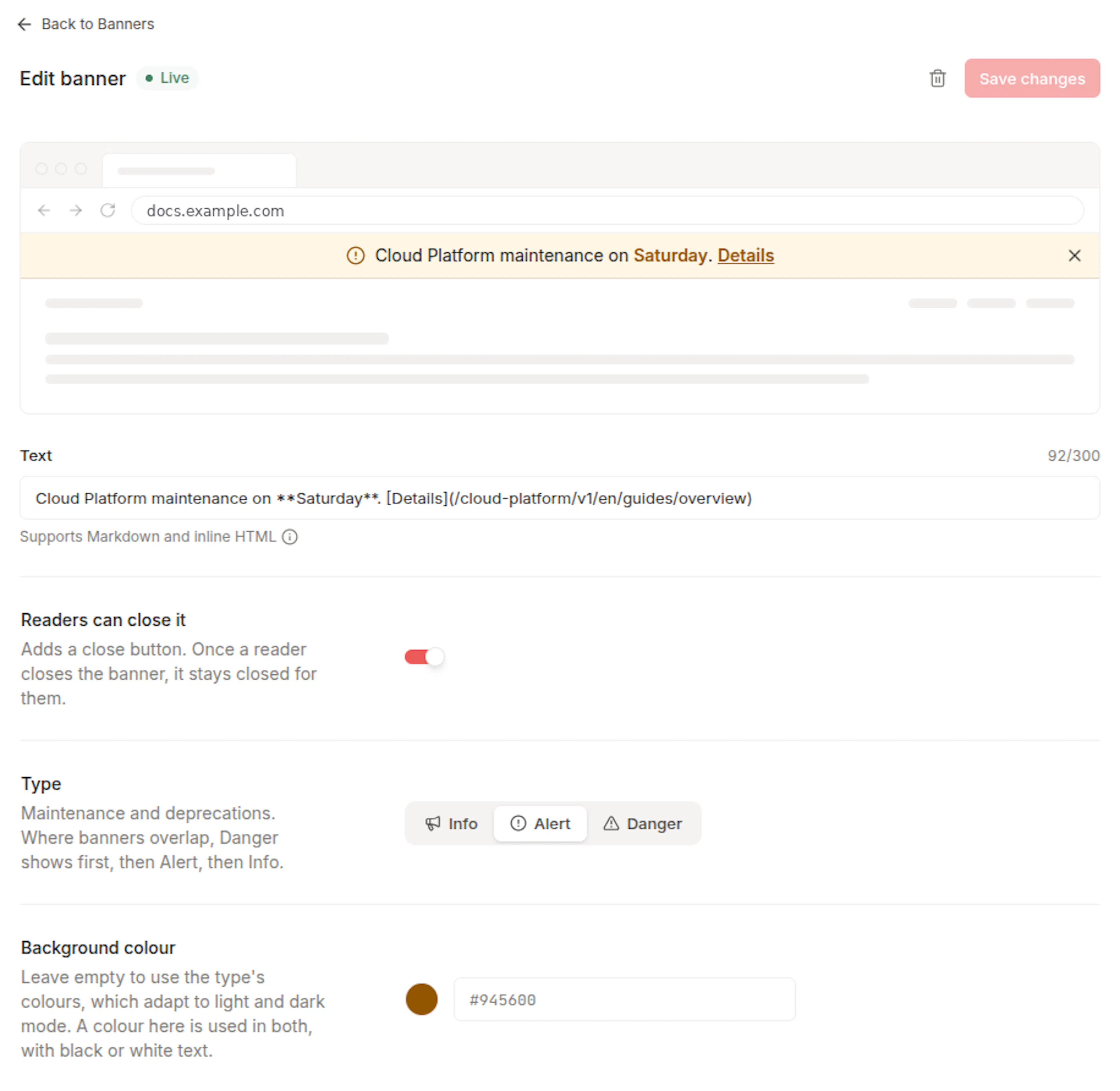
Type your message in Text, for example v2 is out. [Read the upgrade guide](/upgrade). The preview above it shows the banner in your site's colours, as readers will see it.
You can use Markdown and some inline HTML. See Format the text.
Choose whether readers can close it
Leave Readers can close it on to give the banner a close button. Turn it off for a message that has to stay, such as an outage notice.
Pick a type
The Type sets the banner's icon and colours, and its place in the order banners show in:
- Info for announcements and releases
- Alert for maintenance and deprecations
- Danger for incidents and outages
To use your own colour, type a hex code such as #6d28d9 in Background colour, or click the swatch beside it to pick one. The text turns black or white, whichever reads better on it, and the same colour is used in light and dark mode. Leave the field empty to keep the type's colours, which adapt to light and dark mode.
Choose where it shows
Show on lists your products, versions, and languages as they appear in your navigation, all selected. Clear the ones where the banner shouldn't show. See Choose where a banner shows.
On a site without products, versions, or languages, every banner covers the whole site and Show on isn't shown.
Set it live
Click Set live. Readers see the banner right away.
Turn a banner off or on
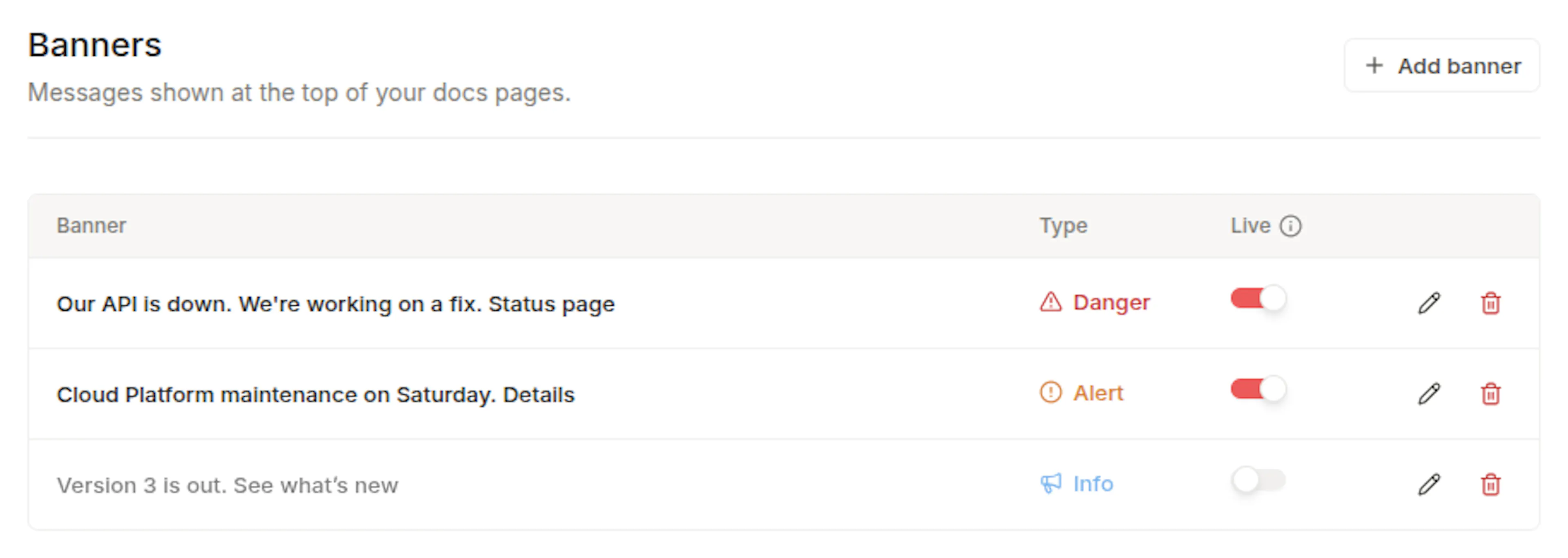
Each banner in the table has a Live switch. Turn it off to take the banner off your site but keep it, for example to reuse a maintenance notice. You're asked to confirm first. Turn it on again whenever you need it.
Edit or delete a banner
Click a banner in the table to edit it, then click Save changes. Readers see the change right away.
To delete a banner, click the trash icon in its row or at the top of the editor, then confirm. Deleting can't be undone.
Choose where a banner shows
In Show on, clear an entry's checkbox to leave the banner off every page under it. Clear a product, and the banner leaves every version and language in it.
- A selected checkbox means the banner shows on every page under that entry.
- A checkbox with a dash means it shows on some of them.
- Selecting an entry with a dash shows the banner on everything under it again.
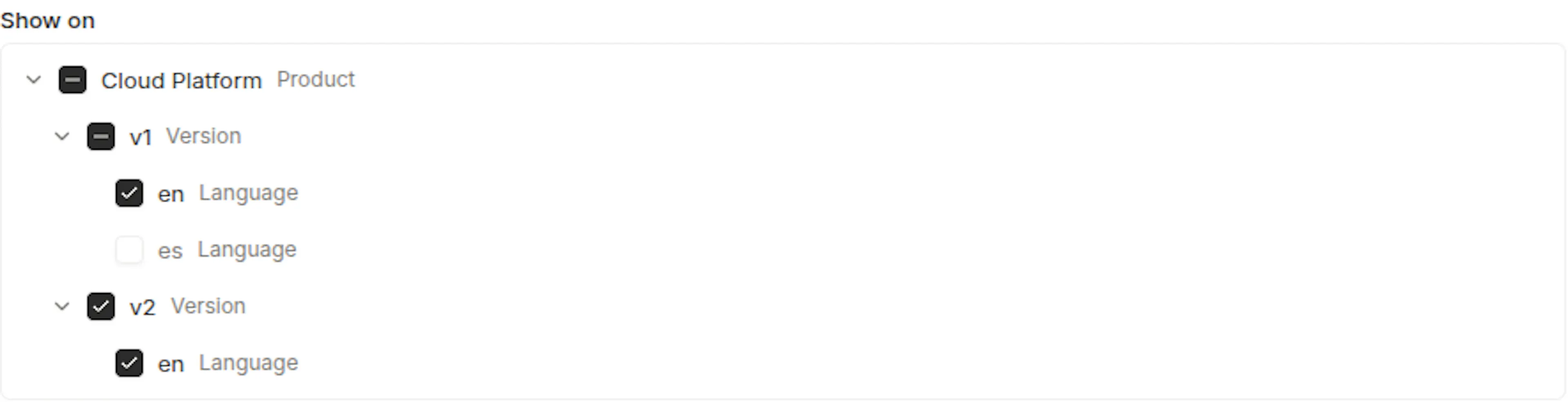
If nothing is selected, the banner would show nowhere, so it can't be saved.
Banners refer to products, versions, and languages by name, and don't follow a rename. After you rename one in your navigation and publish, a banner that showed only under the old name stops showing, and an entry left out under its old name shows the banner again. Open each banner that covered it, select where it should show, and save.
Which banner readers see
A reader sees the first banner, in this order, that covers the page and that they haven't closed:
- By type: Danger first, then Alert, then Info.
- Within a type: the banner turned on most recently comes first.
The Banners table lists your live banners in this order, followed by the ones that are off. You can't reorder banners by hand. To move a banner up within its type, turn it off and on again.
A banner readers can't close never makes way for the next one. While it covers a page, banners after it don't show there.
When a closed banner comes back
Each reader's browser remembers the banners they closed on your site. A closed banner shows again when you change its text or its type, so readers who closed the old message see the new one. Changing only its colour or where it shows doesn't bring it back.
If your site uses cookie consent, a closed banner is remembered only until the reader closes the browser tab, so nothing is kept on their device after the visit.
Format the text
Banner text can be up to 300 characters. Line breaks you type become spaces, so use <br> where you want the text to break.
| You write | Readers see |
|---|---|
**Scheduled maintenance** | Bold text |
*beta* | Italic text |
`v2` | Code |
[Status page](https://status.example.com) | A link |
A link can go to a page on your site, such as /guides/upgrade, to another website, to an email address with mailto:, or to a phone number with tel:.
You can also use these inline HTML tags: a, b, br, code, em, i, mark, s, small, span, strong, sub, sup, and u. Each can have a class attribute, and a can have href. Other tags, such as div or img, and other attributes, such as style, aren't supported. The editor names what to change, and the banner can't be saved until you do.
A class lets you style part of the text with custom CSS:
<span class="new-label">New</span> Search now covers every version.
Style banners with custom CSS
Each part of a banner carries a stable class name, listed on the Custom CSS page. The bar also carries a data-type attribute with its type: info, alert, or danger.
Banner colours come from these CSS variables. Set them on .dai-banner to change every banner, or on .dai-banner[data-type="danger"] to change one type. A variable you set wins over the type's colours and over the Background colour field, without !important.
On a banner with its own background colour, every part takes its colour from that background, so --dai-banner-accent has no effect there. Set each part's own variable instead, such as --dai-banner-bg or --dai-banner-link.
| Variable | What it sets |
|---|---|
--dai-banner-accent | The type's colour. The icon, bold text, links, and the line under the bar are drawn from it. |
--dai-banner-bg | Background |
--dai-banner-text | Text colour |
--dai-banner-border | The line under the bar |
--dai-banner-icon | Icon colour |
--dai-banner-bold | Bold text colour |
--dai-banner-link | Link colour |
--dai-banner-link-decoration | Link underline. Defaults to underline. |
--dai-banner-link-decoration-hover | Link underline on hover. Defaults to underline. |
/* Danger banners in your own red, in light and dark mode */
.dai-banner[data-type="danger"] {
  --dai-banner-accent: #b91c1c;
}

.dark .dai-banner[data-type="danger"] {
  --dai-banner-accent: #f87171;
}

/* Hide the type icon on every banner */
.dai-banner-icon {
  display: none;
}

/* Underline links only on hover */
.dai-banner {
  --dai-banner-link-decoration: none;
}

/* The label from the example above */
.dai-banner .new-label {
  border-radius: 9999px;
  padding: 0 6px;
  background: var(--dai-banner-accent);
  color: #ffffff;
}
While a banner shows, the --dai-banner-height variable on the html element holds its height, and 0px when none shows. Use it to keep your own sticky elements below the banner:
.my-sticky-bar {
  top: var(--dai-banner-height, 0px);
}
Manage banners from an AI agent
AI clients connected to the Authoring MCP Server can manage banners with list_banners, create_banner, update_banner, and delete_banner. Their changes go live right away, the same as changes made in the dashboard.
Limits
- Up to 50 banners per site
- Up to 300 characters of text per banner
Troubleshooting
"Your site is publishing. Change banners again when it finishes.": Banners can't change while your site publishes. Wait for the publish to finish, then try again.
"Saved. It shows after your first publish.": Your site hasn't been published yet. The banner is saved, and readers see it once you publish your site for the first time.
"Failed to update the banner. Please try again.", or the same for adding or deleting one: The change didn't reach your live site, so nothing was changed. Try again.
Show on can't be changed: documentation.json on your live site has a syntax error, so the dashboard can't read your products, versions, and languages. Fix the error in the Editor and publish.
A banner doesn't show on a page: Check that its Live switch is on and that the product, version, and language the page sits under are selected in Show on. Then check the order: a banner before it may cover the page, and a banner readers can't close keeps the ones after it from showing. If you closed the banner yourself, your browser keeps it closed until its text or type changes, so check in a private window.