

Groups
Understand how Groups organize pages in the sidebar, when to use them, and how they differ from dropdowns and page-level grouping.
Overview
Groups are sidebar sections that organize related pages into clear, collapsible chunks like "Getting Started" or "API Documentation".
At the configuration level, a group is defined with properties such as group, icon, expandable, openapi, and pages. At the reader level, that same group appears as a labeled section in the left sidebar that can contain pages and nested sections.
Use groups when you want to:
-
Collect related pages under a shared heading
-
Control whether sections start collapsed or expanded
-
Attach API or OpenAPI definitions to a section of the sidebar
-
Keep large documentation sets scannable and predictable
For low-level configuration details, see Site Configuration. For UI-based workflows, read below.
Adding groups in the Web Editor
You can create groups directly from the Web Editor sidebar without touching configuration files. A Group is a labeled sidebar section that contains pages, created via Add Group from the Pages menu.
Select the correct Dimension and View:
-
Open the Editor from your dashboard.
-
In the sidebar, select the Dimension and View from the dropdowns at the top.
-
The sidebar content list below updates for that Dimension + View.
When the sidebar shows Groups already exist:
-
You are already using group-based navigation for the selected Dimension + View.
-
To create a new group at this level, click the + icon next to the Groups section.
-
Name the group (for example, “Getting Started”) and save.
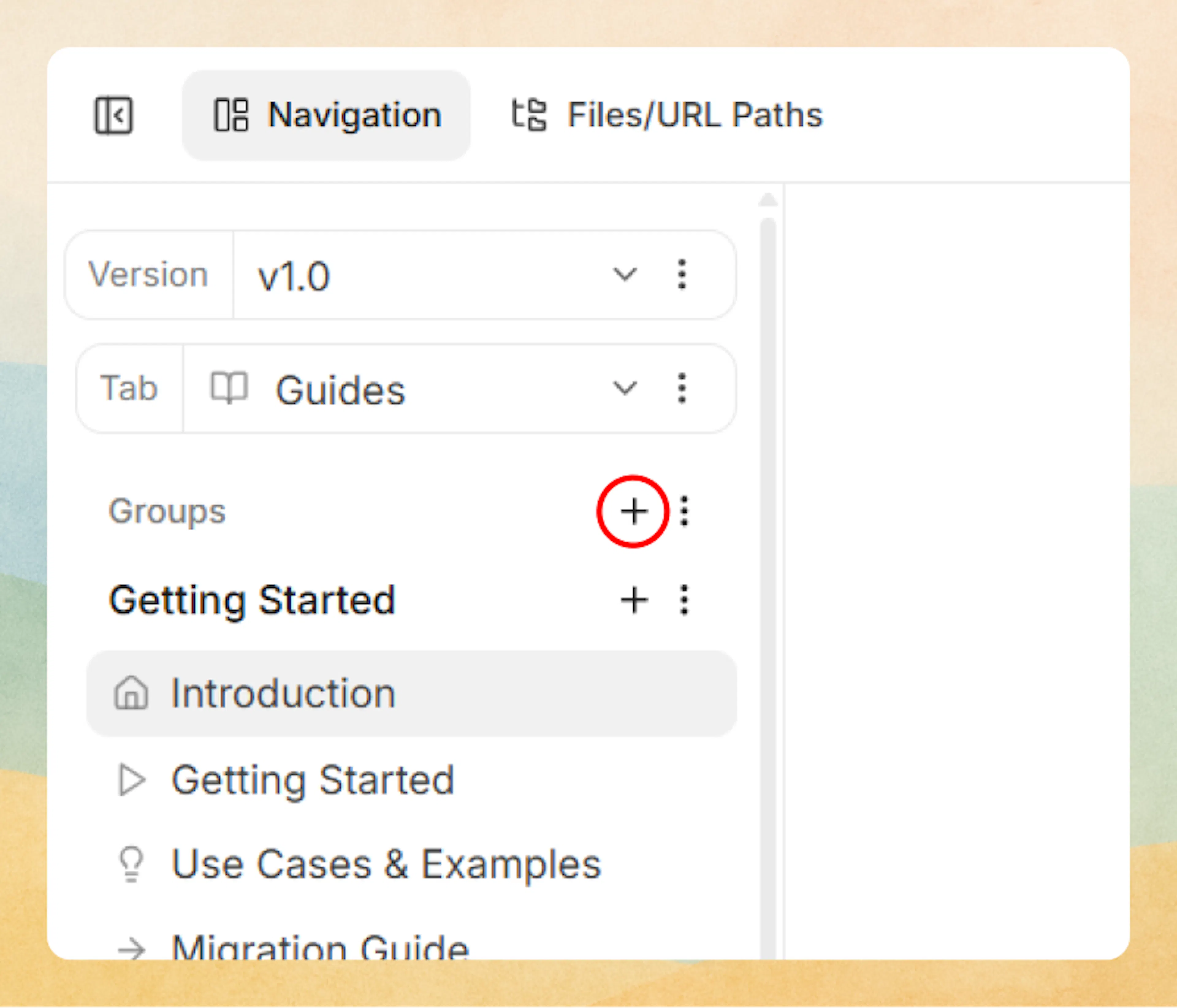
After the group is created, you can add pages inside it using the + icon next to the group name.
When the sidebar section is still flat (only pages):
-
This Dimension + View currently has a flat page list (no groups at that level).
-
Click the + menu next to Pages, then select Add Group.
-
Give the group a clear name and, optionally, drag it to adjust its position.
After you add a group, new pages at this level should be created inside groups.
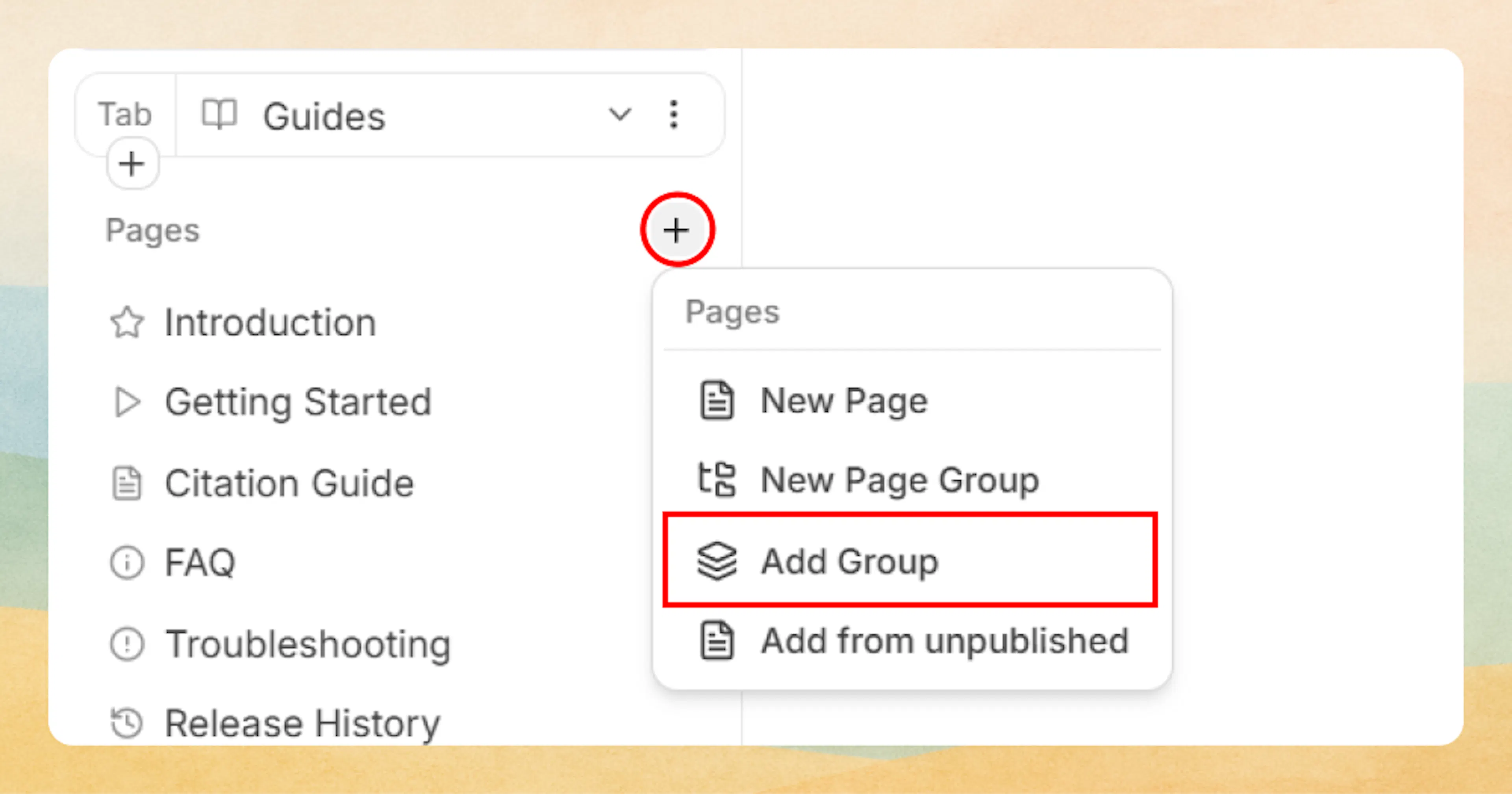
Once groups exist at a level, new pages are created inside groups, not as root-level siblings. To keep navigation predictable, avoid mixing grouped and ungrouped content at the same level.
Add pages inside a group
When the sidebar shows Groups:
-
Find the group you want (for example, “Getting Started”).
-
Click the + icon next to that group name to add a page inside it.
What a group is (and is not)
Groups in the navigation layer
In the navigation and site configuration, groups:
-
Are top-level or nested sidebar sections
-
Have a
groupname shown as the label -
Can have a Lucide
iconnext to the label -
Can be
expandableso readers can collapse or expand them -
Contain a
pagesarray that holds:-
Page entries (individual docs)
-
Nested group entries (subsections)
-
API/OpenAPI-backed sections, via
openapi
-
The pages array is where you structure the hierarchy of your sidebar.
How groups differ from dropdowns
"Dropdown" behavior in the header or navbar is separate from groups:
-
Groups: control the left sidebar content tree.
-
Dropdowns: live in the top navigation bar and typically link into existing sidebar locations or external URLs.
You can link a top-nav dropdown item into a group section, but the dropdown itself does not define groups or their structure.
How groups differ from page-level grouping
Some pages may use headings, tabs, or other components to group content inside a single page. That is page-level grouping, not navigation-level grouping.
-
Groups organize where pages live in the sidebar.
-
Page-level grouping organizes content inside a page.
A long conceptual guide might live as a single page inside one group, even if it uses headings, tabs, or other components to structure its internal content.
When to introduce groups vs keep flat pages
You do not need groups for every section. In many cases, a flat list of pages is simpler and easier to manage.
Use flat pages when
-
A section has only a handful of pages (for example, 2–5)
-
The topic is narrow and easy to scan without categories
-
You are still shaping the information architecture and do not yet know stable categories
Flat sections are easier to maintain early on and avoid over-structuring.
Introduce groups when
Consider introducing groups inside a tab or section when:
-
There are more than 5–7 pages at a given level
-
You have distinct themes like "Getting Started", "Guides", "Reference"
-
You mix different content types, such as:
-
Conceptual guides
-
How-to topics
-
API reference sections
-
-
You want collapsible behavior to keep the sidebar compact
-
You are importing or organizing a larger API reference and need separate sections per service or tag
From the Web Editor perspective, once you add a group at a level:
-
The label in that area changes from "Pages" to "Groups"
-
You create new sections by adding groups
-
You add content inside a group instead of as sibling pages
Avoid mixing grouped and ungrouped content at the same level. Decide whether a level should consist entirely of pages or entirely of groups, and keep that choice consistent.
What groups can contain
Groups define their children using a pages array. That array can hold:
-
Individual page items
-
Nested groups
-
API/OpenAPI-backed sections
These can be mixed in a single pages array.
Pages inside a group
A standard group may look like:
{
  "group": "Getting Started",
  "icon": "info",
  "expandable": true,
  "pages": [
    { "title": "Introduction", "path": "getting-started/introduction" },
    { "title": "Core concepts", "path": "getting-started/core-concepts" },
    { "title": "Quickstart", "path": "getting-started/quickstart" }
  ]
}
This renders a "Getting Started" section with three pages under it.
Nested groups
You can nest groups within other groups to add another level of structure:
{
  "group": "Customize",
  "icon": "palette",
  "expandable": true,
  "pages": [
    {
      "group": "SEO & GEO",
      "icon": "search-check-icon",
      "pages": [
        {
          "title": "Structured Data",
          "path": "seo-and-geo/structured-data"
        },
        {
          "title": "Sitemap",
          "path": "seo-and-geo/sitemap"
        }
      ]
    },
    {
      "title": "Site Configuration",
      "path": "customize/site-configuration"
    }
  ]
}
Here, "SEO & GEO" is a nested group inside "Customize", alongside other pages.
API/OpenAPI-backed groups
Groups can also bind directly to an OpenAPI specification using the openapi property in site configuration. In that case, the group acts as a container for generated API docs:
-
The
grouplabel appears in the sidebar. -
The
openapipath tells the system where to load the spec from. -
The generated API reference structure renders inside that group.
For practical organization patterns, see Organize API Reference and OpenAPI / JSON Schema Import.
How this fits with the "one-child" rule
In navigation, the key constraint is consistency at each level:
-
At any given level:
-
Either keep items as ungrouped pages, or
-
Organize them inside groups.
-
-
Within a group, the
pagesarray may mix:-
Page items
-
Nested groups
-
API/OpenAPI-backed entries
-
Internally, this keeps a clear parent-child relationship:
-
Tabs contain groups or pages.
-
Groups contain pages and/or more groups.
-
API/OpenAPI-backed groups generate their own deeper structure, but still hang off a single group node in the tree.
Content pages on groups
By default, a group is a structural container with no page of its own. When a reader clicks a group label in the sidebar, it expands or collapses the group; there is nothing to navigate to.
You can change this by attaching a content page to a group. A content page gives the group its own MDX-backed page with a unique path, so clicking the group label navigates to that page instead of only toggling expansion.
When to attach a content page
Attach a content page to a group when:
- You want a landing page that introduces the section before readers dive into child pages
- You need a hub page that uses Collection components to showcase everything in the group
- You want the group to appear in breadcrumb navigation as a clickable link, not just a label
- You are building a help center or FAQ where each category has its own overview
A content page on a group is optional. Most groups work fine without one. Add it only when readers would benefit from an overview or entry point for the section.
Add a content page in the Web Editor
Open the group settings
In the editor sidebar, find the group you want to edit. Click the menu icon (three dots) next to the group name and select Edit or Attach Content Page.
Configure the content page
Toggle Include Content Page on. Enter a path (slug) for the page, for example guides/overview. You can also browse unpublished pages to reuse an existing MDX file.
Write the content
The group now opens its content page when clicked. Write your overview, add Collection components, or use any other MDX content.
Add a content page in configuration
Add a path property to the group entry in your documentation.json:
{
  "group": "Getting Started",
  "icon": "info",
  "expandable": true,
  "path": "getting-started/overview",
  "pages": [
    { "title": "Introduction", "path": "getting-started/introduction" },
    { "title": "Quickstart", "path": "getting-started/quickstart" }
  ]
}
The path value follows the same rules as any page path: lowercase kebab-case, unique across your docs, and without the .mdx extension.
Display options on content pages
When a group has a content page, you can configure the same display options available on regular pages:
badge– A short label like"New"or"Beta"shown as a pill next to the group nameshow-sidebar,show-toc,show-parent-label,content-width,show-page-navigation,ask-feedback– All work the same as on regular pages (see Page Configuration)methodandtags– Available for API-oriented content pages
How content pages affect navigation
When a group has a content page:
- The group label in the sidebar becomes a clickable link that navigates to the content page.
- The group still expands and collapses to show child pages.
- The content page appears in breadcrumb navigation with a clickable link.
- The content page is included in search results and AI-powered features like any other page.
- Access control and public/private settings on the group are inherited by the content page.
Detach a content page
To remove a content page from a group without deleting the MDX file:
- In the Web Editor, open the group settings and click Detach Content Page.
- In configuration, remove the
pathproperty from the group entry.
The MDX file remains as an unpublished page that you can reattach later or add elsewhere.
Practical patterns and gotchas
Common grouping patterns
Use these patterns as starting points for your sidebar:
-
Intro + concepts + guides
-
Group: "Getting Started"
- Pages: "Introduction", "Quickstart"
-
Group: "Concepts"
- Pages: "Core concepts", "Architecture overview"
-
Group: "How-to guides"
- Pages: "Authenticate", "Handle errors", "Migrate from v1"
-
-
Product areas
-
Group: "Workspace"
-
Group: "Data sources"
-
Group: "AI features"
-
Group: "Administration"
-
-
API-heavy docs
-
Group: "REST API"
- Uses
openapito generate routes
- Uses
-
Group: "GraphQL API"
- Pages: "Overview", "Schema", "Examples"
-
Group: "SDKs"
- Pages per language
-
Gotchas to avoid
-
Mixing pages and groups at the same top level
Once you introduce a group at a level, convert other siblings at that level into groups too, instead of leaving some as raw pages. -
Over-nesting
Deeply nested groups make navigation harder. Prefer 2–3 levels of depth in the sidebar. -
Unclear group names
Use concise, action-neutral names that reflect content, such as "Customize", "Analytics", or "AI Features", rather than vague labels like "Misc" or "Other". -
Misusing groups for single pages
If a group will only ever contain one page, it may be simpler to keep that page at the parent level instead of wrapping it in a group.
When reorganizing an existing site, start by grouping the noisiest sections first (for example, API, integrations, or many small guides). Once those areas are structured, revisit smaller sections and only introduce groups where they improve scanability.
Where to configure and manage groups
You can manage groups in two primary ways:
-
Web Editor: Use the Web Editor view to create, rename, and reorder groups visually.
-
Site configuration file: Edit the
tabsandgroupsstructure directly in your configuration to definegroup,icon,expandable,openapi, andpages. See Site Configuration.
Use whichever workflow fits your team: the Web Editor for everyday maintenance, and configuration files for bulk changes or version-controlled navigation.