

Code blocks and groups
Display inline code and code blocks with syntax highlighting, line highlighting, focus effects, and tabbed interfaces for multiple examples.
Overview
Use code blocks to show syntax-highlighted code with a built-in copy button. Use code groups when you want tabs (for example, "JavaScript," "Python," and "cURL") so readers can switch between multiple examples in one place.
Code blocks and groups are ideal for:
-
Single code snippets with syntax highlighting and copy support
-
Multi-language SDK examples in tabs (similar to Tabs)
-
Before/after, request/response, or setup/usage comparisons
-
Step-by-step walkthroughs when combined with Steps
At a high level:
-
Code blocks: One snippet, one language.
-
Code groups: Multiple snippets, each with its own language and tab.
You can create both from the Web Editor or by writing MDX/Markdown in the Code Editor. The underlying syntax is the same, so you can safely switch between editors.
Using with Web Editor
In the Web Editor, use the slash menu to insert and manage code blocks and groups.
Insert a code block
-
Place your cursor on a new line.
-
Type / and select Code Block.
-
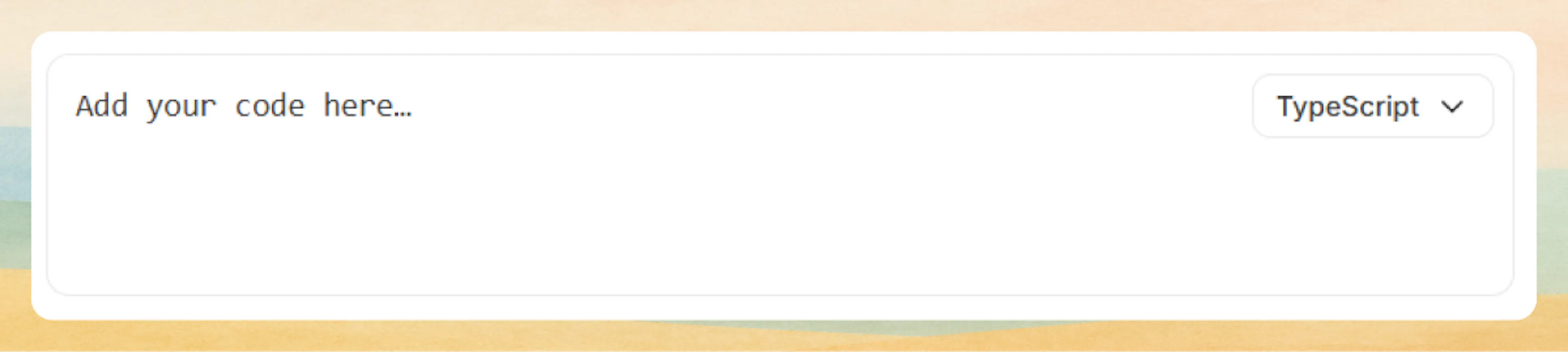
A code block appears with the placeholder "Add your code here…". Paste or type your code into the block.
Use the language dropdown on the top-right of the block to pick the correct language. This controls syntax highlighting and the copy behavior.
Insert a code group
-
Place your cursor on a new line.
-
Type / and select Code Group.
-
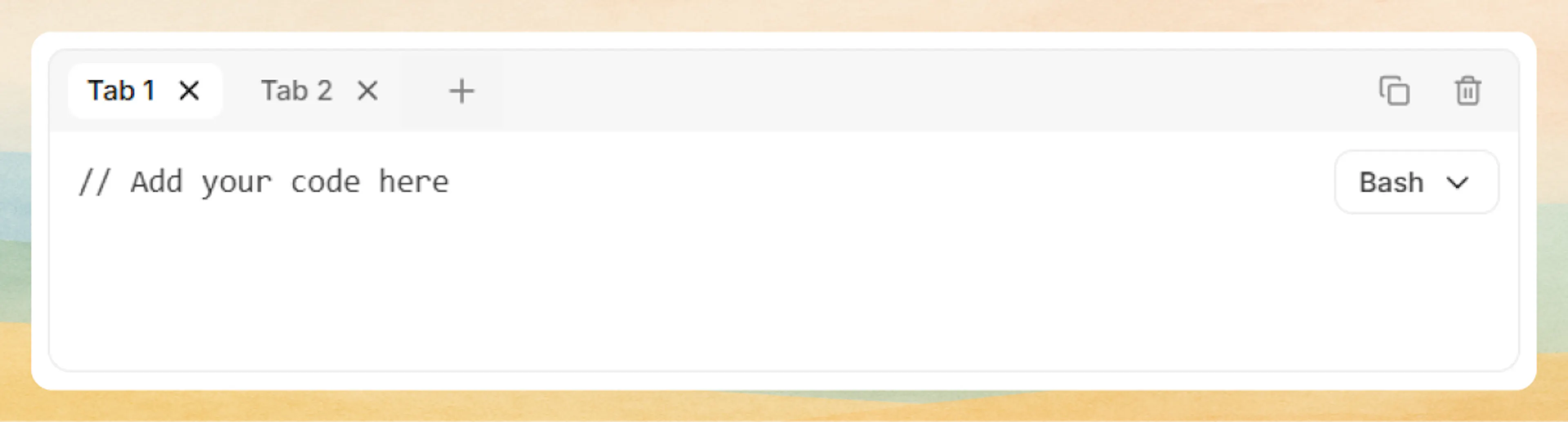
A group is created with a default tab (for example, Tab 1) and a code editor area.
Inside a code group you can:
-
Add a tab: Click the + next to the last tab.
-
Rename a tab: Double-click the tab label (for example, "Tab 1") and type a new name (for example, "TypeScript" or "Python").
-
Remove a tab: Use the tab's close icon (if available) or delete the last remaining tab to remove the group.
-
Pick a language per tab: Use the language dropdown on each tab's code block.
The group toolbar also lets you duplicate or delete the entire group.
Prefer writing in code?
You can switch to MDX view inside the Web Editor to write or edit this component using the same syntax as the Code Editor. This is useful if you want full control while staying in the Web Editor.
Using with Code Editor
When working in a code editor, you write code blocks and code groups with standard fenced code syntax and the <CodeGroup> component.
Single code block
Use fenced code blocks with three backticks and a language identifier:
const apiCall = async () => {
  const response = await fetch("/api/docs");
  return response.json();
};
```typescript
const apiCall = async () => {
  const response = await fetch("/api/docs");
  return response.json();
};
```
CodeGroup with multiple languages
Wrap multiple fenced code blocks in a <CodeGroup> component to render them as tabs:
<CodeGroup tabs="TypeScript,Python,Bash">
```typescript
const response = await fetch("/api/docs", {
  method: "POST",
  headers: { "Content-Type": "application/json" },
  body: JSON.stringify({ title: "Getting Started" })
});
```

```python
import requests

response = requests.post(
  "https://api.example.com/docs",
  json={"title": "Getting Started"}
)
```

```bash
curl -X POST https://api.example.com/docs \
  -H "Content-Type: application/json" \
  -d '{"title": "Getting Started"}'
```
</CodeGroup>
Notes:
-
Each fenced block inside
<CodeGroup>must have a language tag (for example,typescript,python,bash). -
tabs="TypeScript,Python,Bash"controls the visible tab labels. If you omittabs, the language names are used instead. -
You can combine
<CodeGroup>with Tabs or Steps when you need more complex layouts.
Advanced options
Use these attributes and patterns to fine-tune how code blocks and groups render.
Line highlighting
Use the highlight prop on a fenced code block to emphasize specific lines:
const greeting = "Hello, World!";
function sayHello() {
  console.log(greeting);
}
sayHello();
```javascript highlight="1-2,5"
const greeting = "Hello, World!";
function sayHello() {
  console.log(greeting);
}
sayHello();
```
Line focus
Use the focus prop to dim non-focused lines and draw attention to a subset of the code:
const greeting = "Hello, World!";
function sayHello() {
  console.log(greeting);
}
sayHello();
```javascript focus="2,4-5"
const greeting = "Hello, World!";
function sayHello() {
  console.log(greeting);
}
sayHello();
```
Line numbers
Combine highlighting or focus with line numbers using show-lines={true}:
interface User {
  name: string;
  age: number;
}
```typescript highlight="1,3" show-lines="true"
interface User {
  name: string;
  age: number;
}
```
Wrap long lines
Use the wrap parameter to control whether long lines stay on a single row with horizontal scrolling or automatically wrap onto the next visual line inside the code block.
You can enable wrapping in several equivalent ways on a fenced block: wrap, wrap="true", wrap=true.
const longLine = "This is a very long line of code that would normally require horizontal scrolling, but with wrap enabled it will wrap to the width of the container instead of overflowing.";
const longLine = "This is a very long line of code that would normally require horizontal scrolling, but with wrap enabled it will wrap to the width of the container instead of overflowing.";
You can also combine wrap with other parameters like highlight and show-lines:
const longLine = "This line is highlighted, shows a line number, and wraps instead of scrolling horizontally across the viewport.";
```typescript wrap
const longLine = "This is a very long line of code that would normally require horizontal scrolling, but with wrap enabled it will wrap to the width of the container instead of overflowing.";
```

```typescript wrap="true"
const longLine = "This is a very long line of code that would normally require horizontal scrolling, but with wrap enabled it will wrap to the width of the container instead of overflowing.";
```

```typescript highlight="1" show-lines="true" wrap="true"
const longLine = "This line is highlighted, shows a line number, and wraps instead of scrolling horizontally across the viewport.";
```
When to use wrapping:
-
Use
wrapwhen you want readers to see the full line without side-scrolling (for example, configuration files or long shell commands), especially in narrow layouts or on mobile devices. -
Avoid
wrapwhen alignment and spacing matter (for example, formatted logs, tables, or columns rendered in code), where wrapping can make structure harder to see.
CodeGroup options
<CodeGroup> supports the same block-level props (for example, highlight, focus, show-lines) inside each tabbed code block.
<CodeGroup tabs="TypeScript,Python,Bash">
```typescript
const response = await fetch('/api/docs', {
  method: 'POST',
  headers: { 'Content-Type': 'application/json' },
  body: JSON.stringify({ title: 'Getting Started' })
});
```

```python
import requests
response = requests.post('/api/docs',
  json={'title': 'Getting Started'}
)
```

```bash
curl -X POST https://api.example.com/docs \\
  -H "Content-Type: application/json" \\
  -d '{"title": "Getting Started"}'
```
</CodeGroup>
const response = await fetch('/api/docs', {
  method: 'POST',
  headers: { 'Content-Type': 'application/json' },
  body: JSON.stringify({ title: 'Getting Started' })
});
import requests
response = requests.post('/api/docs',
  json={'title': 'Getting Started'}
)
curl -X POST https://api.example.com/docs \\
  -H "Content-Type: application/json" \\
  -d '{"title": "Getting Started"}'
You can also control tabs explicitly:
-
tabs: Comma-separated list of tab labels, for exampletabs="TypeScript,Python,Bash". -
show-lines: Set on the component (for example,show-lines={true}) to show line numbers for all blocks in the group.
<CodeGroup show-lines={true} tabs="Highlighted,Focused">
```javascript highlight="2-3"
const greeting = "Hello, World!";
function sayHello() {
  console.log(greeting);
}
```

```javascript focus="1,3"
const greeting = "Hello, World!";
function sayHello() {
  console.log(greeting);
}
```
</CodeGroup>
If you omit tabs, language identifiers are used as labels:
<CodeGroup>
```typescript
const example = "This tab shows: typescript";
```

```python
example = "This tab shows: python";
```
</CodeGroup>
Auto-detected tabs
Without the tabs attribute, CodeGroup automatically uses language identifiers as tab names:
const example = "This tab shows: typescript";
example = "This tab shows: python"
<CodeGroup>
```typescript
const example = "This tab shows: typescript";
```

```python
example = "This tab shows: python"
```
</CodeGroup>
CodeGroup with highlighting and focus
Line highlighting and focus effects work within CodeGroup tabs:
const greeting = "Hello, World!";
function sayHello() {
  console.log(greeting);
}
const greeting = "Hello, World!";
function sayHello() {
  console.log(greeting);
}
<CodeGroup tabs="Highlighted,Focused">
```javascript
const greeting = "Hello, World!";
function sayHello() {
  console.log(greeting);
}
```

```javascript
const greeting = "Hello, World!";
function sayHello() {
  console.log(greeting);
}
```
</CodeGroup>
Nested code examples (four backticks)
When you need to show code that itself contains code fences, wrap the outer block in four backticks:
````typescript
```typescript
function calculateTotal(price: number, tax: number): number {
  return price + (price * tax);
}
```
````
Attribute reference
Use these attributes on fenced code blocks or <CodeGroup>:
Line numbers or ranges to highlight. Examples: "1", "1-3", "1,3,5-7".
Line numbers or ranges to focus on (blurs other lines). Examples: "2", "2-4", "1,4-6".
Set to {true} to show line numbers for a block or an entire group.
Comma-separated custom tab names (for example, "TypeScript,Python,Bash"). Overrides auto-detected language labels.
Controls whether long lines wrap inside the code block. Defaults to false (no wrapping, horizontal scrolling). Set using wrap, wrap="true", or wrap={true} to enable white-space: pre-wrap and word-break: break-word with vertical scrolling only.