

Videos and iframes
Reference for uploading and embedding videos and iframes using the editor UI and the Video / Iframe components.
Overview
Use videos and iframes to embed rich, interactive content directly in your docs, such as:
-
Product walkthroughs and demos uploaded to your media library (MP4, WebM, MOV)
-
Hosted videos from platforms like YouTube, Vimeo, and Loom
-
External tools and dashboards (forms, analytics, sandboxes)
In Documentation.AI you can:
-
Use the Web Editor to upload a video, pick one from the library, or paste a link or embed code, then adjust layout visually.
-
Use the Code Editor to write
<Video>and<Iframe>components in MDX for full control.
For static images, see Images. For downloadable files and audio, see Files. For showing embed code examples (such as iframe snippets) as code instead of rendering them, use Code and Groups.
Uploaded videos are hosted by Documentation.AI and served from a CDN. The per-file limit depends on your plan: 20 MB on Starter, 30 MB on Standard, and 50 MB on Professional and Enterprise. For longer or larger videos, host them on a video platform and embed the link.
Using with Web Editor
Insert an uploaded video
-
Place your cursor on a new line in the Web Editor.
-
Type / and select Video.
-
In the Select video dialog, either:
-
Click the Upload tile, choose a video file, confirm or edit its name, and click Upload, or
-
Search and select a video that is already in your media library.
-
-
Click Insert video.
The video appears in your document as a native player with a poster frame captured from the first frame at upload. Uploaded videos also count toward your organization's storage quota.
You can also insert videos from the Media tab in the editor's secondary navbar: hover a video tile and click Insert into page, or drag the tile onto the page. Dropping a video file directly onto the page uploads and inserts it in one step.
Insert a video link or embed code
-
Type / and select Video.
-
In the Select video dialog, click URL or embed code.
-
In the Video URL or Embed Code dialog, paste either:
-
A video URL (YouTube, Vimeo, Loom, a direct MP4 URL, and so on), or
-
An
iframeembed code copied from another tool.
-
-
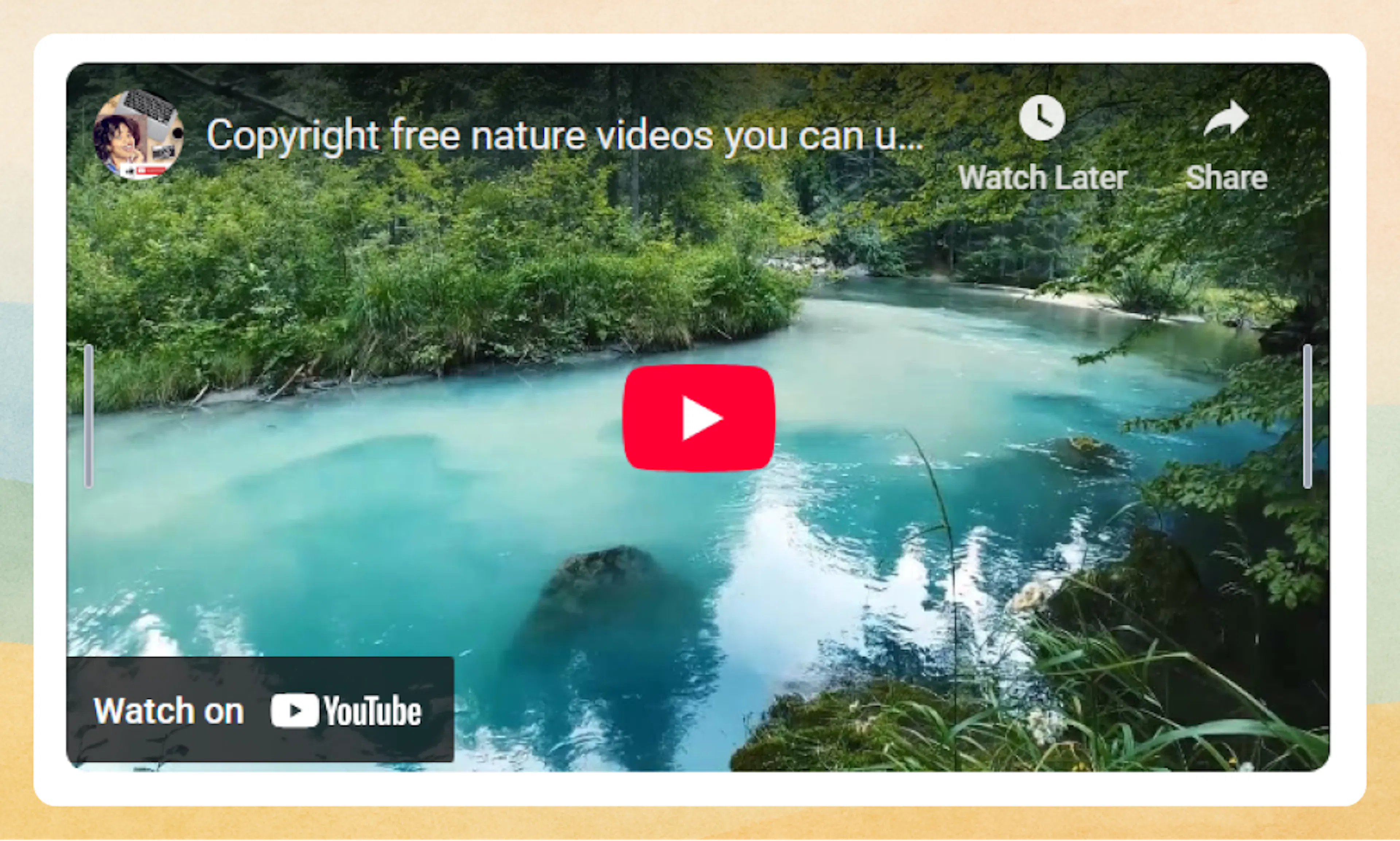
Click Insert Video. The video or iframe appears in your document.
You can use the same block for both direct video URLs and iframe-based embeds from other platforms.
Prefer writing in code?
You can switch to MDX view inside the Web Editor to write or edit this component using the same syntax as the Code Editor. This is useful if you want full control while staying in the Web Editor.
Align and resize
Hover over the embedded video or iframe to reveal controls:
-
Top-right toolbar
-
Alignment icon: Change alignment (for example, left, center, or right), similar to images.
-
Other actions: May include zoom or delete, depending on your configuration.
-
-
Side drag handles
-
Drag the left or right handle to adjust the width.
-
The height adjusts automatically to keep the original aspect ratio for videos.
-
Use these controls to keep layouts consistent with nearby content and images.
Replace an uploaded video
To swap the content of an uploaded video without editing any page, open it in the media library and click Replace file. The URL stays the same, a fresh poster frame is captured, and every page using the video shows the new version.
Using with Code Editor
In the Code Editor, you work directly in MDX using the <Video> and <Iframe> components.
<Video> component (iframe mode)
Use iframe mode for platforms that provide an embed URL, such as YouTube, Vimeo, Loom, or Wistia. This is the default mode when render-type is not set.
<Video
  src="https://www.youtube.com/embed/Reu01KxMSF0"
  title="Feature overview video"
  width="672"
  height="378"
  allow-full-screen="true"
  style="width: 100%; max-width: 672px; height: auto;"
/>
Key props:
-
src(string, required): Video embed URL from the platform. -
width/height(string): Player dimensions in pixels. -
title(string): Accessible title for screen readers. Defaults to "Embedded video". -
allow-full-screen(boolean-like): Allow fullscreen playback (defaults totrue). -
priority(boolean-like): Load immediately instead of lazy loading. -
style(string): Inline styles for alignment and sizing.
<Video> component (video mode)
Use video mode for video files, including videos uploaded to the media library. Set render-type="video" so the file plays in a native HTML5 player instead of being embedded as an iframe. This is what the Web Editor writes when you insert an uploaded video.
<Video
  src="https://video-cdn.documentation.ai/org-.../doc-.../1757300000000-abc123-feature-walkthrough.mp4"
  poster="https://blob-cdn.documentation.ai/org-.../doc-.../1757300000000-abc123-feature-walkthrough-poster.jpg"
  render-type="video"
  width="672"
  height="378"
  controls="true"
  style="width: 100%; max-width: 672px; height: auto;"
/>
Additional props for video mode:
-
render-type(string): Set to"video"for file playback. Omit or use"iframe"for platform embeds. -
poster(string): Poster image shown before playback. Uploaded videos get one automatically; copy it from the media library's insert snippet. -
controls(boolean-like): Show video controls (defaults totrue). -
autoplay(boolean-like): Start playing when the page loads. -
muted(boolean-like): Start muted (often required for autoplay). -
loop(boolean-like): Loop playback. -
fetchPriority(string):high,low, orauto. -
title(string): Accessible label for the player.
Preloading is handled automatically: with a poster, the browser loads nothing until the reader presses play; without one, it loads the video's metadata so the player shows a first frame instead of a black box.
Boolean-like props must be the string "true" to enable. Values such as "1" or "yes" are treated as false. Bare JSX booleans like muted also work.
<Iframe> component
Use <Iframe> for non-video embeds such as forms, dashboards, and interactive tools.
<Iframe
  src="https://docs.google.com/forms/d/e/1FAIpQLSexample/viewform"
  title="Customer feedback form"
  width="100%"
  height="600"
  sandbox="allow-scripts allow-same-origin allow-presentation"
  allow-full-screen="true"
  style="border: 1px solid #e5e7eb; border-radius: 8px;"
/>
Key props:
-
src(string, required): URL of the external content. -
width/height(string): Dimensions in pixels or percentages. -
title(string): Accessible title for screen readers. -
allow-full-screen(boolean-like): Allow fullscreen where supported. -
sandbox(string): Space-separated sandbox restrictions. -
priority(boolean-like): Load immediately instead of lazy loading. -
style(string): Inline styles for borders and layout.
Use Code and Groups when you want to show iframe snippets as examples rather than render them.
Advanced options
Platform support
Commonly used video sources:
-
Uploaded files (video mode): MP4, M4V, WebM, MOV, served from
video-cdn.documentation.ai -
Video platforms (iframe mode): YouTube, Vimeo, Loom, Wistia
Most platforms provide both a shareable URL and an iframe embed code; use whichever best matches your workflow (Web Editor block or MDX component).
Accessibility and layout best practices
-
Always set a meaningful
titleon<Video>and<Iframe>for better screen reader support. -
Specify
widthandheightto improve layout stability and avoid content shifting as media loads. -
Use responsive styles (for example,
style="width: 100%; max-width: 672px; height: auto;") so embeds look good on smaller screens. -
Keep a
posteron uploaded videos so the page does not load video bytes until the reader plays it. -
For important, above-the-fold embeds, consider
priority="true"(iframe mode) orfetchPriority="high"(video mode); otherwise, rely on lazy loading to keep pages fast.
Security considerations for iframes
-
Use the
sandboxattribute on<Iframe>to limit what embedded content can do. -
Start with a restrictive value and add only what you need, for example:
sandbox="allow-scripts allow-same-origin allow-presentation"
-
Only embed content from origins you trust, especially when allowing scripts or same-origin access.
Specifications
-
Uploaded formats: MP4, M4V, WebM, MOV.
-
Per-file limit: 20 MB (Starter), 30 MB (Standard), 50 MB (Professional and Enterprise).
-
Poster: Captured automatically at upload and stored with the video.
-
Replace: Keeps the URL. Same file type only.