

Headings and Text
Reference for headings, paragraphs, inline styles, links, and spacing using both the editor UI and MDX.
Overview
Headings, paragraphs, inline formatting, and links are the core building blocks for every page in your Documentation.AI project. You use them to:
-
Structure content into clear sections with headings.
-
Write readable paragraphs with appropriate spacing.
-
Emphasize important terms using bold, italic, or inline code.
-
Add links to related docs, external sites, and API references.
The page title renders as H1, so body headings typically begin at ##. You can work with this content either in the Web Editor (visual editing with a slash menu and toolbar) or the Code Editor (direct MDX/Markdown). Both editors use the same underlying MDX syntax.
For lists and tabular data, see Lists and Tables. For highlighting important notes or warnings, use Callout. For code examples, use Code and Groups.
Using with Web Editor
The Web Editor lets you manage headings, body text, emphasis, links, and spacing visually, while still generating MDX under the hood.
Headings
-
Place your cursor on a new line.
-
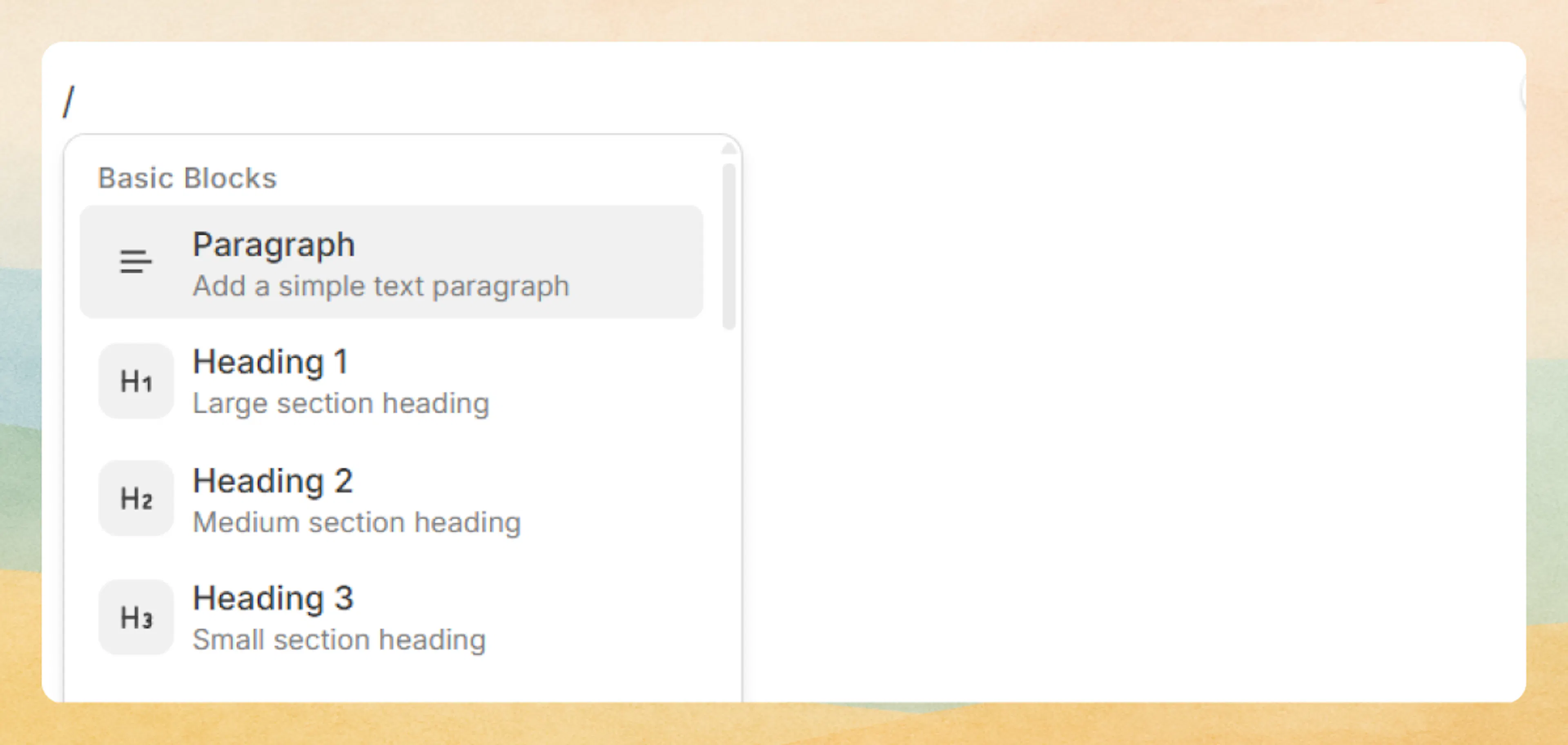
Open the slash menu with /.
-
Choose Heading 2, Heading 3, or Heading 4.
-
Type your heading text.
You can also:
-
Use the left-hand block dropdown to switch between Paragraph and heading levels.
-
Promote or demote a heading by changing the level in the block dropdown (for example, Heading 3 → Heading 2).
Paragraphs and basic text
-
Start typing in a Paragraph block (the default block type).
-
Press Enter once to create a new paragraph.
-
Use the block dropdown to change a heading back to Paragraph.
Use short paragraphs focused on a single idea. For bullets or numbered steps, switch to list blocks (see Lists and Tables).
Inline emphasis and formatting
To format part of a sentence:
-
Select the text you want to format inside a paragraph or heading.
-
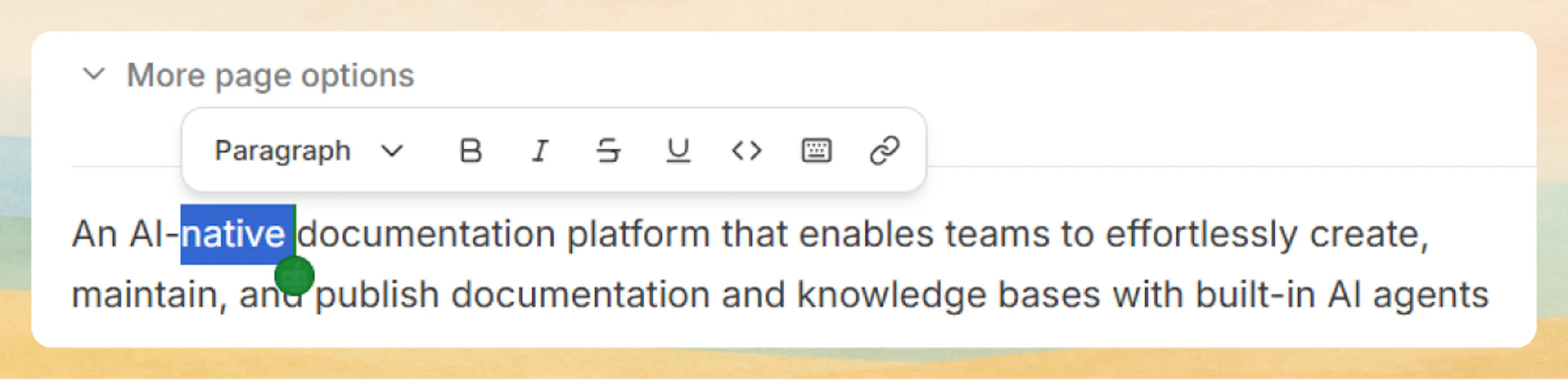
Use the floating toolbar:
-
B – bold
-
I – italic
-
S– strikethrough -
`</>`– inline code -
⌨ – keyboard or shortcut style
-
You can combine styles (for example, bold + link or italic + inline code) when it improves clarity.
Links
-
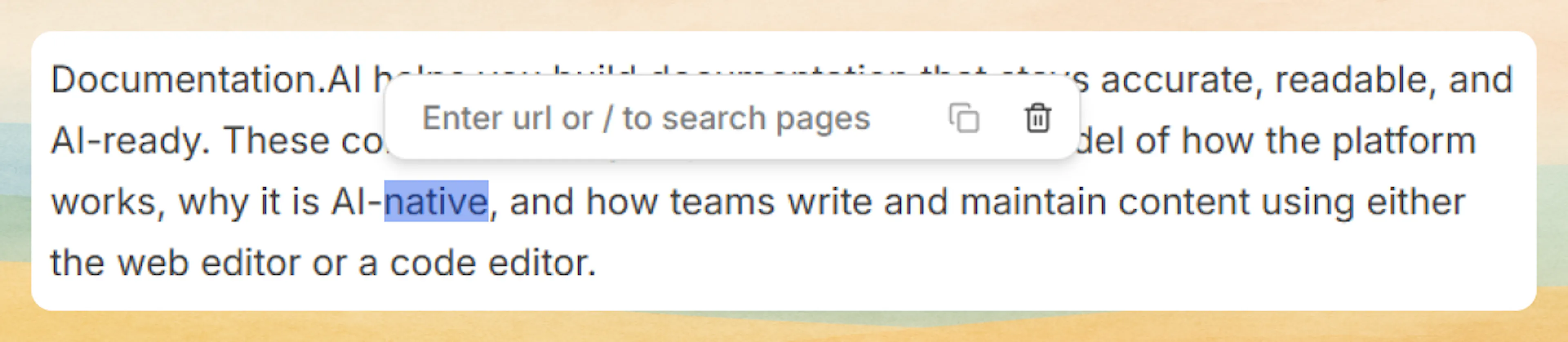
Select the text you want to turn into a link.
-
Click the link icon in the floating toolbar or press the link shortcut (if available in your browser).
-
In the link dialog:
-
Internal link
-
Type / to search existing documentation pages.
-
Pick a result to create a link to that page (for example,
/getting-started/quickstart).
-
-
External link
- Paste the full URL (for example,
https://documentation.ai) and press Enter.
- Paste the full URL (for example,
-
To edit or remove a link, place your cursor inside the linked text and reopen the link dialog.
Line breaks and spacing
-
New paragraph: Press Enter once.
-
Continue the same paragraph: Use soft-wrap by letting the editor wrap long lines automatically.
-
Avoid stacked blank lines: Use headings, paragraphs, and components like Callout or Steps instead of adding multiple empty lines for spacing.
Prefer writing in code?
You can switch to MDX view inside the Web Editor to write or edit this component using the same syntax as the Code Editor. This is useful if you want full control while staying in the Web Editor.
Using with Code Editor
In the Code Editor, you work directly with MDX/Markdown to define headings, paragraphs, inline styles, links, and spacing. The same syntax is available when you switch the Web Editor into MDX view.
Headings
Use # characters at the start of a line to create headings. The page title renders as H1, so start body content at ##:
## Section title
### Subsection
#### Detail (H4 is usually the deepest level)
Keep heading text short and descriptive so AI features and navigation can understand the structure.
Paragraphs
Separate paragraphs with a single blank line:
This is a paragraph with one idea.

This is another paragraph that advances the topic.
Avoid adding multiple consecutive blank lines; one blank line is enough.
Inline emphasis and formatting
Use standard Markdown syntax for inline styles:
**Bold** text for strong emphasis.

*Italic* text for subtle emphasis.

~~Strikethrough~~ for removed or deprecated content.

Use `inline code` for code-like terms, HTTP methods, or field names.

Press <kbd>Ctrl</kbd> + <kbd>C</kbd> to copy.
Rendered result:
-
Bold text
-
Italic text
-
Strikethrough -
inline code -
Ctrl + C
You can combine styles, such as GET /v1/projects to make an entire inline code phrase bold.
Links
Internal links
Use absolute paths from the docs root:
[Quickstart](/getting-started/quickstart)
[Lists and Tables](/components/lists-and-tables)
[Code and Groups](/components/code-blocks-and-groups)
External links
Use full URLs:
[Documentation.AI](https://documentation.ai/)
You can also combine links with emphasis:
See the **[Callout component](/components/callout)** for highlighting important notes.
Line breaks and spacing
Use a blank line for paragraph breaks:
First paragraph.

Second paragraph.
For a manual line break inside a single paragraph, you can rely on MDX line breaks:
First line with an intentional break. \
Second line continues the same paragraph.
Rendered:
First line with an intentional break.
Second line continues the same paragraph.
Advanced options
Use these patterns when you need finer control or are designing page-wide typography.
Heading depth and hierarchy
-
Use the frontmatter
titlefor the page H1. -
Start body sections at
##and organize content as a clear outline:-
##for main sections (for example, "Using with Web Editor"). -
###for subsections (for example, "Inline emphasis and formatting"). -
####for fine-grained details when absolutely necessary.
-
Keeping a consistent hierarchy improves readability, search, and AI summaries.
Manual line breaks with <br />
When you need a visual break inside a paragraph without starting a new paragraph (for example, addresses or compact command sequences), use <br /> explicitly:
Run these commands in order:<br />
1. Install dependencies<br />
2. Start the dev server
Rendered:
Run these commands in order:
-
Install dependencies
-
Start the dev server