

Assistant API
Answer questions from your documentation in Intercom, Zendesk, Slack, Zapier, your own backend or your own website, with the same answers and access rules as your docs site.
The Assistant API lets the tools your team already uses ask your docs assistant. A support inbox, a Slack bot or a workflow sends a question and gets back the answer, the pages it came from, and whether the assistant could answer at all. Answers follow the same rules as your docs site: a key never reads a page your settings keep from it.
Create a key
How to create a key
Open the Assistant API settings
Go to Settings > Assistant API and click Create key.
Name the key and pick the tool
Enter a Name, such as Support inbox, and choose the tool in Connected to. Usage analytics are grouped by this choice.
Choose what the key answers from
What you can choose depends on your Access Control settings. See What a key can read.
Leave Allowed origins empty for server tools
Leave Allowed origins empty for Intercom, Zendesk, Zapier or your server. Add a site only if its pages call the API directly. See Use the API from a website.
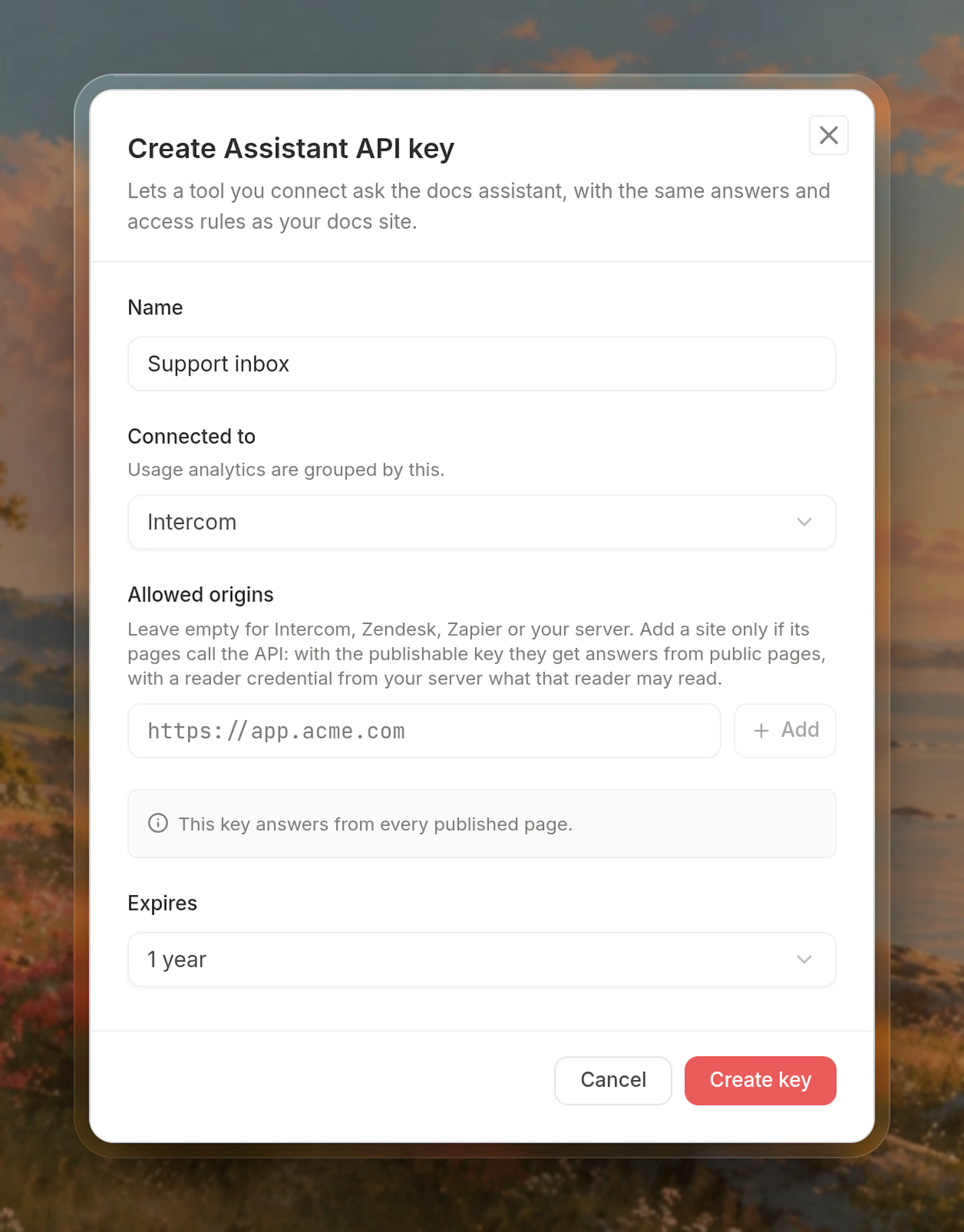
Create the key and copy the secret key
Choose when the key Expires (1 year by default), then click Create key. Copy the Secret key from the dialog. It is shown only once.
To check the key, copy the Try it command and run it in a terminal. It asks your docs a real question, so it uses a credit when it gets an answer.
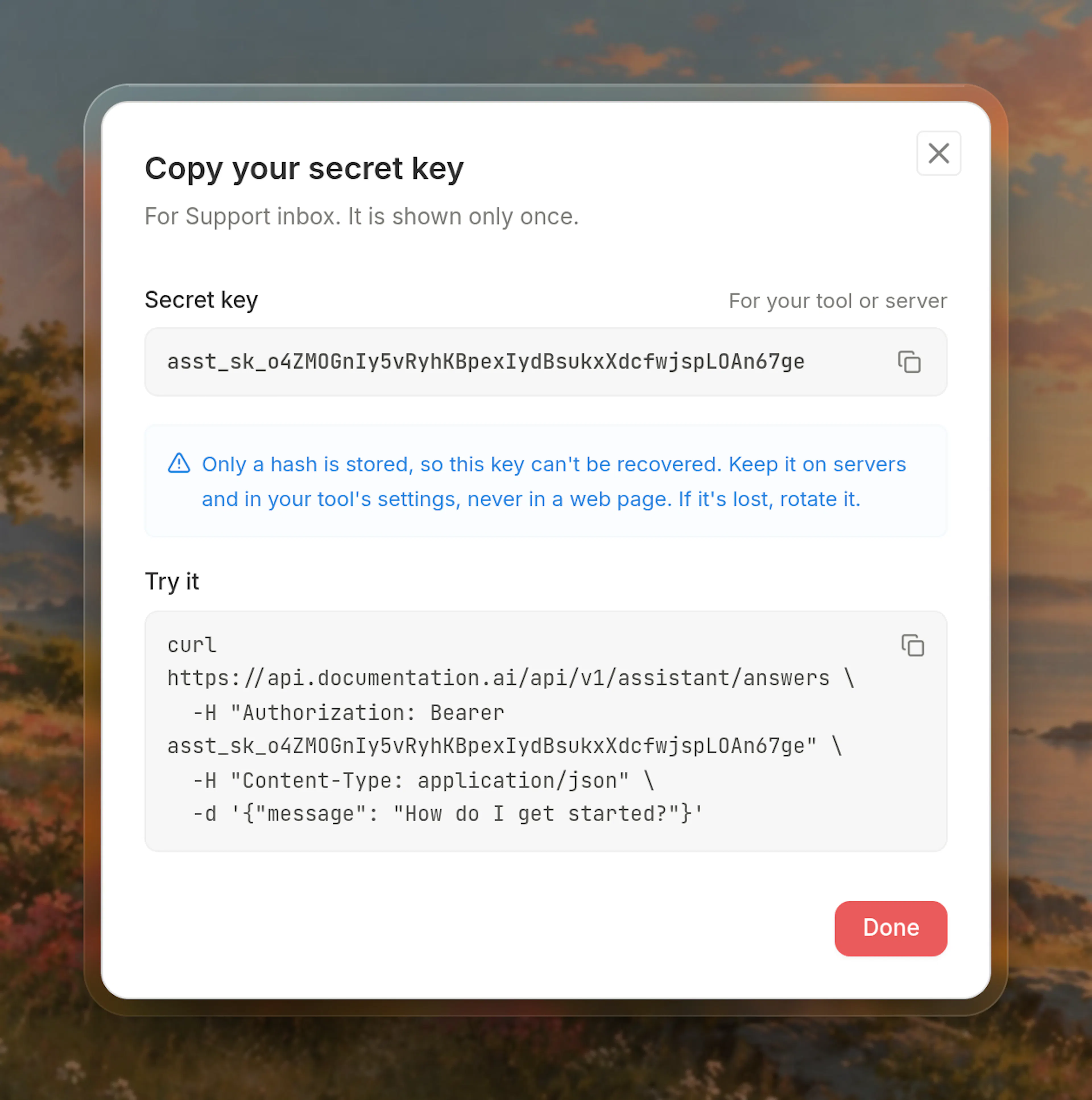
Keep the secret key on servers and in your tools' settings. It never works from a web page: a request from a browser is refused.
How to ask your first question
Send the secret key as a bearer token:
curl https://api.documentation.ai/api/v1/assistant/answers \
  -H "Authorization: Bearer asst_sk_..." \
  -H "Content-Type: application/json" \
  -d '{"message": "How do I reset my password?"}'
The answer comes back with full links to the pages it used:
{
  "id": "ans_7f3c2a9e41b84d0e9a1c6b5d2e8f0a13",
  "conversation_id": null,
  "answered": true,
  "reason": null,
  "answer": "Open **Account > Security** and choose **Reset password**. See [Reset your password](https://docs.acme.com/account/reset-password).",
  "format": "markdown",
  "confidence": 0.92,
  "sources": [
    { "title": "Reset your password", "url": "https://docs.acme.com/account/reset-password" }
  ],
  "follow_up_questions": ["How do I turn on two-factor authentication?"],
  "created_at": "2026-11-06T09:30:00.000Z"
}
When answered is false, the assistant found nothing in your docs to answer with, or ran out of time. answer is empty, so your tool can hand the conversation to a person. A greeting or thanks, such as "hi", is the exception: reason is small_talk, and answer holds a short reply to send instead. Neither is charged. See the API reference for every field.
What a key can read
Every request is checked against your site's settings as they are published. Changing Access Control applies to keys once you publish, the same as it does for your docs site.
| Your site | Public pages only | All pages, including protected ones |
|---|---|---|
| Public (no sign-in) | Every published page | Every published page |
| Some pages need sign-in | Public pages | Every page, limited by the key's roles |
| Every page needs sign-in | Refused with key_access_insufficient | Every page, limited by the key's roles |
- On a public site, keys answer from every published page and you don't choose. The dialog says This key answers from every published page.
- If some pages need sign-in, choose Public pages only or All pages, including protected ones under Answers from.
- If every page needs sign-in, keys read protected pages. The dialog says This key reads protected pages.
- A key's access is never raised for you, nor changed when you edit its name, tool or origins. A public-pages key keeps reading public pages if you later put more pages behind sign-in, and is refused once every page needs sign-in, until you choose All pages, including protected ones in its Edit dialog.
A key that reads protected pages answers anyone who can message the tool it is connected to. The dialog warns: Anyone who can message the tool you connect can get answers from protected pages. Connect such keys only to tools your readers sign in to, or narrow each request to its reader as shown below.
How to limit a key to some roles
Roles appear when your site signs readers in with JWT, OAuth, or email verification where you approve each request, and role-based access is on.
- Under Access roles, keep the roles the key may read. Every role you have declared is selected.
- If new roles should be included automatically, select All roles, including ones added later. Otherwise a role you add later is not given to existing keys.
- With no roles selected, the key reads only pages that are not limited to a role.
A key created before you turned on role-based access has no roles, so it reads only pages without a role until you edit it and choose some. If you remove a role from your site, keys keep it until you change their roles; the Edit dialog says which ones do.
How to answer for one reader
If your tool knows who is asking, send reader with the request. It only ever narrows what the key reads:
{
  "message": "How do I export invoices?",
  "reader": { "signed_in": true, "roles": ["billing"] }
}
"signed_in": falseanswers from public pages only. On a site where every page needs sign-in, the request is refused withreader_sign_in_required.roleskeeps only the roles the key also has.
Connect your tools
Each tool sends a POST request to https://api.documentation.ai/api/v1/assistant/answers with the secret key in the Authorization header. Set timeout_seconds below your tool's own time limit, so a slow answer comes back as not answered instead of failing.
An answer usually takes 10 to 20 seconds, because the assistant searches your docs and reads the pages it found. When a tool waits less than that, take its request, reply to it at once, and post the answer from your own server when it arrives, as the Intercom and Zendesk tabs show.
Intercom waits about 15 seconds for a reply, so answer from your own server:
- In the Intercom Developer Hub, subscribe a webhook to
conversation.user.createdandconversation.user.replied. - When one arrives, reply to Intercom at once, then call the API with the customer's message and the conversation id as
conversation_id, so follow-up questions keep their context. - Post
answerto the conversation with Intercom's reply API, and listsourcesunder it. Ifansweredisfalse, assign the conversation to your team instead, unlessreasonissmall_talk: then postanswer.
An Intercom data connector that calls the API directly also works for a quick test. Send "timeout_seconds": 12, and expect slower answers to come back as not answered.
Zendesk waits 12 seconds for a webhook and sends it again when it takes longer, so answer from your own server:
- Create a webhook to your server, and a trigger that calls it when a ticket is created or the requester replies.
- Reply to Zendesk at once, then call the API with the comment, the ticket id as
conversation_id, and"format": "html". - Post
answeras a ticket comment with Zendesk's ticket API. Ifansweredisfalse, leave the ticket for your team, unlessreasonissmall_talk: then postanswer.
A webhook Zendesk sends again gets the same answer, with the same id and no new charge. Skip posting an id you have posted already.
Slack expects your bot to acknowledge an event within 3 seconds. Acknowledge first, then call the API, either in normal mode or with "stream": true to update the message as the answer is written. Use the thread's timestamp as conversation_id, and "format": "slack" so links, bold text and code blocks show as Slack formats them. Post answer when answered is true or reason is small_talk.
Use the HTTP or webhook step of your workflow tool: method POST, the URL above, the Authorization and Content-Type: application/json headers, and a JSON body with message. Every field in the response is at the top level or one level down, so later steps can map them directly. Zapier waits about 30 seconds, so send "timeout_seconds": 25.
How to keep a conversation
- From a server or tool, send the same
conversation_idwith each message. The assistant keeps the earlier messages for you, separately for each key, and deletes a conversation 30 days after its last message. - From a web page, or if you keep messages yourself, send the earlier messages in
historyand leave outconversation_id.
How to report whether an answer helped
Send the answer's id to POST /api/v1/assistant/feedback with "rating": "up" or "rating": "down". Ratings show with your docs site's in Analytics.
Use the API from a website
If your own website or product calls the API from its pages, add the site under Allowed origins, for example https://app.acme.com. Origins are exact: scheme, host and port, with no path and no wildcards.
- Pages on an allowed origin use the key's Publishable key, shown when you create the key. It answers from public pages only.
- For answers from protected pages, your server creates a short-lived reader credential for each visitor with
POST /api/v1/assistant/reader-credentials, and the page uses it instead of the publishable key. A credential works only from the origin it was created for, never reads more than its key, and cannot create more credentials.
See the API reference for the request.
Manage keys
You must have the Admin role. Changes apply on the next request.
Each key's actions are in the menu at the end of its row.
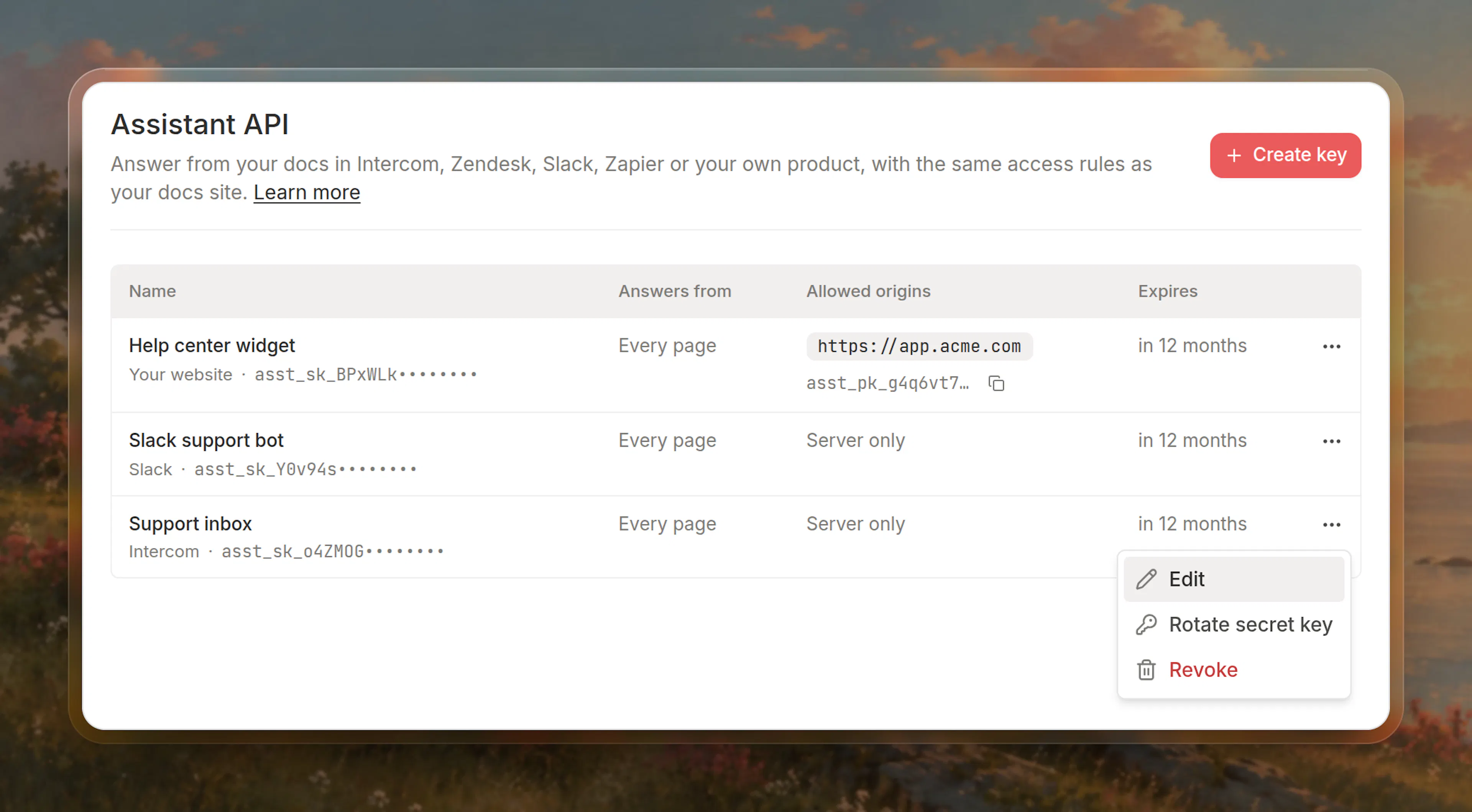
- Edit: change the name, the tool, what the key answers from, its roles and its allowed origins. Tools using the key keep working, because the key itself doesn't change.
- Rotate secret key: get a new secret key. The old one stops working at once. The key's settings and usage history stay.
- Revoke: the tool using the key stops getting answers at once. This cannot be undone.
Analytics
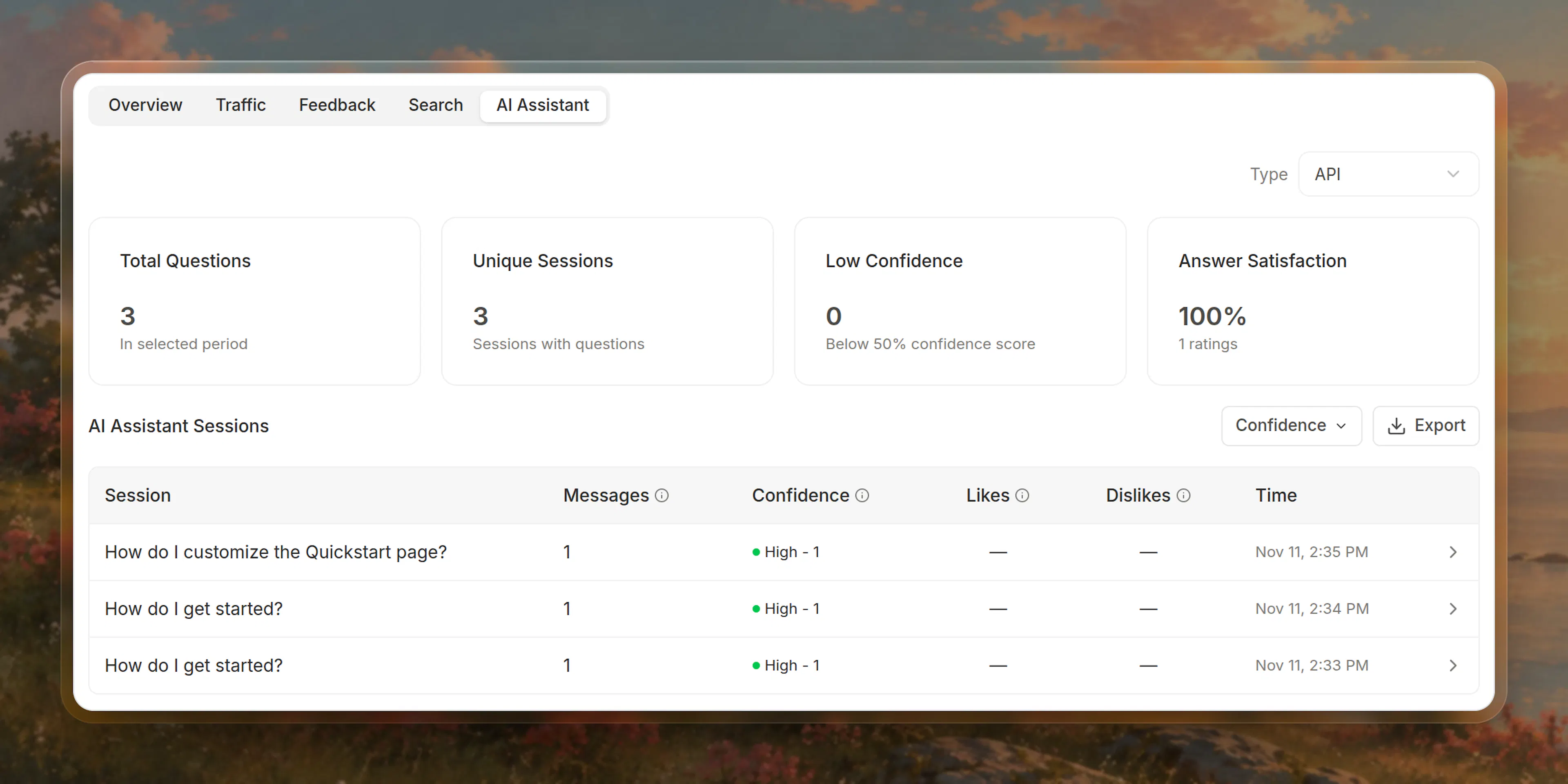
Questions asked through the API appear in Analytics > AI Assistant with your docs site's. Use Type to show All, Docs site, Embed or API questions. Totals include API questions unless you filter them out. Embedded questions are counted as Embed from the embed SDK release that reports them; earlier ones count as Docs site.
Credits used by API answers show as Assistant API in Settings > AI Usage.
Common questions
If a request fails
Every refusal has an error code and a message saying what to do. The API reference lists them all. The ones you are most likely to see:
browser_not_allowed: a secret key was sent from a web page. Rotate the key, and use the publishable key or a reader credential in pages.key_access_insufficient: the key reads public pages only and every page of the site now needs sign-in. Open the key's Edit dialog, choose All pages, including protected ones and save, and it reads protected pages from then on.origin_not_allowed: add the page's origin under Allowed origins, written exactly as the browser sends it.rate_limited: wait the number of seconds inretry_after_seconds, then retry.credits_exhausted: add credits or turn on overage in Settings > Billing.
Limits
| Limit | Value |
|---|---|
| Active keys per documentation | 25 |
| Requests per minute, per key | 60 |
| Requests running at once, per key | 20 |
| Messages per minute, per conversation | 6 |
| Questions per minute, per website visitor (by IP address) | 10 |
| Message length | 16,000 characters |
| Messages in a conversation | 50, of which the assistant reads the latest 10 (4 in Lite mode) |
| Request size | 64 KB |
| Conversation kept for | 30 days after its last message |
| Reader credential lifetime | 15 minutes by default, up to 1 hour |
Every request with a valid key counts towards the per-key limit, and its response, a refusal included, carries X-RateLimit-Limit, X-RateLimit-Remaining and X-RateLimit-Reset headers. If you need more requests per minute, contact support.