

Real-Time Collaboration
Edit documentation together in real time with inline comments, mentions, and notifications directly in the web editor.
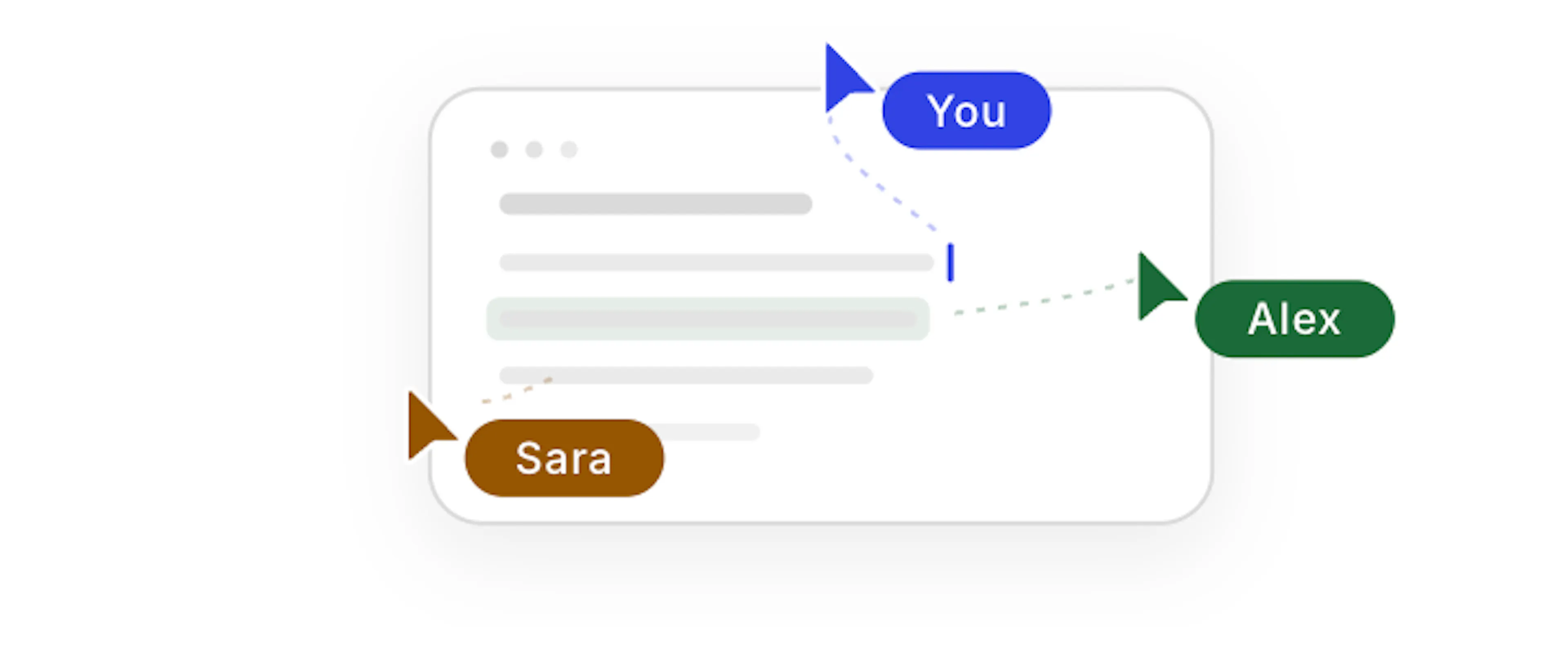
Work on the same branch with your team in real time
Multiple teammates can edit the same documentation pages simultaneously, leave inline comments, mention each other, and track notifications without leaving the web editor. Collaboration updates live as you work, so you can review, discuss, and publish changes from the same branch.
How real-time collaboration works
Open the same page on the same branch and every collaborator sees edits sync instantly. Cursor positions, text selections, and document changes appear as they happen, which makes live drafting and review possible without manual refreshes.
Real-time sync is not limited to page content. Navigation changes, documentation.json updates, Custom CSS settings, and Scripts settings also sync live, so teams can coordinate structural and configuration changes from the editor.
Collaboration sessions are branch-specific. If one group works on main and another works on a feature branch, each branch has its own live editing session and its own set of synced changes.
Enabling the real-time editor
Open the web editor and switch to the branch where you want to collaborate. If your branch has unsaved changes from an earlier session, the editor may ask you to publish or revert those changes before real-time collaboration starts.
Use the real-time editor option in the editor navbar to enter collaboration mode. Once enabled, anyone with access to the same branch can join the session and start editing live.
The real-time editor works per branch. Each branch maintains its own collaborative session, comments, and live presence.
Inline comments
Leave feedback directly on the text you want to discuss. Comment threads stay attached to the selected content so reviewers can understand context without switching tools.
Comment marks appear as yellow highlights in the editor. Click a highlight to open the thread popover for that selection.
Create a comment thread
Select text in the editor, then click the comment icon in the bubble menu. You can also press Cmd + Option + M on Mac or Ctrl + Alt + M on Windows.
After you post the comment, the selected text stays highlighted and quoted in the thread. That highlight confirms the thread is attached to the correct text.
Post and manage replies
Type your comment and post it to start the thread. Other collaborators can reply in the same thread, and you can edit or delete your own messages later.
Use replies to keep discussion tied to one piece of text instead of scattering feedback across separate comments.
Resolve or reopen a thread
Resolve a thread when the discussion is complete or the requested change has been made. If the topic needs more work later, reopen the thread and continue the conversation.
Resolved threads stay available for reference, which helps teams track why a decision was made.
Browse all threads in the Comments panel
Open the Comments panel in the side panel to review every open and resolved thread on the current branch. Use the panel when you want to work through feedback in one place instead of clicking highlights one by one.
The panel reflects the current branch, so you only see discussions tied to that branch session.
Mentions
Type @ in a comment or reply to mention a teammate. The editor shows an autocomplete list of organization members so you can select the right person quickly.
Mentioned users receive a notification, which helps pull the right reviewer into the discussion without leaving the editor.
Mentions work in both new comment threads and replies inside existing threads.
Notifications
Use the notification bell in the sidebar to keep up with collaboration activity. The bell shows an unread count for mentions, replies, resolved threads, and reopened threads.
Click the bell to open the notification list and review recent activity. New notifications also trigger a toast and a sound, which makes it easier to catch important updates while you are editing.
Mark individual notifications as read when you have handled them, or clear all notifications at once. If you miss activity in the editor, a daily email digest summarizes unread notifications.
Collaborator avatars
See who is active from the overlapping avatars in the editor navbar. Hover over the avatar stack to expand it and view the full list of online collaborators.
Each collaborator also appears directly in the editor with their own cursor and text selection. Name labels help you identify who is editing which section at any moment.
Role-based access
Permissions in collaboration mode follow your existing organization roles:
- Admin and Editor roles can edit content, create comments, and publish changes.
- Viewer role can read content and view comments but cannot edit or publish.
Role-based permissions follow your existing organization settings. Manage roles in Team Management.
Publishing from collaboration mode
When your branch is ready, publish directly from the editor navbar. Save actions apply to the current branch, so confirm you are on the correct branch before publishing.
Open the Save menu
Click the Save dropdown in the editor navbar to see the available publishing actions for the current branch.
Save changes to the current branch
Choose Save to commit your current edits to the active branch. Use this option when you want to preserve work without merging it yet.
Merge into the default branch
Choose Save and Merge to commit your changes and merge them into the default branch in one step. Use this when the branch is ready to publish without additional review.
Create a pull request for review
Choose Save and Create PR to commit your changes and open a pull request. Use this option when your team reviews branch work before merging.
Publishing operations are serialized per branch to prevent conflicts between simultaneous editors.