

Pages
Understand how pages work as the building blocks of your docs, how to add them in the Web Editor, and how to keep their slugs and paths stable over time.
Overview
Pages are the fundamental building blocks of your documentation. Each page is:
-
Backed by a single MDX file in your repo or workspace
-
Referenced from navigation via a configuration entry
-
Addressable by a stable path or slug that becomes part of the URL
In the Organize area, you combine pages with groups, views, and dimensions to build a structured docs site. This guide focuses on working with pages in the Web Editor first, then covers how they are referenced in configuration and how to keep their identifiers stable.
Adding a new page in the Web Editor
You add pages from the Web Editor sidebar. What you can do depends on the Dimension and View you have selected, and whether your docs under that selection use Groups.
Select the right Dimension and View
-
Open the Editor from your dashboard.
-
In the editor sidebar, use the dropdowns at the top to select the appropriate:
-
Dimension
-
View
-
-
The sidebar list below the dropdowns updates to show the content available under that Dimension + View.
The sidebar supports two structures. What you see depends on whether Groups exist under the selected Dimension + View.
Add a page from the sidebar, if Groups exist
-
You’ll see a Groups section in the sidebar.
-
Below it, you’ll see a list of Groups (for example, “Getting Started”), and each group contains its Pages.
-
To add a new page, click the + icon on the right side of the Group name where you want the new page to live.
Example: If “Getting Started” is a group, click the+* next to “Getting Started” to add a new page inside that group.*
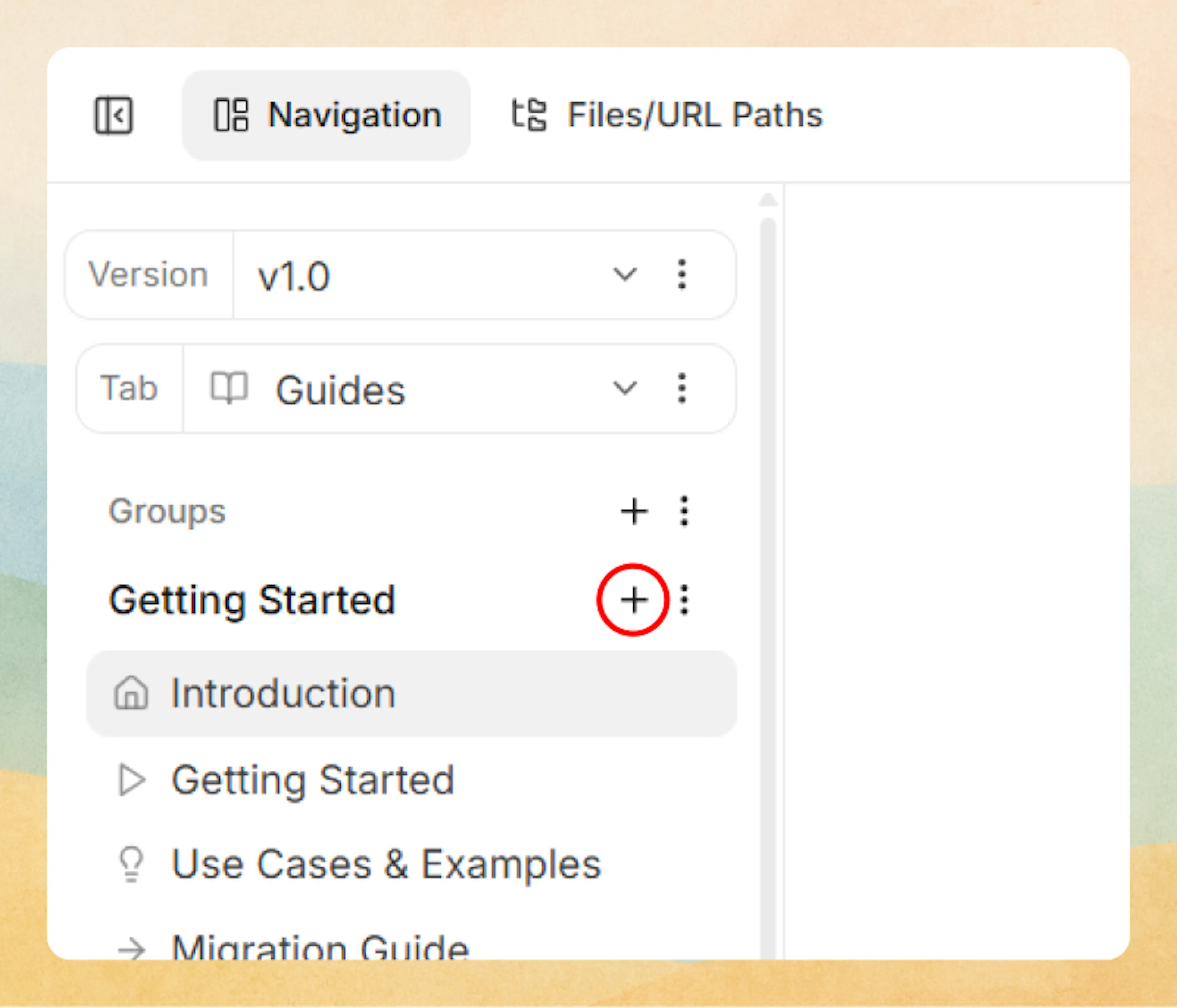
When Groups are present, you can add a page only inside a group (not at the root).
Add a page from the sidebar, if no Groups exist
-
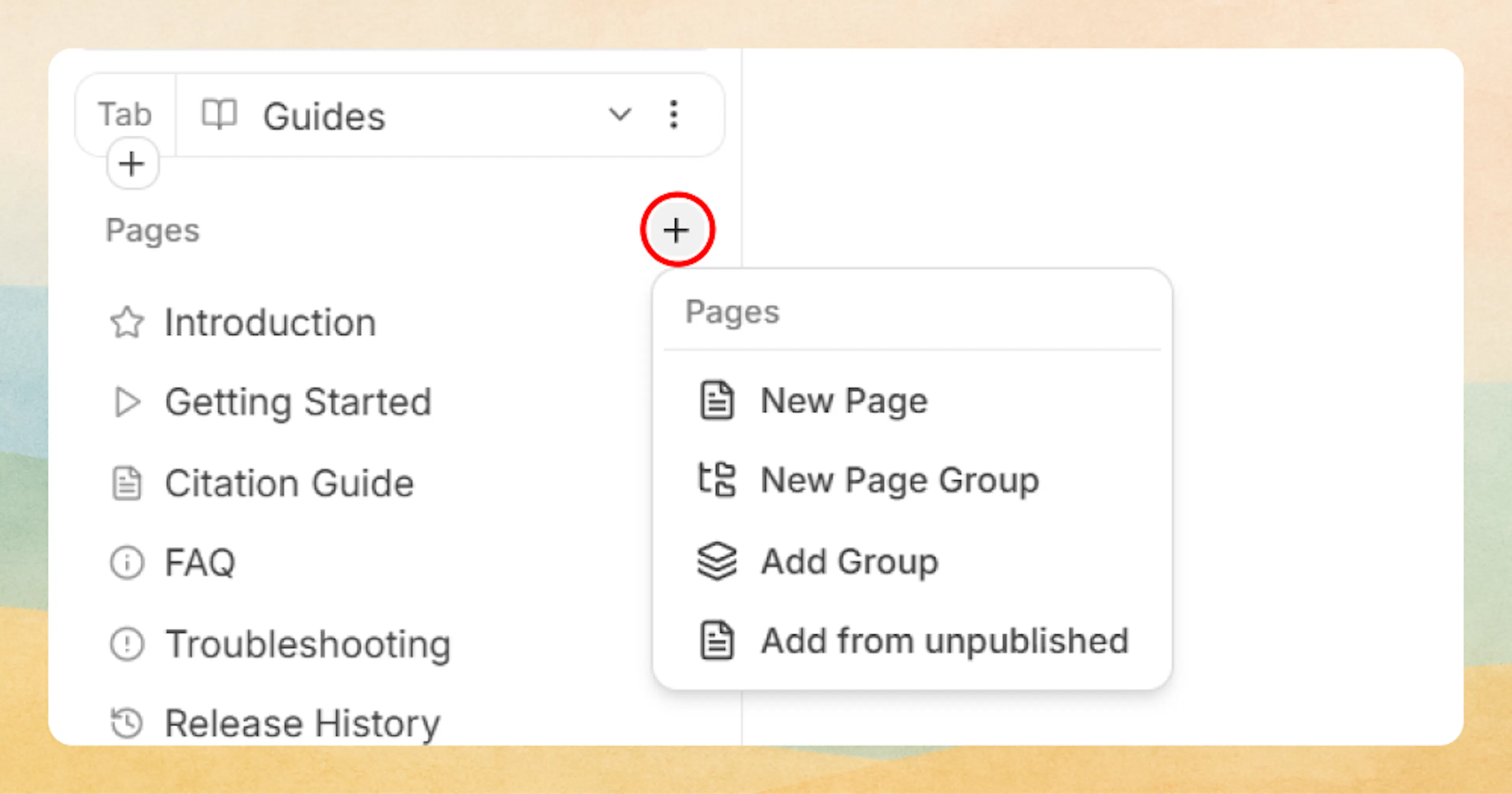
You’ll see a Pages section in the sidebar (instead of Groups).
-
All pages are listed directly below, without being categorized into groups.
-
To add a new page, click the + icon next to the Pages heading.
In this structure, pages are created at the root under the selected Dimension + View.
Fill in page details
-
Page name: The label shown in navigation (maps to the page title).
-
Page URL (slug): The path segment used in the URL.
-
Enter only a slug or relative path (example:
organize/pages), not a full URL. -
Use lowercase kebab-case and keep it unique across your docs.
-
-
Icon (optional): The icon shown next to the page in the sidebar.
Confirm the page location
-
Save/confirm to create the page.
-
The page appears in the sidebar:
-
Inside the selected Group (if the sidebar shows Groups), or
-
In the Pages list at the top level (if the sidebar shows Pages).
-
When you create a page in the Web Editor, it updates navigation configuration for you, so you do not need to edit JSON or YAML directly.
Page types you can add from the Pages menu
The Pages heading has a + menu with several content item types. Each one controls how content appears and is organized in your sidebar.
Quick comparison
-
Page: A normal documentation page backed by MDX.
-
Group: A labeled sidebar section that contains pages, but does not need its own content.
-
Page Group: A nested container (like a folder) that can hold pages and other page groups.
-
OpenAPI Reference: A set of generated API pages created from an OpenAPI spec.
-
Unpublished Page: An existing page that currently does not appear in navigation.
Page
A Page is a standard documentation entry backed by an MDX file.
-
Created via Add Page.
-
You provide a Page name, Page URL (slug), and optional Icon.
-
Appears directly in the sidebar at the level where you created it.
-
Can be moved between groups or page groups without changing the MDX file.
Use normal pages for most narrative docs, guides, references, and conceptual content.
Group
A Group is a labeled sidebar section that contains pages.
-
Created via Add Group from the Pages menu.
-
Acts as a visual and structural container in the sidebar.
-
Does not require its own MDX file unless you intentionally create a landing page for it.
Use groups when you want to introduce a top-level or mid-level section in the sidebar, such as “Getting Started” or “Organize”.
Page group
A Page Group is a nested container of pages, similar to a folder.
-
Created via Add Page Group or via the + button next to an existing group or page group.
-
Lets you nest pages and page groups inside one another to create deeper hierarchies.
-
Does not require its own MDX file unless you want a landing page.
Use page groups when you need a more granular structure inside a larger group, such as organizing several related guides under a product or feature.
OpenAPI reference
An OpenAPI Reference creates generated API documentation from an OpenAPI spec.
-
Created via Add OpenAPI Reference.
-
You upload, paste, or select an OpenAPI JSON or YAML file, or connect a hosted spec from a URL.
-
The editor generates API pages (for example, endpoints and schemas) and adds them to navigation, typically under a dedicated API group or page group.
Use OpenAPI references when you want your API endpoints and schemas to be maintained from a single OpenAPI document, while still fitting into the same navigation as the rest of your docs. For more details, see OpenAPI / JSON Schema Import and Organize API Reference.
Unpublished page
An Unpublished Page is a page that exists but is not currently visible in navigation.
-
Appears when you remove a page from navigation but keep its MDX file.
-
Accessible via Add Unpublished Page in the Pages menu.
-
You can browse unpublished pages and re-add them to navigation in a new location.
Use unpublished pages to:
-
Temporarily hide content during a restructure.
-
Stage or review content before exposing it in navigation.
-
Restore previously removed pages without recreating them.
How pages are referenced
Whether you configure navigation in the Web Editor or via code, each page entry uses a small set of core properties.
Core page properties
From the site configuration, pages support:
-
title(required): The display name shown in navigation and used in the browser title. -
path(optional for internal pages): The relative path to your MDX file, without the.mdxextension. This is required unless you usehref. -
href(optional for external links): A full URL for links that point outside your docs. Use this instead ofpathfor external resources. -
icon(optional): A Lucide icon name that appears next to the page in navigation. -
method(optional): HTTP method label for API endpoint pages (for example,GET,POST), used in API navigation. -
tags(optional): Free-form labels that help categorize or filter pages in views. -
badge(optional): A short label (e.g.,"New","Beta","Deprecated") displayed as a colored pill next to the page title in the sidebar. -
show-sidebar(optional): Controls left sidebar visibility on this page. Defaults totrue. Set tofalseto hide the sidebar and expand the content area. -
show-toc(optional): Controls the right-side Table of Contents panel visibility. Defaults totrue. Set tofalseto hide the TOC. -
show-parent-label(optional): Controls whether the group/parent name label appears above the page title. Defaults totrue. -
content-width(optional): Controls the maximum width of the content area. Accepted values:"narrow","normal"(default), or"wide".
In the Web Editor, the same concepts appear as:
-
Page name maps to
title. -
Page URL (slug) maps to
path. -
Icon maps to
icon.
You do not need to think about JSON or YAML when using the Web Editor; it writes the configuration for you.
All content pages must be authored in MDX. When you reference them in configuration, always use the path without the .mdx extension.
Paths, slugs, and URLs
For internal content:
-
The slug you choose in the Web Editor becomes the
pathused in configuration. -
That path is combined with your site base URL (and any custom subpath) to form the public URL.
-
The
pathmust be unique across your docs so navigation and routing remain unambiguous.
For external content:
-
You omit
pathand provide anhref. -
The page appears in navigation like any other entry but opens the external URL, typically in a new tab.
Content pages on containers
In addition to standalone pages, you can attach a content page to any container node in your navigation: groups, page groups, tabs, dropdowns, products, versions, and languages.
A content page on a container gives it its own MDX-backed page with a unique path. This means the container is no longer just structural; it becomes a navigable page that readers can visit directly.
What this enables
- Landing pages – Attach a content page to a group to create a section overview. Use Collection components to display the group's children automatically.
- Clickable breadcrumbs – When a container has a content page, it appears as a clickable link in the breadcrumb trail. Without a content page, the breadcrumb shows the container name but links to its first child page instead.
- Hub pages – Large documentation sets benefit from hub pages at each level of the hierarchy. A product dimension could have its own welcome page, each version could have release notes, and each tab could have an overview.
How it works
Add a path property to any container entry in your navigation configuration. Here is a tab with its own content page:
{
  "tab": "API Reference",
  "icon": "code",
  "path": "api/overview",
  "groups": [
    {
      "group": "REST API",
      "pages": [
        { "title": "Authentication", "path": "api/authentication" }
      ]
    }
  ]
}
The same pattern works for groups, dropdowns, products, versions, and languages: add a path and the container becomes a navigable page. The path follows the same rules as any page path. In the Web Editor, use the Attach Content Page option in the container's menu.
Content pages on containers support the full set of page display options (badge, show-sidebar, show-toc, content-width, method, tags, and more). See Page Configuration for details.
For container-specific guidance, see Content pages on groups and Content pages on views.
How pages relate to groups, views, and dimensions
Pages are content; groups, views, and dimensions are ways of organizing or slicing that content.
-
Groups define the sidebar tree structure. A page can:
-
Live at the root.
-
Be nested under one or more levels of groups or page groups.
-
-
Views allow the same set of pages to appear in different contexts without duplication. For example:
-
A “Developer” view that shows only technical pages.
-
A “Customer” view that emphasizes onboarding and how-to content.
-
-
Dimensions apply cross-cutting filters such as:
-
Version (for example, v1 vs v2).
-
Locale or language.
-
Audience or plan level.
-
From a maintenance perspective:
-
The MDX file and its
pathidentify the page. -
Groups, views, and dimensions control where and when that page shows up for readers.
Best practices for naming, slugs, and restructuring
A clear, stable page model makes your docs easier to maintain and safer to evolve.
Naming and titles
-
Use descriptive titles that reflect user tasks or topics (for example, “Organize API reference” instead of “API Stuff”).
-
Keep titles concise; avoid repeating group names if the surrounding context already makes them obvious.
-
Align page titles with navigation labels so readers see consistent wording.
Slugs and paths as stable identifiers
Treat path as the page’s stable identifier:
-
Choose slugs that are:
-
Lowercase, using
-as a separator (for example,organize/pages,api-documentation-and-playground/openapi-import). -
Meaningful but not over-specific to current UI labels.
-
-
Avoid using:
-
Dates or version numbers in slugs unless versioning is a primary dimension.
-
Team-internal abbreviations that will not make sense later.
-
When you must change a slug:
-
Update the
pathin configuration or via the Web Editor. -
Add redirects in Redirects & Rewrites so existing links continue to work.
-
Communicate the change if external integrations or apps rely on the old URL.
Plan slugs as if they will live for a long time. It is easier to adjust titles and group structure than to rename paths once other systems and users depend on them.
Safe restructuring
When reorganizing navigation:
-
Prefer moving pages between groups over renaming
path. -
Use page groups to add hierarchy instead of duplicating pages.
-
Use unpublished pages to temporarily remove items while you redesign structure.
-
For API content, consider adjusting OpenAPI grouping or API reference organization rather than editing many individual pages.
By treating pages as stable content units, and using groups, views, and dimensions as flexible layers on top, you can evolve your docs structure confidently without breaking URLs or confusing readers.