

API Components
Reference for Request and Response components that automatically display in the right panel for API documentation.
const response = await fetch("/api/docs", {
  method: "POST",
  headers: {
    Authorization: "Bearer TOKEN",
    "Content-Type": "application/json",
  },
  body: JSON.stringify({ title: "Getting Started" }),
});
const response = await fetch("/api/docs", {
  method: "POST",
  headers: {
    Authorization: "Bearer TOKEN",
    "Content-Type": "application/json",
  },
  body: JSON.stringify({ title: "Getting Started" }),
});
const response = await fetch("/api/docs", {
  method: "POST",
  headers: {
    Authorization: "Bearer TOKEN",
    "Content-Type": "application/json",
  },
  body: JSON.stringify({ title: "Getting Started" }),
});
const response = await fetch("/api/docs", {
  method: "POST",
  headers: {
    Authorization: "Bearer TOKEN",
    "Content-Type": "application/json",
  },
  body: JSON.stringify({ title: "Getting Started" }),
});
curl -X POST https://api.example.com/docs \
  -H "Authorization: Bearer TOKEN" \
  -H "Content-Type: application/json" \
  -d '{"title": "Getting Started"}'
{
  "id": "doc-123",
  "title": "Getting Started",
  "status": "published",
  "created_at": "2024-01-15T10:30:00Z"
}
{
  "id": "doc-123",
  "title": "Getting Started",
  "status": "published",
  "created_at": "2024-01-15T10:30:00Z"
}
{
  "id": "doc-123",
  "title": "Getting Started",
  "status": "published",
  "created_at": "2024-01-15T10:30:00Z"
}
{
  "error": "Document not found",
  "code": "DOC_NOT_FOUND",
  "message": "The requested document does not exist"
}
Overview
The Request and Response components create a two-column layout for API examples:
-
Desktop: Requests and responses appear in a sticky right sidebar while your main documentation stays on the left.
-
Mobile: Components render as regular code blocks inside the main content.
These components are designed for developers and work like sidebar versions of CodeGroup.
Common use cases:
-
Endpoint docs: Request and response examples for each API route.
-
Multi-language SDKs: Tabs for JavaScript, Python, cURL, and more.
-
Status examples: Response examples for different HTTP status codes.
-
Tutorials: Before/after or success/error examples next to explanations.
Using with Web Editor
Request in the editor UI
-
Place your cursor where you want the sidebar example.
-
Type / and search for Request.
-
Select Request to insert a Request block.
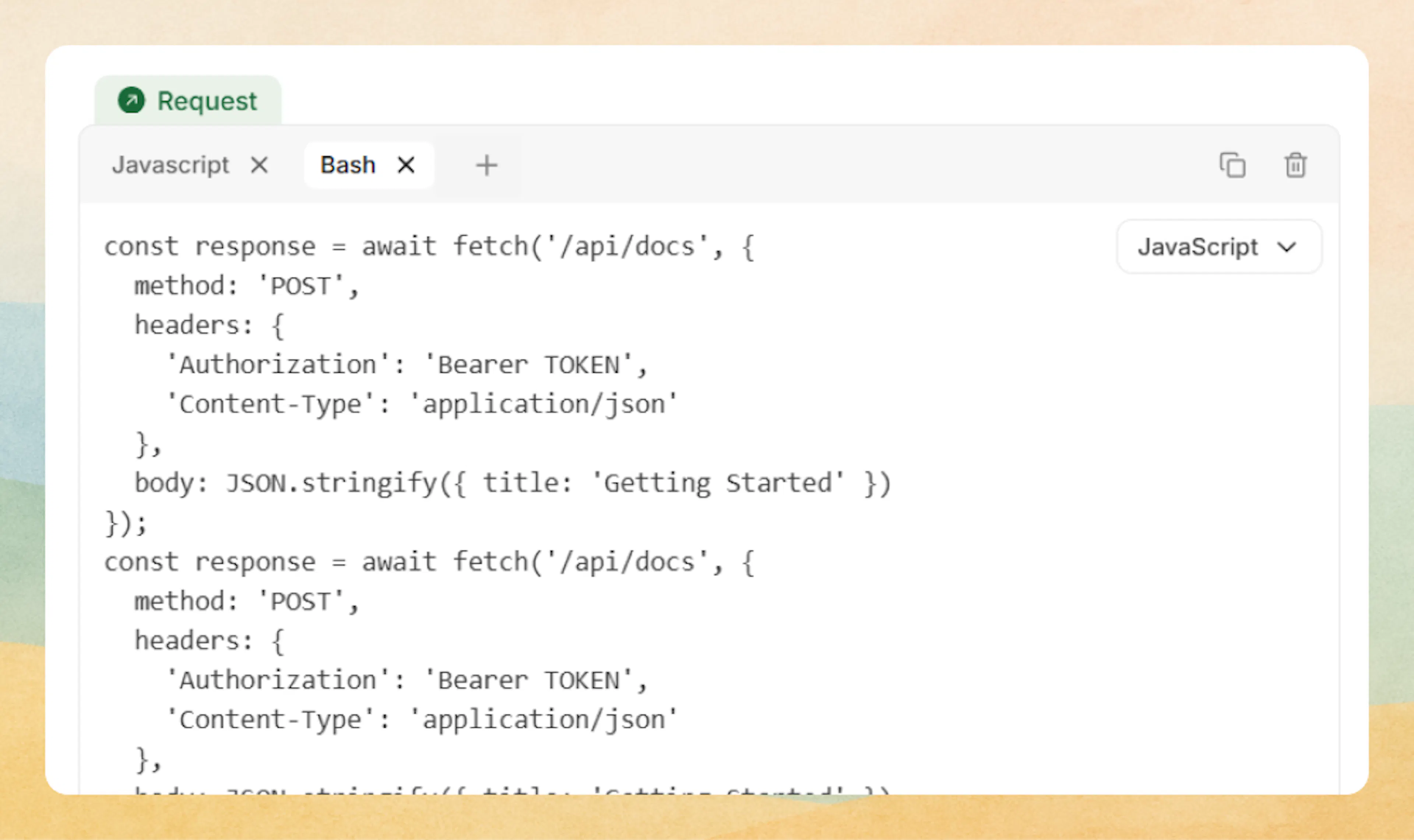
Inside the Request block:
-
Tabs row: One tab is created by default, with a + button to add more.
-
Rename tabs: Double-click a tab name (for example,
request) and type a new label. -
Code editor: Click in the code area, paste or write your example.
-
Language selector: Use the dropdown on the right to choose the language for that tab.
Response in the editor UI
-
Place your cursor under the related Request (or wherever you want the response).
-
Type / and search for Response.
-
Select Response to insert a Response block.
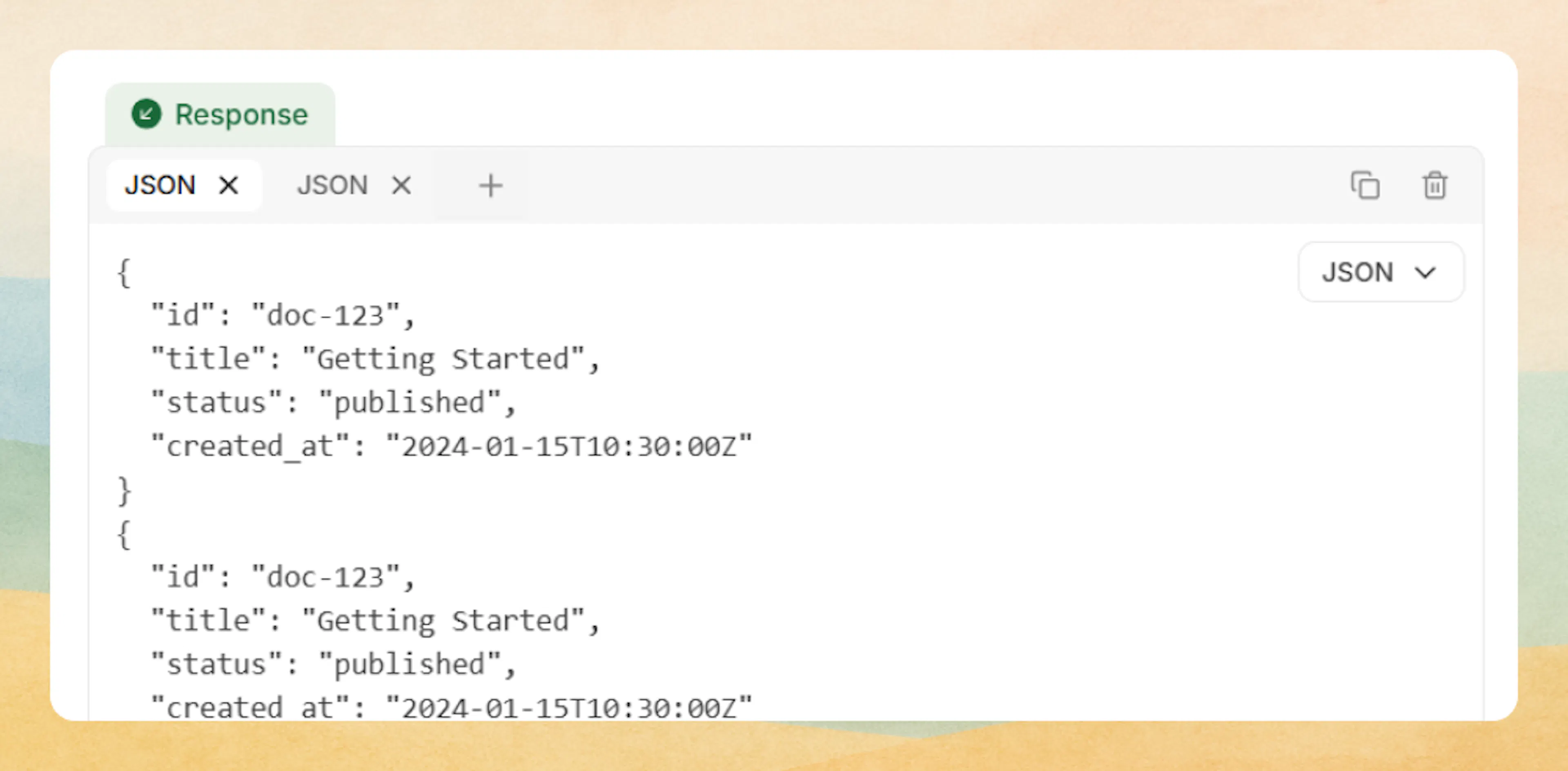
Inside the Response block:
-
Tabs row: One tab is created by default, with a + button to add more.
-
Rename tabs: Double-click a tab name (commonly use status codes like
200,404). -
Code editor: Paste or write your JSON or other response example.
-
Language selector: Choose the language (usually JSON) from the dropdown on the right.
Prefer writing in code?
You can switch to MDX view inside the Web Editor to write or edit this component using the same syntax as the Code Editor. This is useful if you want full control while staying in the Web Editor.
Using with Code Editor
Request in MDX
Use Request to display API request examples in the right sidebar. This component works like CodeGroup but displays in the sidebar instead of inline.
<Request tabs="JavaScript,Python">
```javascript
const response = await fetch('/api/docs', {
  method: 'POST',
  headers: { 'Authorization': 'Bearer TOKEN' },
  body: JSON.stringify({ title: 'Getting Started' })
});
```

```python
import requests
response = requests.post('/api/docs',
  headers={'Authorization': 'Bearer TOKEN'},
  json={'title': 'Getting Started'}
)
```
</Request>
Response in MDX
Use Response to display API response examples in the right sidebar beneath any Request content on the same page.
<Response tabs="200,500">
```json
{
  "id": "doc-123",
  "status": "success"
}
```

```json
{
  "error": "Internal server error",
  "code": "INTERNAL_ERROR"
}
```
</Response>
Advanced options
Request attributes
Comma-separated tab names. Overrides auto-detected languages.
Shows line numbers when set to "true". Request shows lines by default.
Default active tab index (1-based).
Response attributes
Comma-separated tab names. Commonly HTTP status codes or formats.
Shows line numbers when set to "true". Response hides lines by default.
Default active tab index (1-based).
Common patterns
-
Per-endpoint examples: Pair one Request and one Response block for each API operation.
-
Multi-language SDKs: Use Request tabs for JavaScript, Python, Bash, and other SDKs.
-
Status-specific responses: Use Response tabs labeled
200,400,404,500to show different outcomes. -
Guided walkthroughs: Keep Request and Response in the sidebar while the left column explains parameters, flows, and edge cases.
Request and Response automatically participate in the sidebar layout on desktop, so you get a polished API reference without custom layout work.