

Templates
Choose and customize documentation templates for your site
Templates control the layout and style of your documentation site. Choose from pre-built templates or customize your own to match your brand identity.
Available Templates
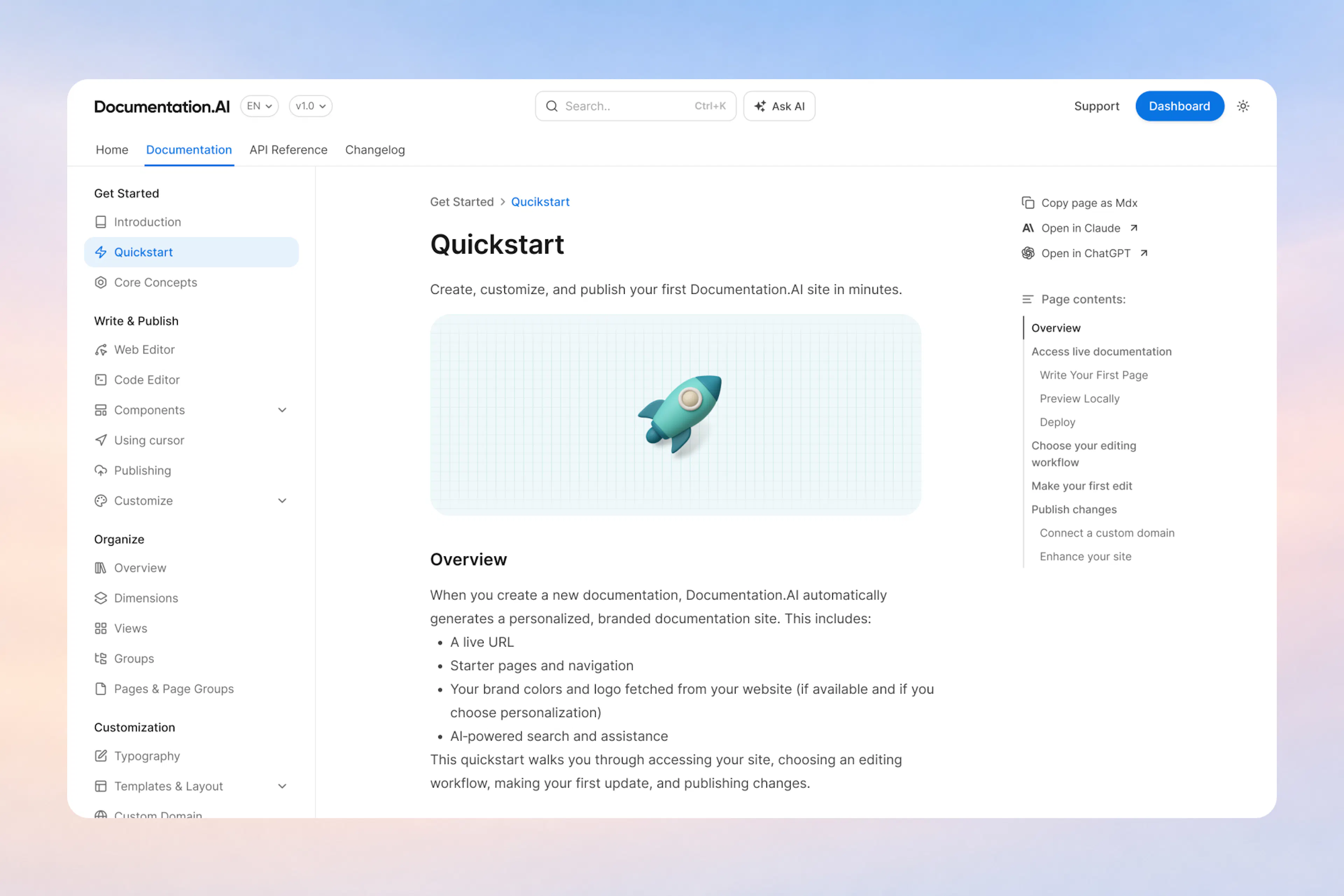
Classic Template
The Classic template provides a traditional documentation layout with a clean, focused reading experience.
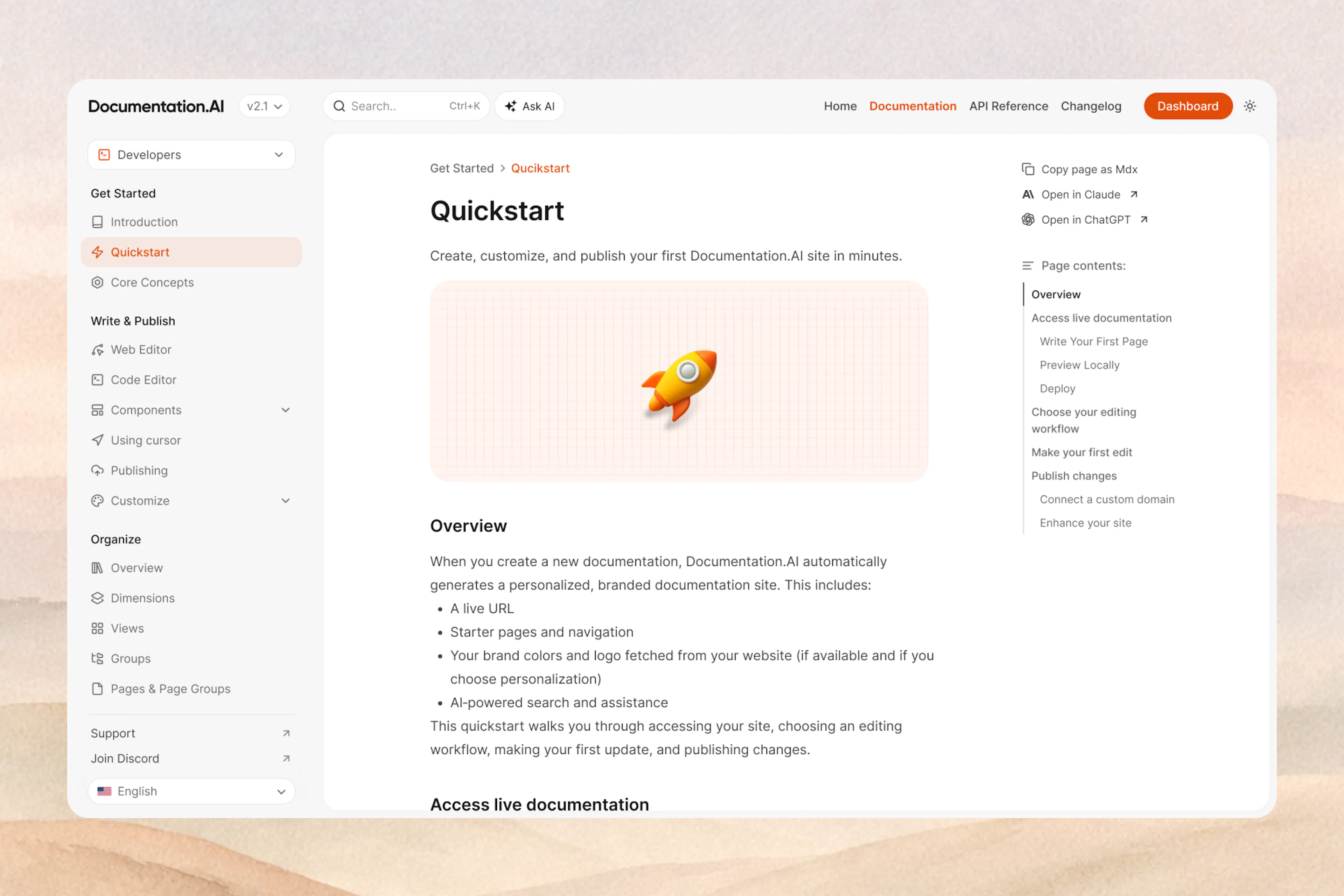
Atlas Template
The Atlas template offers a modern layout with enhanced navigation.
Selecting a Template
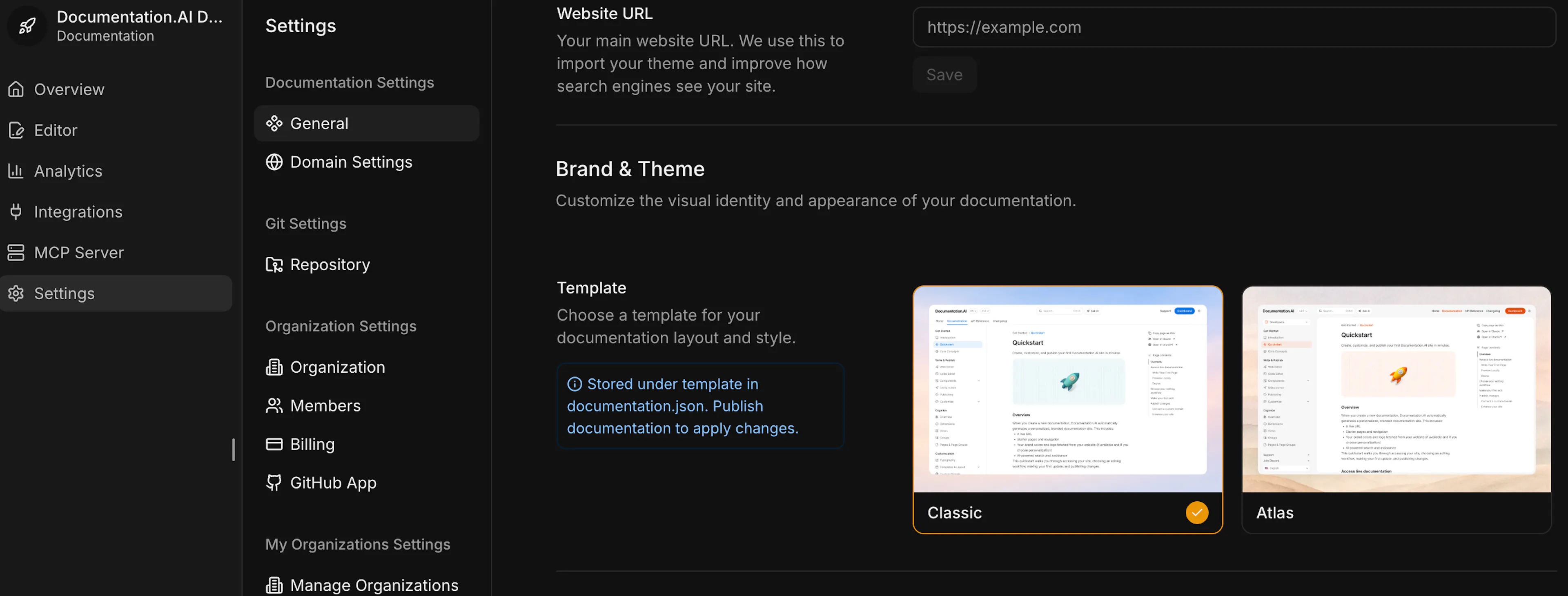
Access Template Settings
In the Editor, click Site Config in the top toolbar, then select Brand & Theme.
Choose Your Template
Select from the available templates by clicking on your preferred option.
Publish Changes
Click the Publish documentation button to apply your template selection.
You must publish your documentation after changing the template for the new template to appear in production.
Template Configuration via Code
You can also configure templates directly in your documentation.json file:
{
  "template": "classic"
}
Available template values:
-
classic- Classic template -
atlas- Atlas template
Template changes will be reflected after publishing your documentation.
Customizing Templates
Once you've selected a template, you can further customize it using:
-
Colors & Typography - Adjust colors, fonts, and text styles
-
Navigation & Sidebar - Configure navigation structure
-
Header & Navbar - Customize header elements
-
Branding - Add logos and brand assets
Need Help?
If you need assistance with template selection or customization, check our Help Center or reach out to our support team.