

Dimensions
Plan and configure products, versions, and languages as dimensions for organized, multi-context documentation in Documentation.AI.
Overview
Dimensions are top-level context selectors that split your documentation into parallel variants. They define where a reader is in your docs: which product, version, or language they are viewing.
Dimensions sit at the top of your navigation architecture:
- Dimensions define the context (for example, Product A / v2 / English).
- Views define how navigation is presented within that context (tabs, groups, dropdowns).
- Content is the actual pages and groups that readers see.
Dimensions are the top layer of the navigation structure. A project can have multiple dimensions (for example, Product + Version + Language), but most sites work best with one or two.
You can manage Dimensions in:
- Web Editor (Navigation panel) for UI-based setup and everyday edits
- documentation.json (Site Configuration) for file-based setup and bulk changes (via Code Editor)
See Site Configuration for file-based management.
When to use dimensions
Dimensions are powerful, but you should only add them when your docs truly exist in parallel variants.
Good use cases
Use a dimension only when your docs truly exist in parallel variants and readers need to switch context globally.
Good use cases:
- Products (Cloud vs On-prem) with mostly parallel docs
- Versions (v1 vs v2) where users frequently switch versions
- Languages (English vs Español) where most pages are translated
Avoid dimensions when:
- Only a few pages differ across variants
- Differences are audience-based (Admin vs Developer) rather than true variants
- Variation can be handled inside pages (tabs, callouts) or with groups/views
Start with no dimensions. Add a dimension only once the variants are stable and long-lived.
How dimensions interact with views and content
Dimensions → Views (optional) → Content
Once a reader selects values for all active dimensions, they see the navigation tree for that context. From there, your structure can go in either direction:
- Dimensions → Views → Content
Use Views (Tabs/Dropdowns) when you need layout and navigation structure inside a dimension. - Dimensions → Content
Views are not required. You can place content directly under a dimension branch (for example, a flat list of pages, or groups/pages without tabs or dropdowns).
In all cases, the same structural constraints apply within a branch (including the one-child rule).
Working with Dimensions in the Web Editor
In the Web Editor, Dimensions are managed from the Navigation panel. Dimensions can be added either as a parent layer (wrapping what currently exists) or as a child layer (nesting a new dimension inside an existing one).
Before you start: confirm what’s currently at the top
Open Editor → Navigation and check what your current top layer is:
- If you see Dimension selectors (Product/Version/Language), Dimensions already exist.
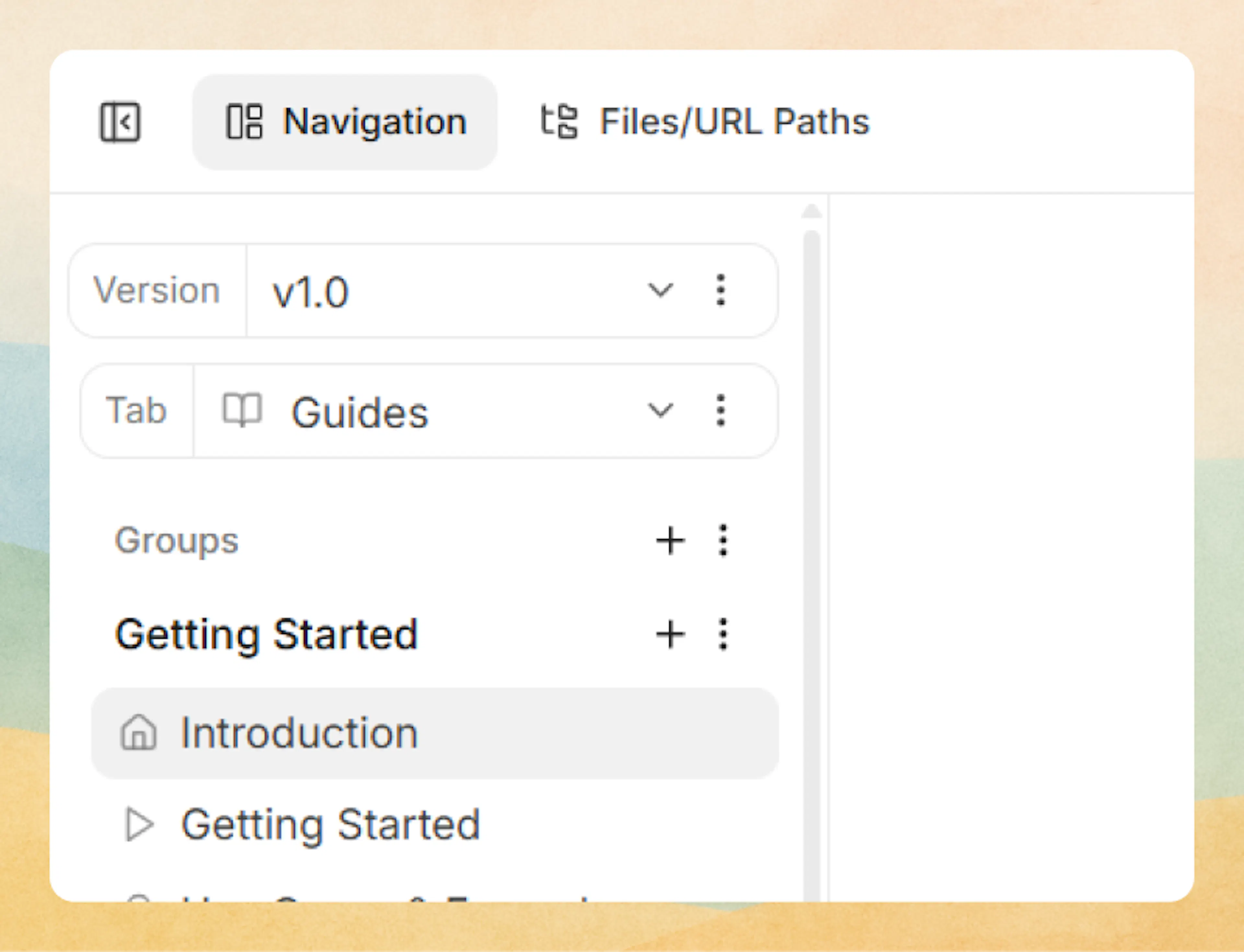
Web editor view with 'Dimension' already added
- If you see Tabs/Dropdowns first, your top layer is a View.
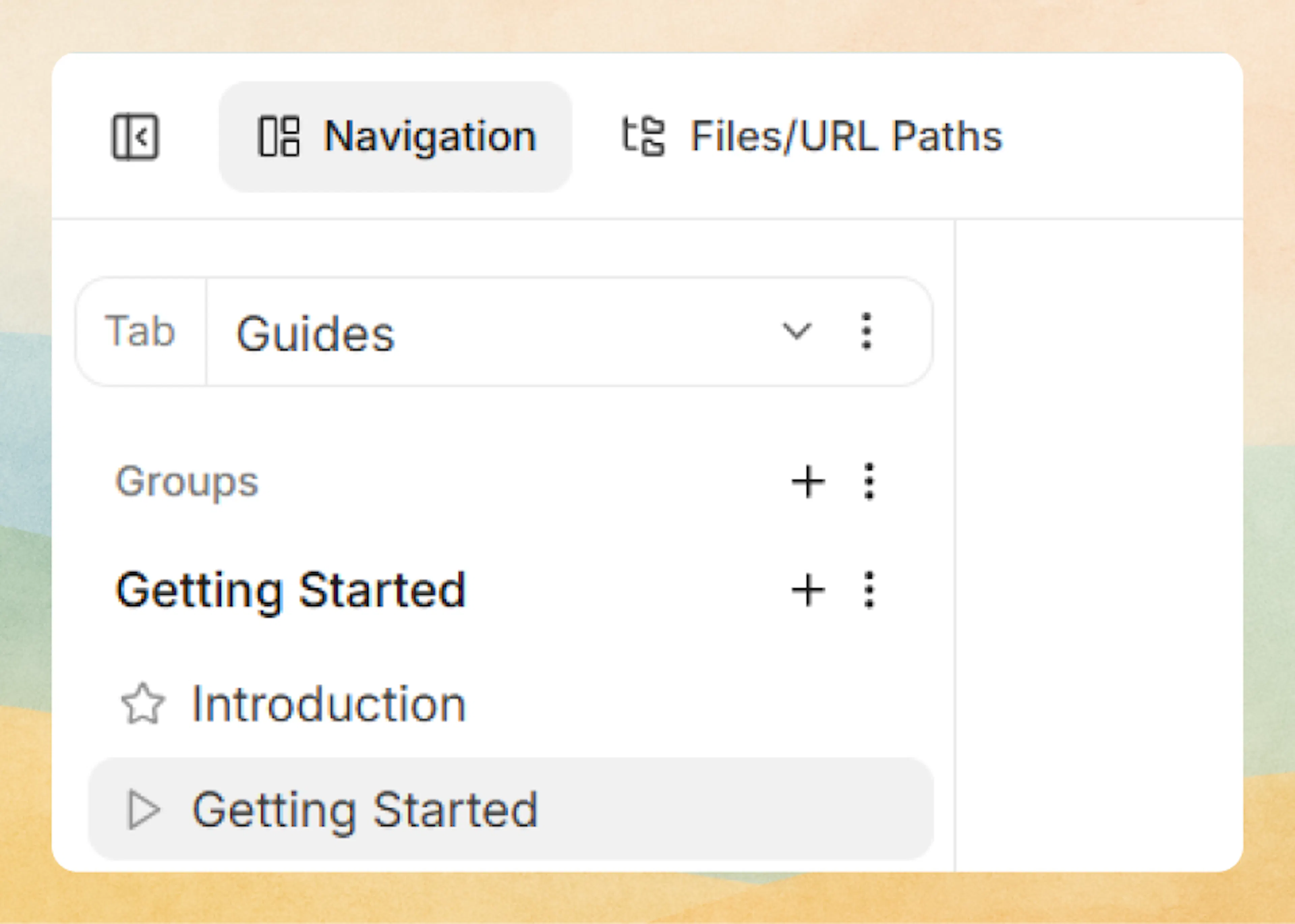
Web editor view without 'Dimensions' - If you see only Groups or Pages, your structure is currently flat content (no Views or Dimensions yet).
Add a Dimension
You can add a Dimension in two ways:
A) Add a Dimension as a parent (wrap the existing top layer)
Use this to add a Dimension above whatever currently exists at the top, an existing Dimension, a View (Tabs/Dropdowns), or a flat content structure (Groups/Pages).
Steps:
- In the sidebar navigation area, hover over the top-left of the current top layer header (the topmost layer you see, Dimension/View/Groups/Pages).
- Click the top+ icon (Add Parent layer).
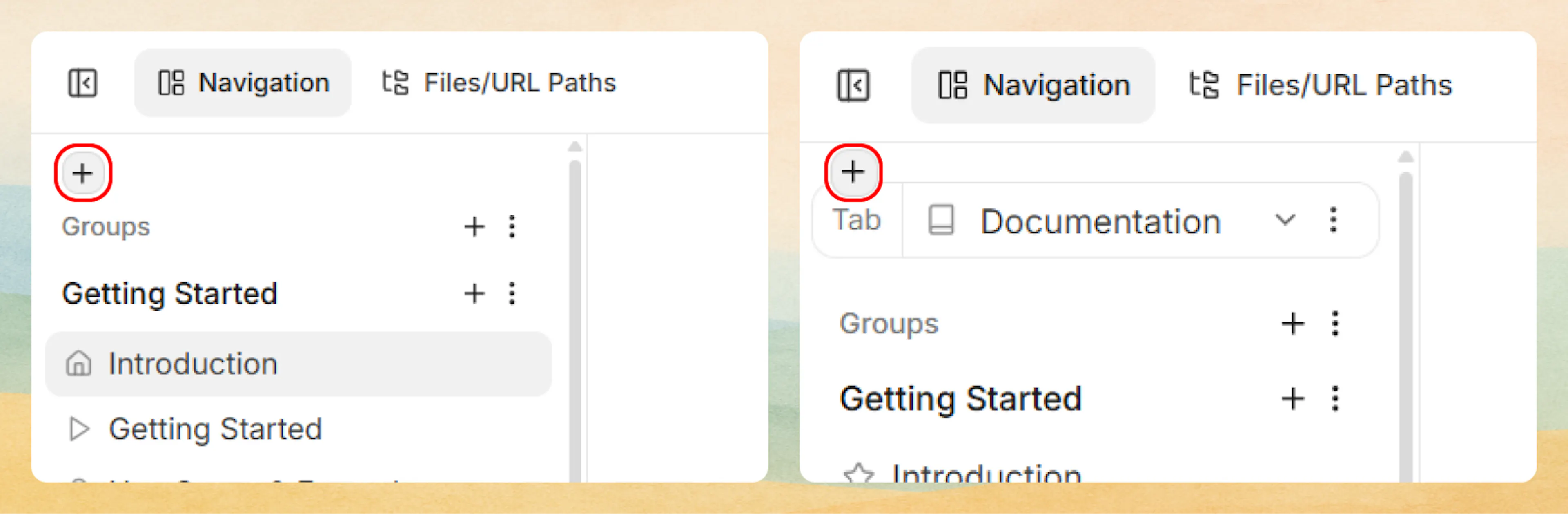
Adding 'Dimension' as a parent to flat structure & tab view - Choose Add Dimension, then select the dimension type (Product / Version / Language).
- Create the first value (for example,
Cloud,v1.0, orEnglish) and save.
What happens:
- The Editor wraps your existing structure inside the new Dimension.
- Your existing navigation/content is moved under the first value of that Dimension.
- You can add additional values as siblings (for example,
v2.0) and configure each branch independently.
B) Add a Dimension as a child (nest inside an existing Dimension)
Use this when you already have one Dimension (for example, Product) and want to add another Dimension under it (for example, Version).
Steps:
- Hover on the existing Dimension value you want to nest under (for example, Version: v1.0).
- Click the bottom+ icon (Add Child layer).
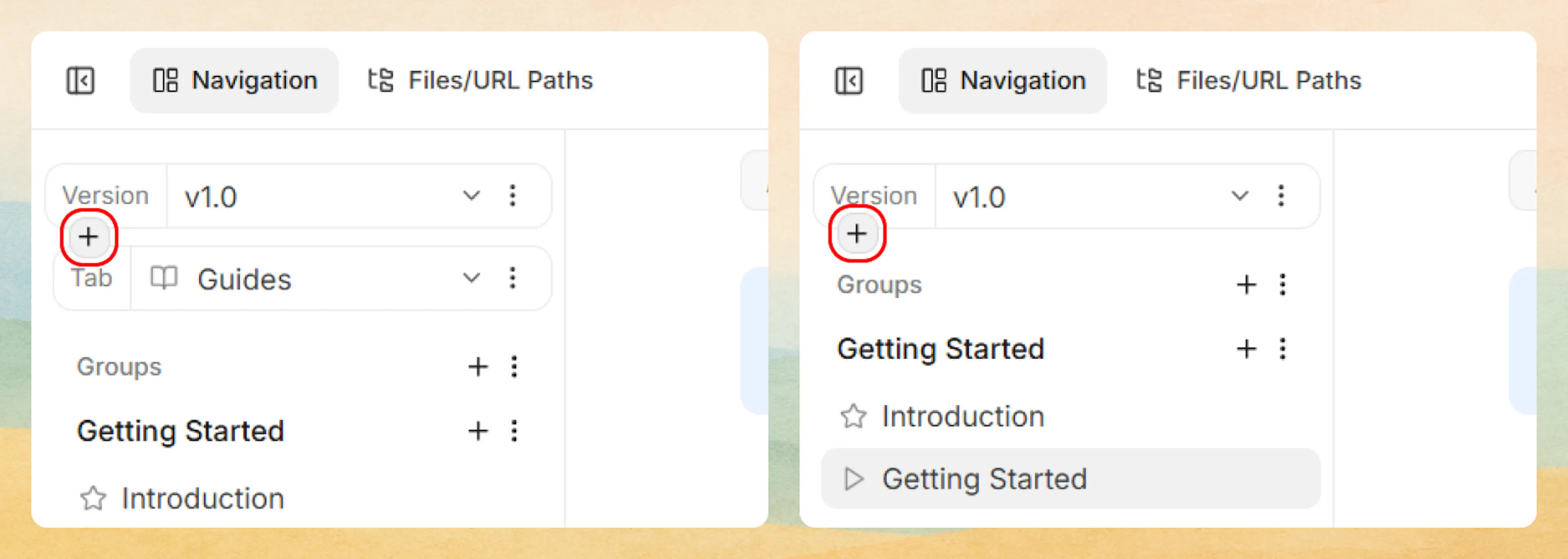
Adding 'Dimension' as a child layer to another dimension - Choose Add Child Dimension, then select the dimension type (Product / Version / Language).
- Create the first value (for example,
Product A) and save.
What happens:
- The Editor inserts a new child Dimension under the selected Dimension value.
- All existing content under that Dimension value is moved under the first value of the new child Dimension.
- You can create sibling values for the new child Dimension (for example,
Product B) and then customize or distribute content per value.
Add and manage Dimension values
After a Dimension exists, you can maintain it from the Dimension selector area:
- Add more values (for example, add
v2.0next tov1.0). - Switch between values to edit the Views and content under each branch.
- Rename values to match your naming conventions (for example,
v1→v1.0). - Reorder values so the default or recommended option appears first.
- Remove or hide values when a variant is deprecated (plan redirects if URLs will change).
Tip: After creating new values, switch between them immediately to confirm you’re editing the correct branch and that navigation/content appears where you expect.
Managing Dimensions in documentation.json
Configure Dimensions directly in documentation.json. This is useful when you want:
- Making changes using Code editor
- Version-controlled navigation changes
- Bulk edits across many dimension branches
Standalone product dimension
Define a products array at the root of your navigation. Each product becomes a branch with its own tabs, groups, and pages:
{
  "navigation": {
    "products": [
      {
        "product": "Cloud",
        "icon": "cloud",
        "tabs": [
          {
            "tab": "Guides",
            "groups": [
              {
                "group": "Getting Started",
                "pages": [
                  {
                    "title": "Introduction",
                    "path": "cloud/introduction"
                  }
                ]
              }
            ]
          }
        ]
      },
      {
        "product": "On-prem",
        "icon": "server",
        "tabs": [
          {
            "tab": "Guides",
            "groups": [
              {
                "group": "Getting Started",
                "pages": [
                  {
                    "title": "Introduction",
                    "path": "on-prem/introduction"
                  }
                ]
              }
            ]
          }
        ]
      }
    ]
  }
}
Standalone version dimension
Use a versions array when a single product has multiple API or release versions:
{
  "navigation": {
    "versions": [
      {
        "version": "v2",
        "icon": "badge",
        "tabs": [
          {
            "tab": "Guides",
            "groups": [
              {
                "group": "Getting Started",
                "pages": [
                  {
                    "title": "Introduction",
                    "path": "v2/introduction"
                  }
                ]
              }
            ]
          }
        ]
      },
      {
        "version": "v1",
        "icon": "badge",
        "tabs": [
          {
            "tab": "Guides",
            "groups": [
              {
                "group": "Getting Started",
                "pages": [
                  {
                    "title": "Introduction",
                    "path": "v1/introduction"
                  }
                ]
              }
            ]
          }
        ]
      }
    ]
  }
}
Nested dimensions (Product → Version)
Nest dimension arrays to combine multiple dimensions. The outer dimension wraps the inner:
{
  "navigation": {
    "products": [
      {
        "product": "Cloud",
        "icon": "cloud",
        "versions": [
          {
            "version": "v2",
            "icon": "badge",
            "tabs": [
              {
                "tab": "Guides",
                "groups": [
                  {
                    "group": "Getting Started",
                    "pages": [
                      {
                        "title": "Introduction",
                        "path": "cloud/v2/introduction"
                      }
                    ]
                  }
                ]
              }
            ]
          },
          {
            "version": "v1",
            "icon": "badge",
            "tabs": [
              {
                "tab": "Guides",
                "groups": [
                  {
                    "group": "Getting Started",
                    "pages": [
                      {
                        "title": "Introduction",
                        "path": "cloud/v1/introduction"
                      }
                    ]
                  }
                ]
              }
            ]
          }
        ]
      }
    ]
  }
}
For language dimensions, see Localization for full JSON examples including nested version + language structures.
See Site Configuration for the full configuration reference.
The search.strict-dimensions setting in documentation.json controls whether the AI assistant searches across all dimensions or only within the reader's current product, version, and language. See strict dimensions for full details.
Designing dimensions: guidelines and pitfalls
Use this section as a checklist when you plan or refactor dimensions.
Decide if you truly need a dimension
- List your current and planned variants (products, versions, languages).
- Ask whether readers must switch context globally, or if a few local differences are enough.
- If most content is shared and differences are small or short‑lived, avoid adding a dimension.
Choose a single root dimension
- Your navigation must start with one dimension type at the root level.
- Typical root choices:
- Product → then Version → then Language
- Product → then Language
- Version only (for a single product with multiple API versions)
- Pick the root based on what users think about first when arriving at your docs.
Keep the number of dimensions small
- Most sites work well with one or two dimensions.
- Three dimensions (Product + Version + Language) are possible but more complex to maintain.
- If your matrix of combinations starts to feel large or sparse, reconsider whether you can:
- Drop a dimension.
- Represent some variation inside pages (tabs, callouts).
- Merge rarely used variants.
Align views across variants where it helps
- Within a dimension, keep major groups consistent:
- Use the same group names and order where possible.
- Mirror key entry points (for example, "Quickstart", "API Reference").
- This makes it easy for readers to switch product or version and stay oriented.
Plan for lifecycle changes
- Versions and some products eventually deprecate.
- Decide ahead of time how you will:
- Mark older variants as legacy or deprecated.
- Hide or demote variants once usage is low.
- Redirect readers from removed variants to supported ones.
- Keep at least one clearly marked "current" path to reduce confusion.
Content pages on dimensions
Products, versions, and languages are structural containers by default; they define context but do not have pages of their own. You can attach a content page to any dimension value.
Use content pages on dimensions to:
- Give each product a welcome page that introduces the product before readers enter its docs
- Give each version a release notes or "what's new" page
- Give each language a localization status page
Attach a content page in the Web Editor
- In the editor sidebar, click the menu icon next to the dimension value name.
- Select Attach Content Page.
- Enter a path (slug) for the page, or browse unpublished pages to reuse an existing MDX file.
- The dimension value now opens its content page when clicked.
To remove the content page later, use Detach Content Page. The MDX file remains as an unpublished page.
Attach a content page in configuration
Add a path property to the dimension entry in documentation.json:
{
  "version": "v2",
  "path": "v2/overview",
  "tabs": [...]
}
The path follows the same rules as any page path: lowercase kebab-case, unique across your docs, and without the .mdx extension. To remove the content page, delete the path property.
How content pages affect navigation
When a dimension value has a content page:
- The dimension label becomes a clickable link in breadcrumb navigation.
- The content page is included in search results and AI features.
- Display options like
badge,show-sidebar, andcontent-widthwork the same as on regular pages.
For the general concept and setup details, see Content pages on containers.
Common pitfalls
Avoid these patterns when designing dimensions:
- Over‑segmenting
Creating dimensions for every role, plan, or platform when a single docs tree with tabs and callouts would be simpler. - Uneven variants
Having many pages in one variant and only a few in another, leaving large gaps or empty navigation states. - Frequent reconfiguration
Changing dimension types or order often. This makes URLs, bookmarks, and mental models unstable for readers. - Deep nesting with many dimensions
Combining several dimensions with heavily nested views. This is hard to reason about and maintain for both humans and AI agents.
Before adding or changing dimensions, map a few end-to-end user journeys (for example, "New API user for Product B / v2 / English") and confirm they can find key pages with minimal context switching.
Related reading
- Organize overview for how dimensions fit into the broader organization features.
- Site Configuration for configuring dimensions, views, and content in code.
- Organize content and navigation in the Web Editor for editor-based navigation management.