

Files
Reference for linking PDFs, documents, spreadsheets, audio, archives, and other downloadable files using the File slash command and Markdown links.
Overview
Use files to give readers something to download or open: a PDF datasheet, a sample CSV, a ZIP of SDK examples, an audio clip, or a font. Documentation.AI hosts the file in your media library and serves it from a CDN at a stable URL.
Unlike images and videos, files have no embeddable form. They are inserted as a link whose text is the file's description or name. PDFs open in the browser's built-in viewer. Most other kinds download.
You can add files in two ways:
- Web Editor: Type
/fileand pick or upload a file. - Code Editor / MDX: Write a Markdown link to the file's CDN URL.
For images see Images. For video see Videos and iframes.
Supported file types
| Kind | Formats |
|---|---|
| Documents | PDF, DOCX, DOC, XLSX, XLS, PPTX, PPT, ODT, ODS, ODP |
| Data | CSV, TSV, JSON, YAML, XML, TXT, LOG, MD, MDX |
| Archives | ZIP, GZ, TGZ, TAR |
| Audio | MP3, WAV, OGG, M4A, AAC |
| Fonts | WOFF, WOFF2, TTF, OTF |
Executables, installers, scripts, macro-enabled Office files, and HTML pages are refused on every plan. Package them in a ZIP if readers need them.
Per-file size limits depend on your plan: 10 MB on Starter, 20 MB on Standard, and 30 MB on Professional and Enterprise. Audio is metered as video (20, 30, and 50 MB respectively). See Limits and supported file types.
Using with Web Editor
Insert a file
-
Place your cursor where the link should go.
-
Type / and select File.
-
In the Select file dialog, either:
-
Click the Upload tile, choose a file, confirm or edit its name, and click Upload, or
-
Search and select a file that is already in the library.
-
-
Click Insert file.
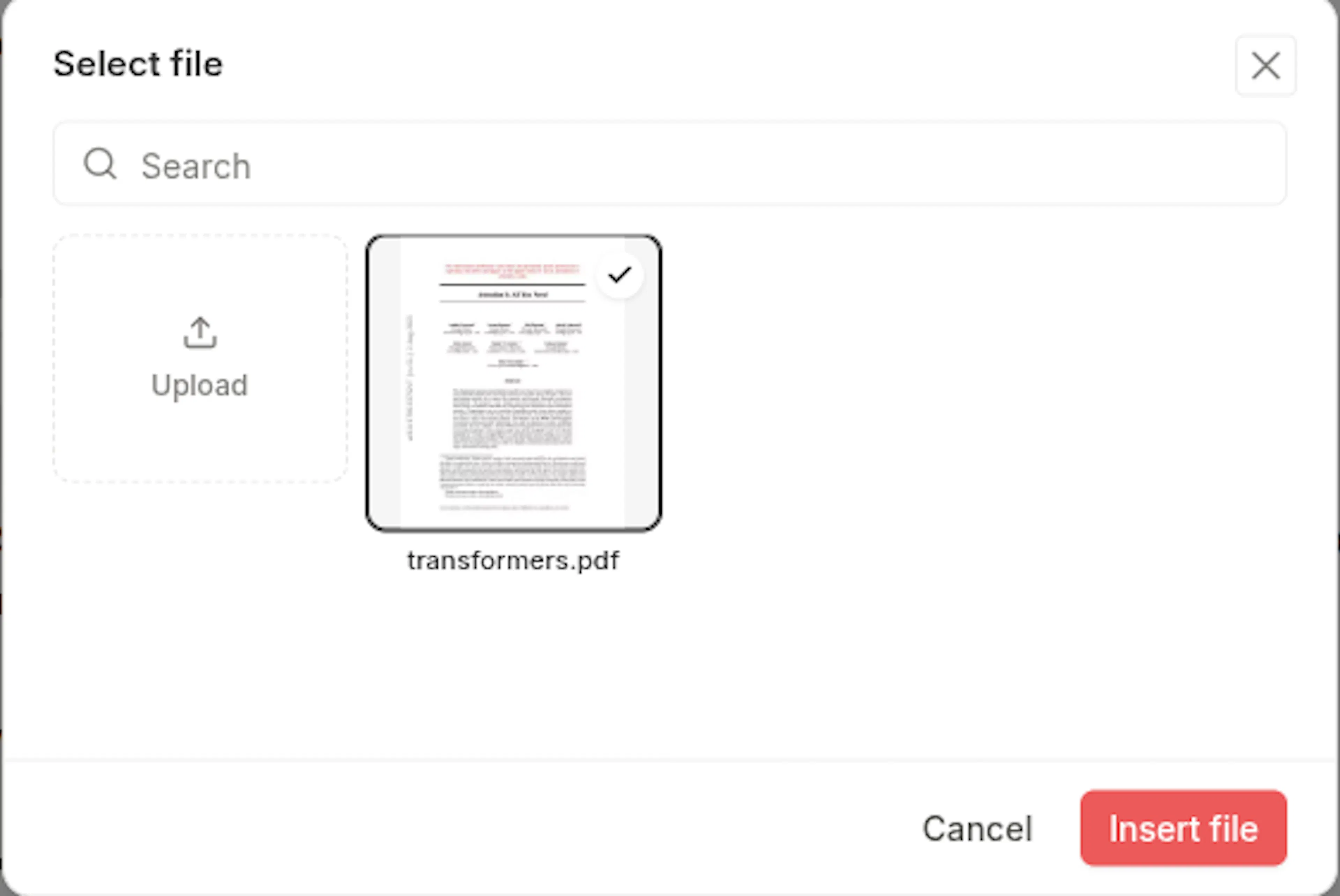
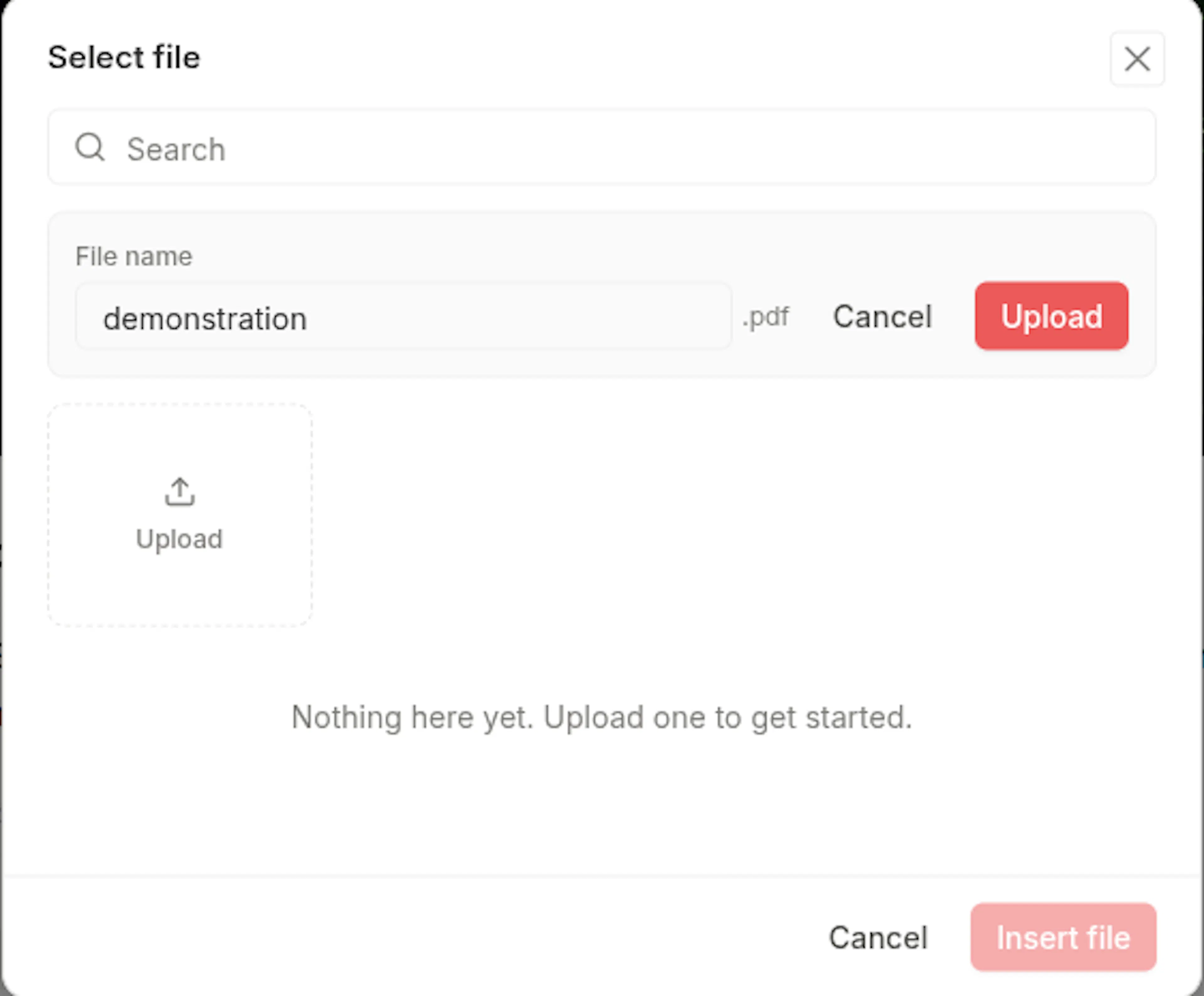
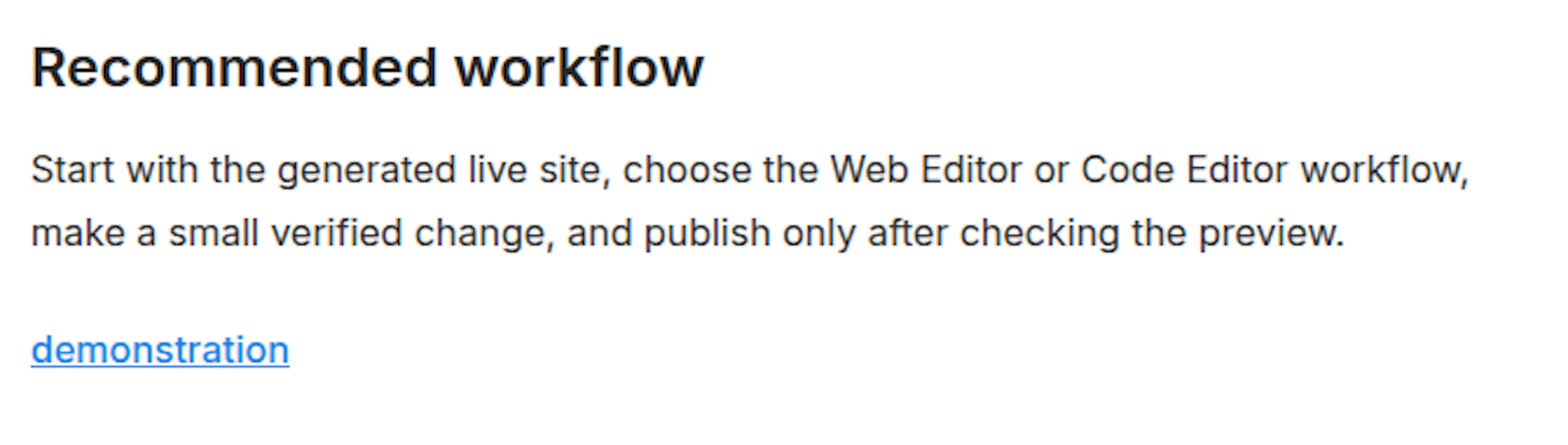
The editor inserts a link at the cursor. The link text is the file's Description if one is set in the media library, otherwise the file name without its extension.
Prefer writing in code?
You can switch to MDX view inside the Web Editor to write or edit the link using the same syntax as the Code Editor.
Other ways to insert
-
Media tab: Open the Media tab in the editor's secondary navbar, hover a file, and click Insert link into page, or drag the tile onto the page.
-
Drop onto the page: Drop a supported file into the editor. It uploads and inserts itself as a link at the drop position.
Change the link text
The link text comes from the file's description at the moment you insert it.
-
To set a default for future inserts, open the file in the media library and edit its Description.
-
To change an existing link, edit the link text on the page as you would any other link.
Update or replace the file
-
Same file, new content: Open the file in the media library and click Replace file. The URL stays the same, so every page that links to it serves the new version. The replacement must be the same file type.
-
Different file: Insert the new file and remove the old link.
Using with Code Editor
In MDX a file is a plain Markdown link to its CDN URL. Upload the file through the media library first, then copy its URL.
Basic usage
[Download the API reference (PDF)](https://file-cdn.documentation.ai/org-.../doc-.../1757300000000-abc123-api-reference.pdf)
Guidelines:
-
Use link text that says what the reader gets, including the format when it matters, such as "(PDF)" or "(ZIP, 4 MB)".
-
Files uploaded through the media library are served from
file-cdn.documentation.ai. External URLs also work but are not hosted, counted, or replaceable from the library. -
Links to hosted files open in a new tab. PDFs display inline in the browser; other file types download.
Link inside other components
A file link is ordinary Markdown, so it works anywhere inline text does:
<Callout kind="tip">

  Want to follow along? [Download the sample dataset (CSV)](https://file-cdn.documentation.ai/org-.../doc-.../1757300000000-abc123-sample-data.csv) and import it into your workspace.

</Callout>
Use a Card with href set to the file URL when you want a larger, clickable download target.
Audio
Audio files are also inserted as links. Readers open or download the file rather than playing it inline.
[Listen to the pronunciation guide (MP3)](https://file-cdn.documentation.ai/org-.../doc-.../1757300000000-abc123-pronunciation.mp3)
Advanced options
Security and delivery
-
Every upload is verified on the server. The file's actual contents must match its extension and declared type, or the upload is refused.
-
Hosted files are served with headers that prevent the browser from interpreting them as web pages.
-
Hosted file URLs are public. Do not upload files that require authentication to view.
Specifications
-
URL format: Absolute URLs only.
-
Link text: Defaults to the file's description, then the file name without its extension.
-
Hosted delivery:
file-cdn.documentation.ai, with a short cache lifetime so replacements propagate within minutes. -
Replace: Keeps the URL. Same file type only.