

Footer
Add link groups, social icons, and a copyright notice to the bottom of every page, and give each language its own footer.
Add a footer to every page of your documentation site: columns of links, icons for your social profiles, and a copyright notice. On sites with languages, each language can have its own footer.
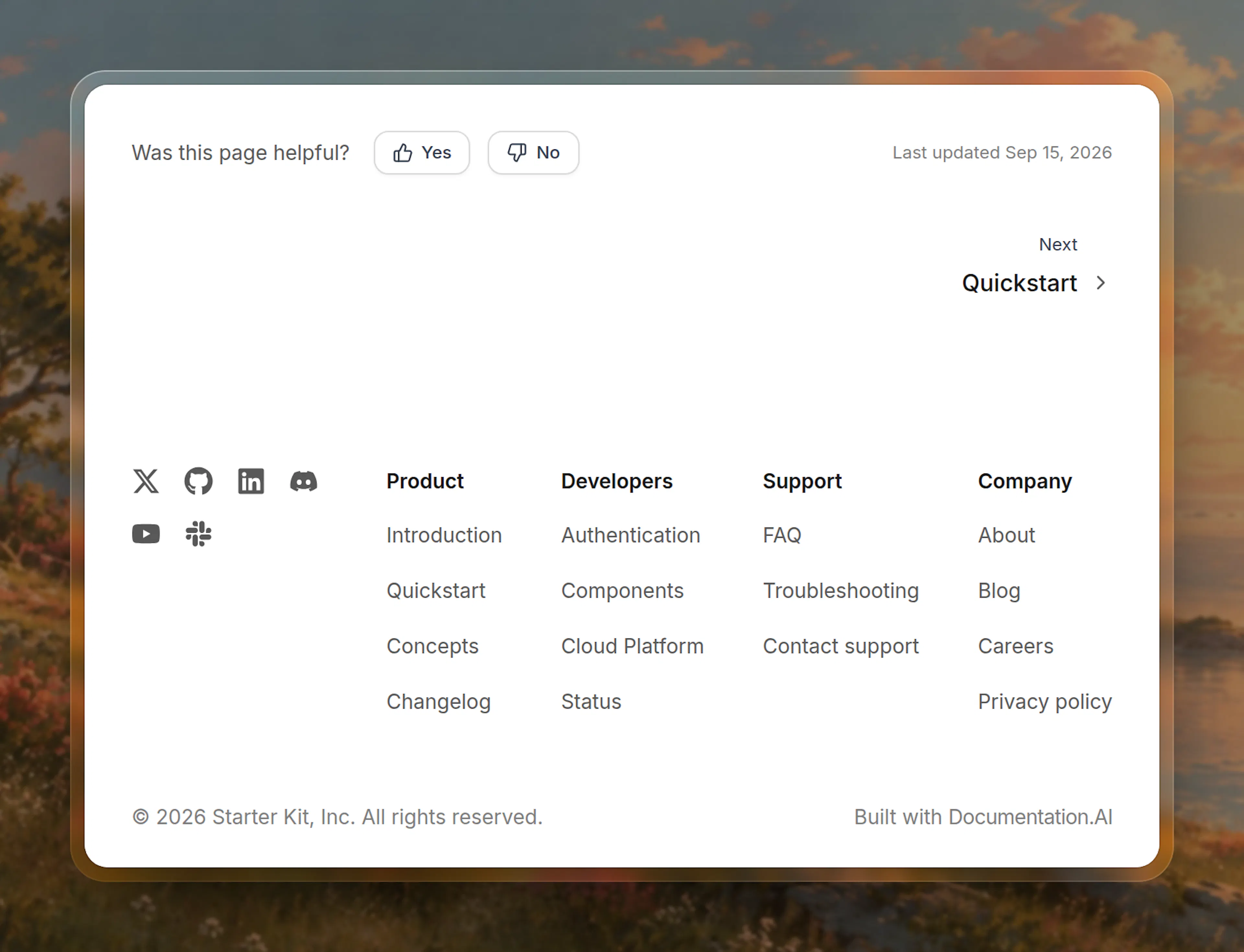
How the footer works
The footer appears under the content of every published page, in both templates. It has three parts, and each part shows only when it has content:
- Link groups: columns of links, each under a heading. Use them for your product, company, and legal pages.
- Social links: icons for your profiles, in the order you add them.
- Copyright notice: one line of text at the bottom.
The "Built with Documentation.AI" link sits on the footer's last line, next to the copyright notice. Sites with white-label don't show it.
Without a footer, pages look the same as before: "Last updated" and the "Built with Documentation.AI" link sit in a row under the page. Embedded docs and PDF downloads leave the footer out.
Configure the footer from the Editor
The Footer settings edit the default footer, which every page shows unless its language has its own footer.
Open the Footer settings
In the Editor, click Site Config in the top toolbar, then select Footer from the left sidebar.
Add link groups
Under Link groups, click Add link group, type a heading such as "Company", and press Enter. To change a heading later, click the pencil next to it.
Click Add link to add a link to the group. Enter its label, then search for a page in your docs or paste a URL.
Add social links
Under Social links, click Add social link and pick a platform, then paste your profile URL. Each platform gets its icon automatically.
Add a copyright notice
Under Copyright notice, enter the text, for example © 2026 Acme Inc. All rights reserved.
Publish
Click Publish to add the footer to your live site.
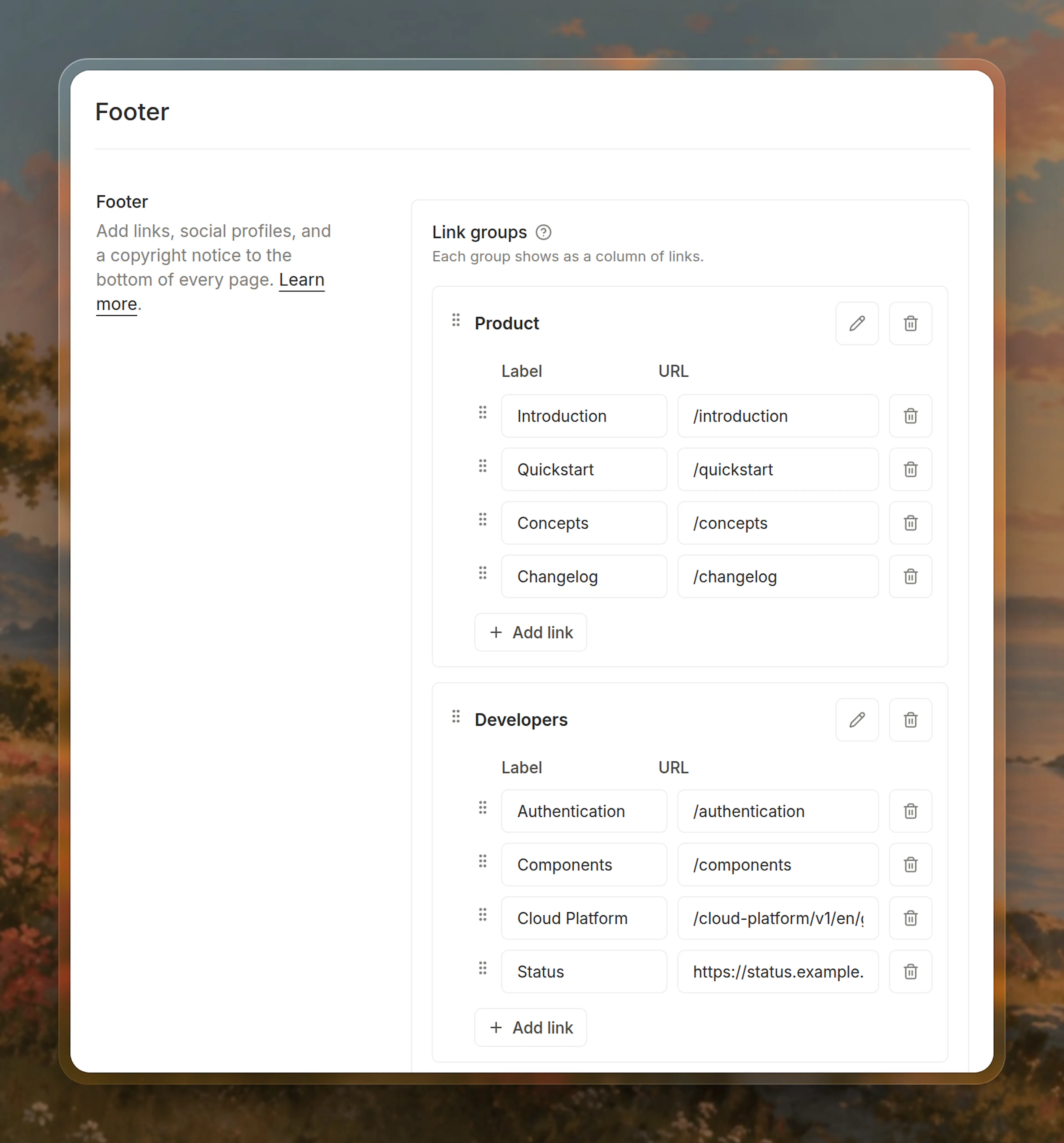
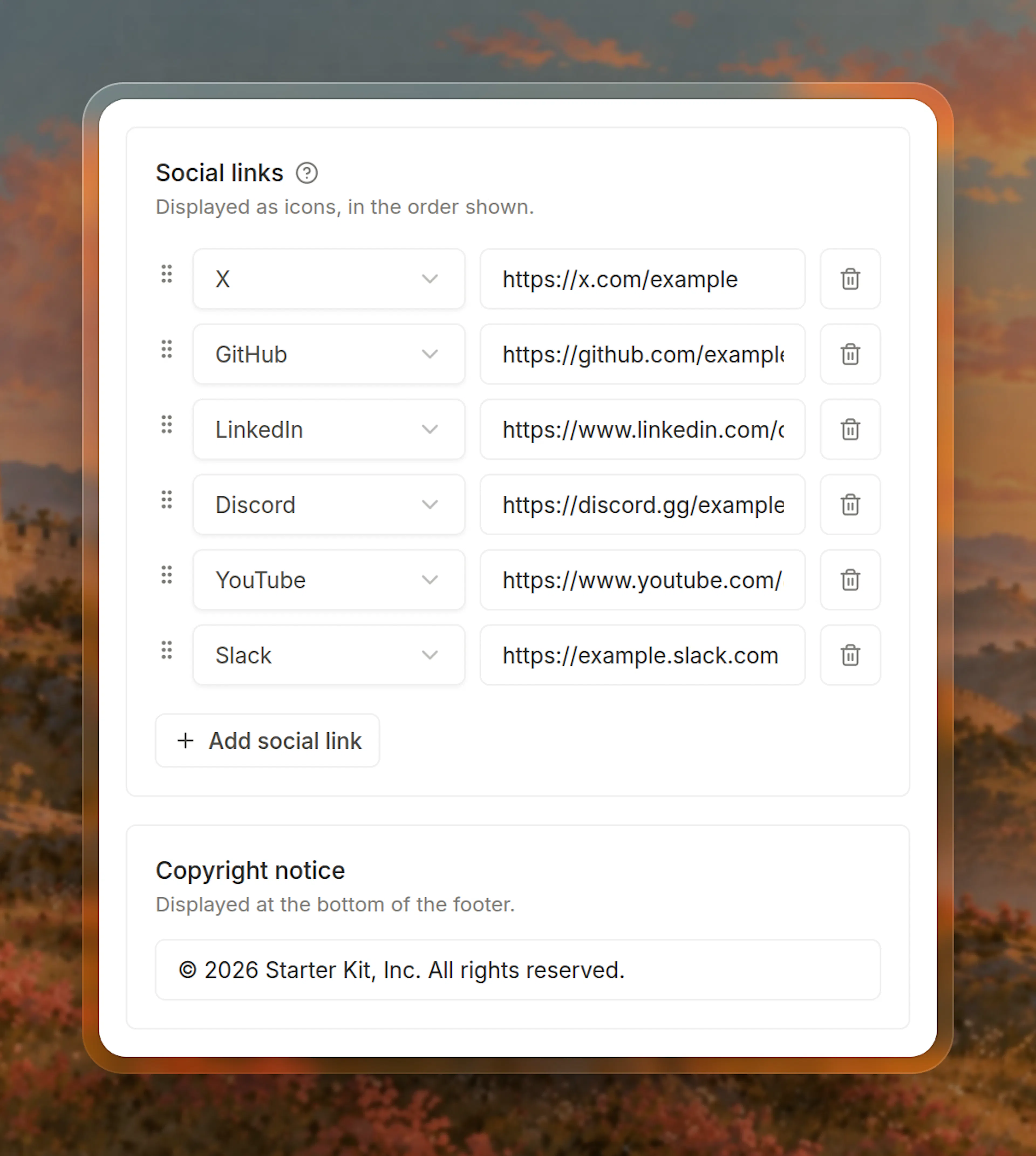
To reorder link groups, links, or social links, drag a row by its handle. You can also use the keyboard: focus the handle, press Space, move the row with the arrow keys, and press Space again to drop it.
To remove the footer, remove every link group and social link, and clear the copyright notice.
Configure the footer in documentation.json
Use documentation.json when you manage site configuration in version control. Add a footer object at the top level:
{
  "footer": {
    "links": [
      {
        "header": "Product",
        "items": [
          { "label": "Quickstart", "href": "quickstart" },
          { "label": "Pricing", "href": "https://example.com/pricing" }
        ]
      },
      {
        "header": "Legal",
        "items": [
          { "label": "Privacy Policy", "href": "https://example.com/privacy" },
          { "label": "Contact", "href": "mailto:support@example.com" }
        ]
      }
    ],
    "socials": {
      "github": "https://github.com/example",
      "x": "https://x.com/example",
      "linkedin": "https://www.linkedin.com/company/example"
    },
    "copyright": "© 2026 Example Inc. All rights reserved."
  }
}
Link groups, shown as columns in the order written. They wrap onto new rows when space runs out.
Plain text on one line at the bottom of the footer. Line breaks show as spaces, and nothing is formatted, so put links in a link group.
Give a language its own footer
If your site has languages, each language can have its own footer, with translated headings and labels, local legal pages, or a regional social account. You set it in documentation.json. The Footer settings in the Editor edit only the default footer.
Add a footer object to the language's entry in navigation. It takes the same keys as the top-level footer and replaces it on that language's pages:
{
  "footer": {
    "links": [
      {
        "header": "Legal",
        "items": [{ "label": "Privacy Policy", "href": "privacy" }]
      }
    ],
    "socials": { "x": "https://x.com/example" },
    "copyright": "© 2026 Example Inc."
  },
  "navigation": {
    "languages": [
      {
        "language": "English",
        "groups": [{ "group": "Get started", "pages": ["quickstart"] }]
      },
      {
        "language": "Español",
        "footer": {
          "links": [
            {
              "header": "Aviso legal",
              "items": [{ "label": "Privacidad", "href": "es/privacy" }]
            }
          ],
          "socials": { "x": "https://x.com/example_es" },
          "copyright": "© 2026 Example S.L."
        },
        "groups": [{ "group": "Primeros pasos", "pages": ["es/quickstart"] }]
      }
    ]
  }
}
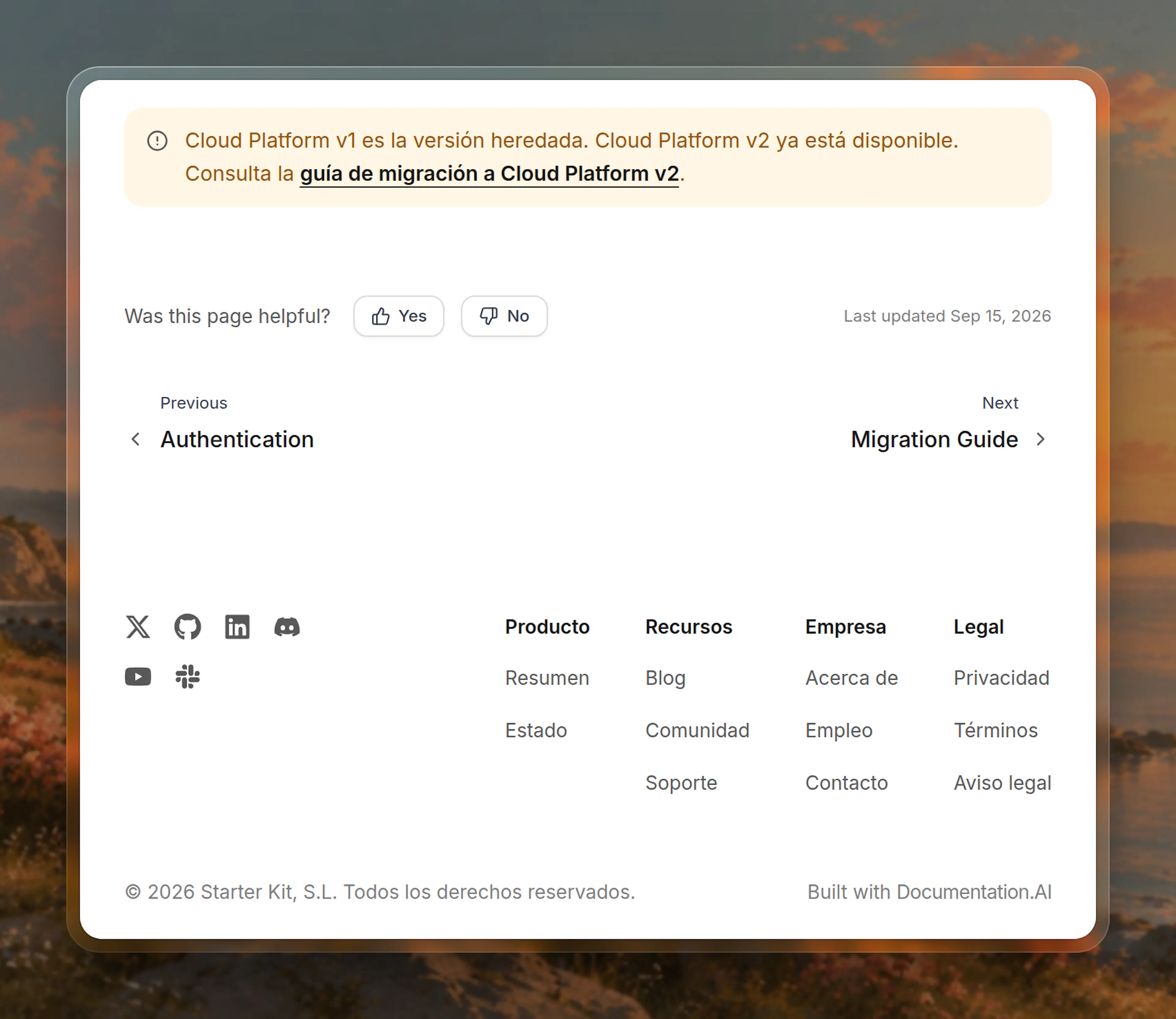
- A language's
footerreplaces the default footer whole. Parts it leaves out aren't filled in from the default, so copy the ones you want to keep. - An empty
footer({}) shows no footer on that language's pages. - A language without a
footershows the default footer. - When a language appears under several products or versions, each of those entries takes its own
footer. Add it to every entry that should show it. This also lets one product or version show a different footer for the same language. - Only language entries take a
footer. The site ignores one on a product or version entry. - A language you add in the Editor's navigation starts without a footer.
Link formats
| You write | Where the link goes |
|---|---|
quickstart, /quickstart, guides/setup | A page on your site, read from the site root |
https://example.com/pricing | Another website, opened in a new tab |
mailto:support@example.com | A new email |
tel:+1-555-0123 | A phone call |
#contact | A section of the current page |
For social links, use the full profile URL. A URL without https://, such as github.com/example, gets https:// added. The Editor shows Enter a valid URL under a social link that can't open as a link, such as a handle like @example.
Style the footer with custom CSS
The footer has no style settings of its own. Every part of it carries a stable class name, so you can restyle it with custom CSS. Each social icon also carries a data-platform attribute, so you can target one platform:
.dai-site-footer-column-title {
  text-transform: uppercase;
  letter-spacing: 0.05em;
}

.dai-site-footer-social[data-platform="github"]:hover {
  color: #24292f;
}
Troubleshooting
The footer doesn't appear: Check that it has at least one link, social link, or copyright notice, then publish. An empty footer isn't shown.
A language shows the default footer: The footer must sit on the language entry the page is under in your navigation. If the language appears under several products or versions, check each of those entries.
A language's footer is missing a part: A language's footer replaces the default whole. Add the missing links, social links, or copyright notice to the language's footer.
A social icon is missing: A platform with an empty URL isn't shown.
A social icon shows a plain link icon: The platform name isn't one of the names with their own icon. Check the spelling, such as x or hacker-news.
A link opens the wrong page: Page paths are read from the site root, so write the path as it appears in your navigation, such as guides/setup.