

Branches and previews
Work safely in separate branches, review preview versions of your site, and merge or publish changes with the right workflow for your team.
Overview
Branches let you make changes without affecting your live documentation. Draft updates, review them on a preview version of your site, and then merge or publish only when the changes are ready.
This workflow works for both technical and non-technical teams. If you use Git every day, branches map cleanly to familiar branch and pull request workflows. If you do not, you can still use branches from the editor to separate draft work from what visitors see on your live site.
The Live branch is your deployment branch. In the dashboard, these terms refer to the same branch.
Who this workflow is for
Use branches when more than one version of your content needs to exist at the same time. The most common use cases differ slightly by role.
-
Writers use branches to draft content updates, review a safe preview link, and merge changes into the live site when approved.
-
Developers use branches to align documentation changes with Git workflows, open pull requests, and control when updates reach the deployment branch.
-
Teams with reviewers use branches to separate writing from approval so unfinished changes never appear on the live site.
-
Anyone making larger or riskier edits uses branches to test navigation, wording, and structure before publishing.
Key terms
A few terms appear throughout the editor and branch menu.
-
Live branch: The branch currently used for your live site. The dashboard labels this branch Live.
-
Deployment branch: The branch that deploys your site. In most workflows, this is the same branch labeled Live in the editor.
-
Preview site: A separate preview version of a non-live branch with its own preview URL.
-
Unsaved changes: Local edits in your current browser that you have not saved or published yet.
-
Pull request: A request to merge one branch into the deployment branch through your Git workflow.
How branches work in Documentation.AI
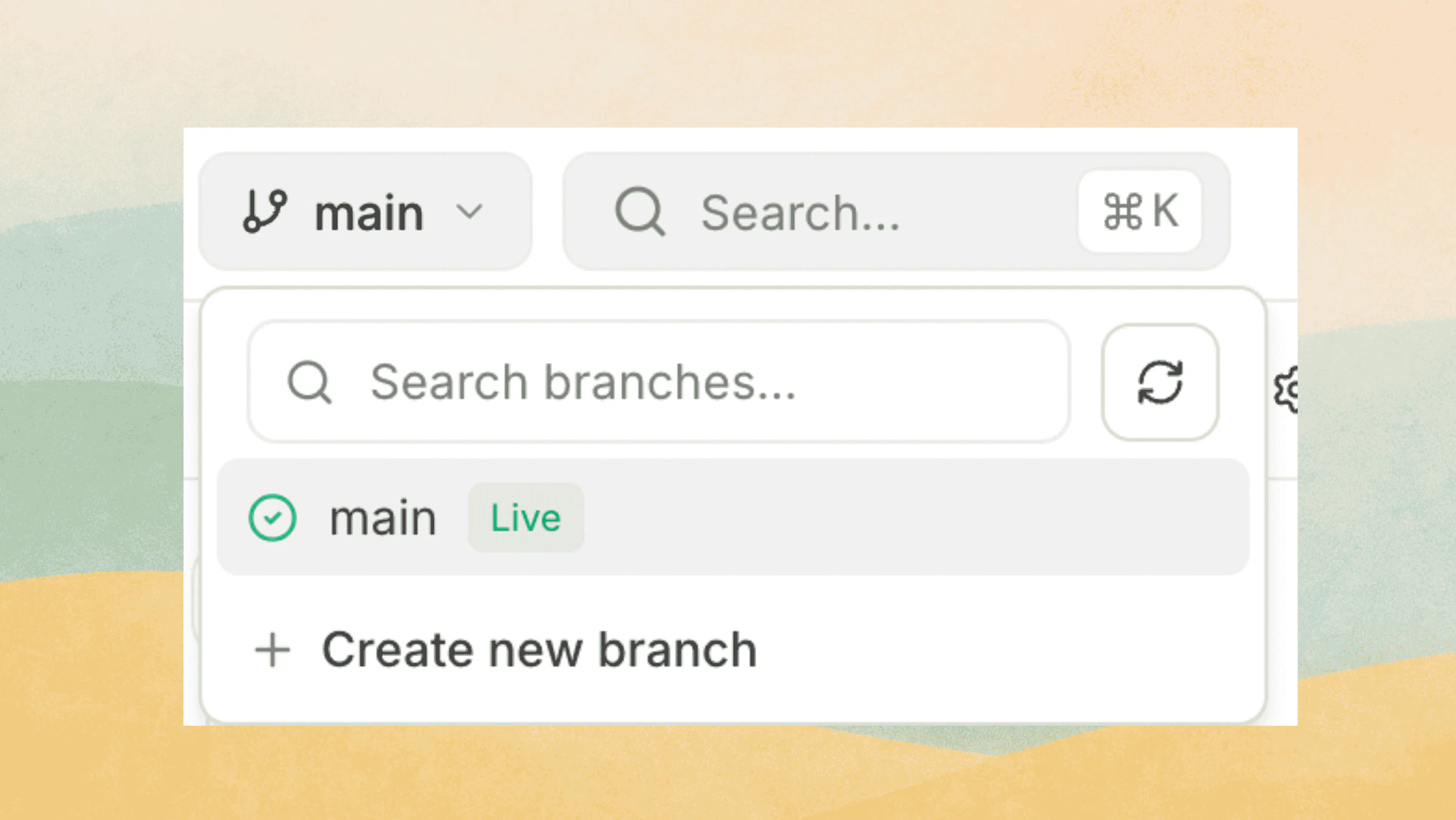
You manage branches from the branch selector in the editor top bar. From that menu, you can search for branches, refresh the list, switch branches, create branches, and delete eligible branches.
When you create a branch, you choose which existing branch to create it from. After creation, the editor automatically switches you into the new branch so you can keep working without an extra step.
Branch names may be normalized into a valid Git branch format. If you enter a name with characters or spacing that Git does not accept, the saved branch name may differ slightly from what you typed.
Unsaved changes behave differently from saved branch content. Local edits stay only in your current browser until you save, publish, merge, or clear them.
Use the Changes view to review both types of work: saved branch changes(if any) to check all the changes saved to that branch, while unsaved changes let you inspect local unpublished edits before you save, merge, or publish.
Use branches for any change that needs review, coordination, or a preview link. Stay on the Live branch for small, urgent edits that should go live immediately.
Create and work on a branch
Create a branch when you want a safe place to draft or test changes before they affect the live site.
Open the branch menu
Open the branch selector in the editor top bar.
From this menu, you can search existing branches, refresh the branch list, switch branches, or create a new branch.
Create the branch from the right starting point
Choose to create a new branch, then select which existing branch to create it from.
Pick the branch that already contains the content you want to build on. In most cases, that is the Live branch, but you can also branch from another non-live branch when that better matches your workflow.
Decide whether to carry unsaved changes
If you have local unpublished edits, you can choose Carry unsaved changes to new branch.
When you enable that option, Documentation.AI copies your local unsaved edits to the new branch and removes those local edits from the original branch after the switch succeeds.
Start editing on the new branch
After the branch is created, the editor switches you into it automatically.
Continue editing as usual. Your work now belongs to the branch you just created, not to the Live branch.
Unsaved changes are stored locally in your current browser. They are not shared cloud drafts, and teammates will not see them until you save or publish through the branch workflow.
What to expect while working on a branch
The action buttons change depending on which branch you are on.
-
On the Live branch, you Publish.
-
On a non-live branch, you can Save, Save & Merge, or Save & Create PR.
That distinction matters because saving a branch and publishing the live site are different actions. A saved branch can be reviewed privately before anything reaches your public documentation.
Preview sites
Preview sites let you review a non-live branch on its own URL before merging or publishing changes. This is the safest way to check larger edits, page structure changes, or updates that need approval.
Preview sites are available only on eligible plans. They require the Standard plan or higher.
Save changes on a non-live branch
Work on a non-live branch, then save your changes from that branch.
On eligible plans, saving changes can create a preview site for that branch.
Wait for the preview to become available
A preview link appears only when a preview site is available and ready.
If you do not see a preview link yet, the preview may still be processing, or your plan may not include preview sites.
Open the preview URL
When the preview is ready, open the branch's Preview link.
Each preview site uses its own preview URL or subdomain, so reviewers can inspect that branch without affecting the live site.
Review and iterate
Use the preview site to confirm that pages render as expected and that navigation, links, and wording look right.
If you find issues, return to the same branch, make updates, and save again before merging or creating a pull request.
If your plan does not include preview sites, the dashboard shows an upgrade prompt instead of a working preview flow.
Merge, publish, and pull requests
Once your branch looks correct, choose the action that matches how your team ships changes.
Use Save on a non-live branch
Save stores the current branch state without sending changes to the Live branch. Use it when you are still drafting, waiting for review, or expecting more edits.
Use Publish on the Live branch
Publish is available on the Live branch. Use it when you want changes on the deployment branch to go live on your site.
Use Save & Merge to send a branch to Live
Save & Merge saves the current branch and merges it into the Live branch. After a successful merge, the dashboard switches you back to the Live branch automatically.
Finish edits on the branch
Confirm that the branch contains the exact content you want to send to the Live branch.
If a preview site is available, review it before merging.
Run Save & Merge
Choose Save & Merge from the non-live branch.
Documentation.AI saves the branch and merges it into the Live branch in one action.
Continue on the Live branch
After the merge succeeds, the editor switches you back to the Live branch automatically.
You can then continue reviewing or publish from the Live branch if your workflow requires that final step.
If the Live branch has unsaved local changes, merge is blocked until you publish those changes or clear them. This prevents local browser-only edits on the Live branch from conflicting with the merge.
Use Save & Create PR for review in Git
Save & Create PR creates a pull request from the current branch into the Live branch. This is the best fit when your team reviews changes through Git before merging.
Save the branch
Make sure the branch contains the changes you want reviewers to inspect.
Then choose Save & Create PR.
Open the pull request
Documentation.AI creates a pull request from your current branch into the Live branch.
Reviewers can use the pull request for code review, approval, or discussion alongside any preview site that exists for the branch.
Track review status
If the branch already has an open pull request, the dashboard shows it as Awaiting review and links to that pull request.
Use that status to avoid opening duplicate review requests for the same branch.
Change the live branch
You can change which branch acts as the Live branch when your team's default publishing branch changes.
This setting lives in Git Settings, not in the branch menu in the editor.
Open your Git Settings
Go to Settings → Git Settings, then open the settings for your connected repository (GitHub or GitLab).
Select a new Live branch
Choose the branch that should become the new Live branch.
After you save the change, that branch becomes the branch the editor treats as Live.
Wait for redeployment
Changing the Live branch triggers a full redeployment from the newly selected branch.
Plan this change carefully so your team knows which branch is now responsible for the live site.
Best practices and important caveats
Use a branch whenever a change needs review, coordinated approval, or visual verification in a preview site.
For example, a writer updating a single paragraph on an urgent deadline might publish directly on the Live branch, while a developer changing navigation structure or a non-developer rewriting multiple pages should usually work on a branch first.
Summary
Branches give you a safer way to work than editing directly on the Live branch. You can create a branch from the editor top bar, choose whether to carry local unsaved changes, review a preview site when available, and then merge to Live, publish from Live, or create a pull request.
For file-based Git workflows, see the Code Editor. To change which branch is treated as Live, update the Live branch setting in Settings → Git Settings.