

External Sources
Upload PDFs and add websites as knowledge sources that the AI Assistant searches and cites alongside your published documentation.
Extend the AI Assistant's knowledge
Extend the AI Assistant's knowledge beyond your published documentation by adding PDFs and websites as external sources. The assistant searches these sources alongside your docs and cites them in its answers.
Prerequisites
You need a Standard plan or higher to use the external sources feature.
How it works
External Sources indexes PDF files and website content for the AI Assistant. The assistant extracts the content, divides it into searchable chunks, and adds embeddings to the search index alongside your documentation.
Configure sources in the dashboard under AI Assistant → Knowledge → External Sources.
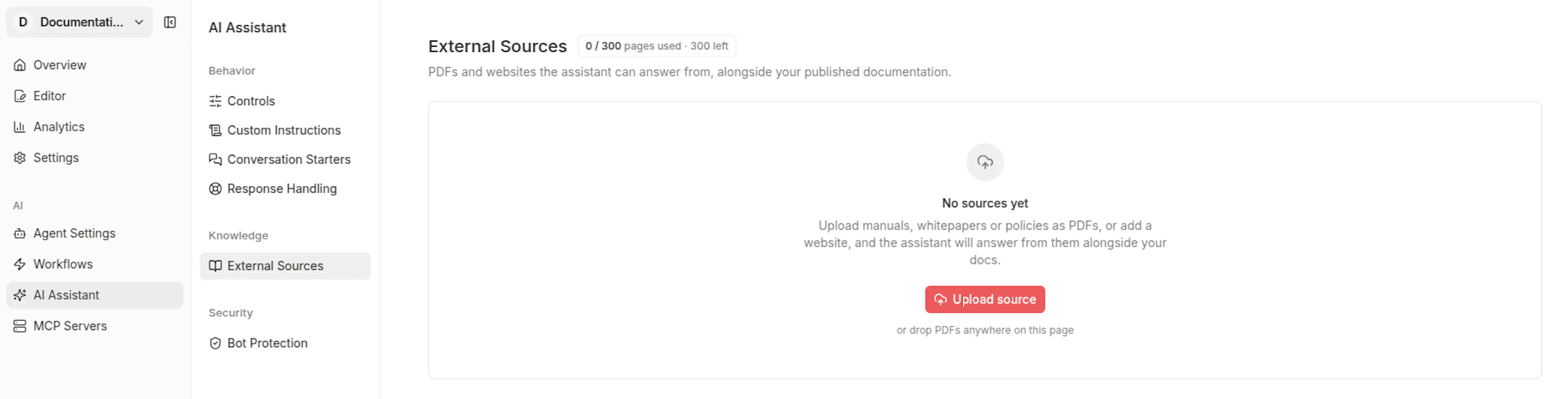
External Sources are managed in the dashboard. You do not configure them in documentation.json, and external content does not appear in your published documentation.
How the AI Assistant uses sources
The AI Assistant searches your published documentation and indexed external sources together, while keeping their search records separate. It retrieves relevant content from both and includes citations in its answers.
External source content does not become part of your published documentation or navigation. Readers can access it through AI Assistant answers according to the source's visibility and access-role settings.
Add a PDF source
Upload one or more text-based PDF files to make their content available to the AI Assistant.
Open External Sources
In the dashboard, go to AI Assistant → Knowledge → External Sources.
Choose the PDF upload flow
Click Upload source, then select the PDF tab.
Select your PDF files
Drag and drop PDF files into the upload area, or click Browse to select them from your computer. You can select up to 10 files in one upload.
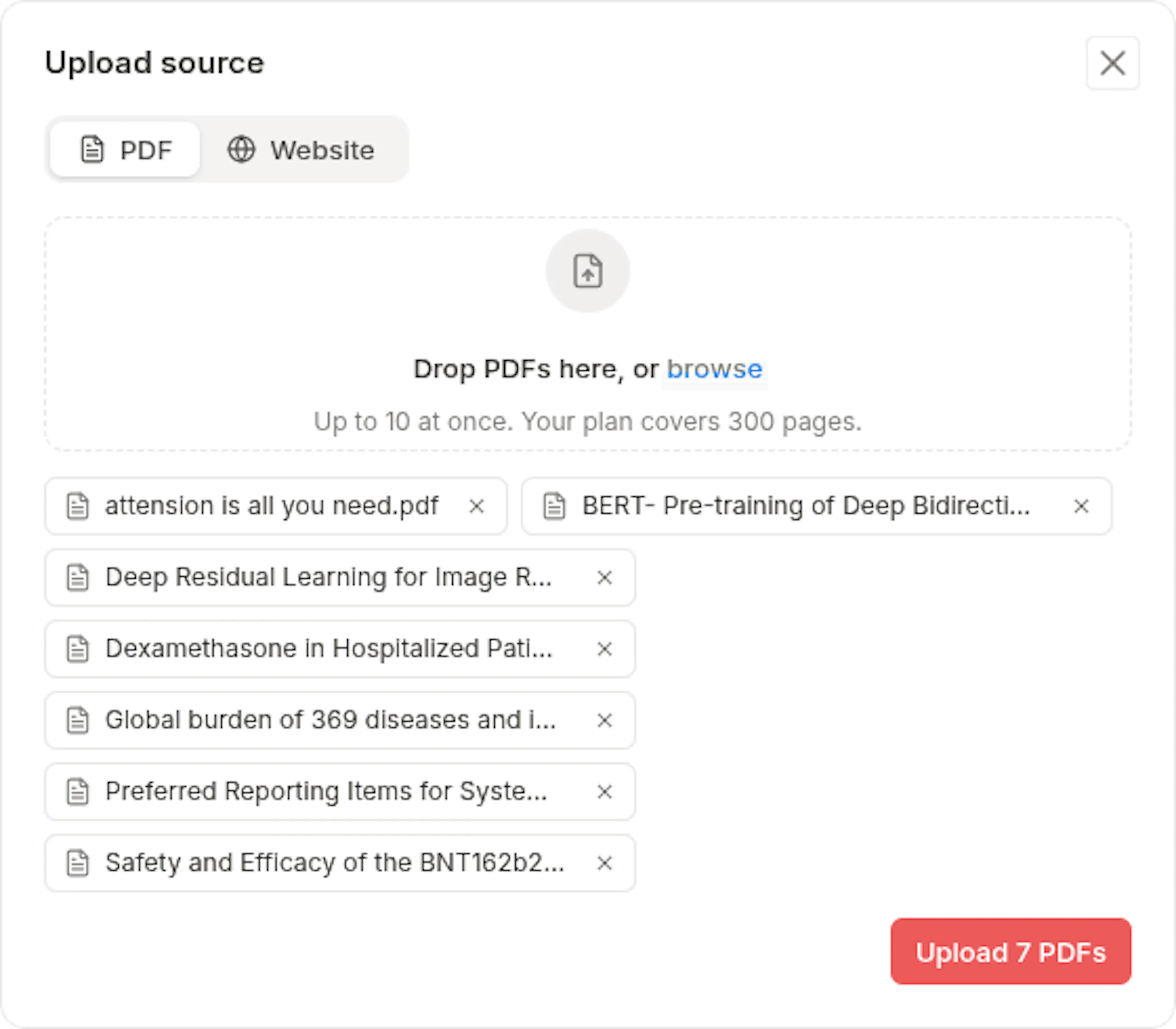
Review the page budget
The browser checks each file against the remaining page budget before uploading. Remove files that would exceed the available budget before continuing.
Wait for indexing to finish
After upload, each source moves through Queued, Processing, and Ready. When the status is Ready, the AI Assistant can retrieve content from the PDF.
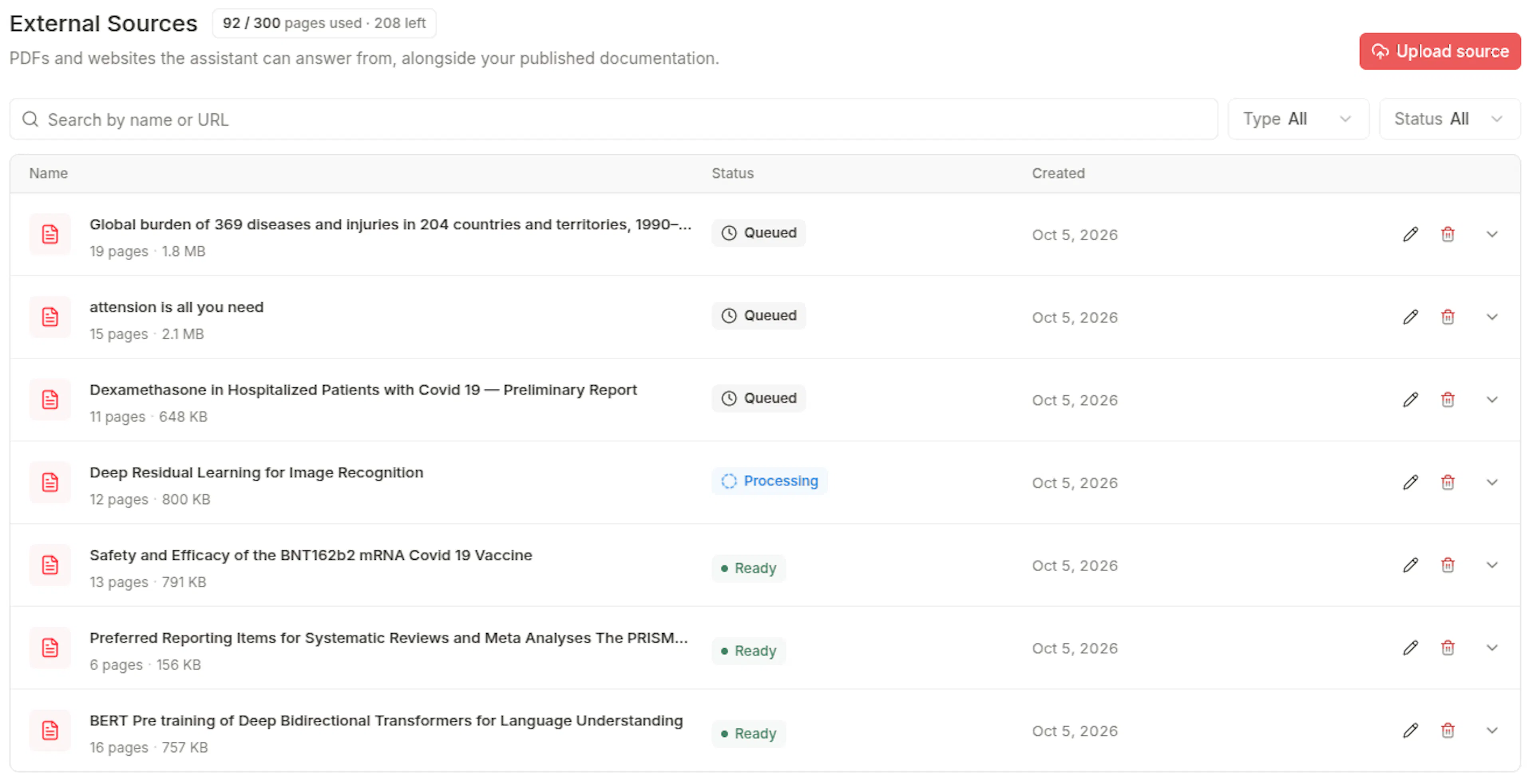
PDF uploads have these limits:
- Upload a maximum of 10 PDFs at once.
- Each PDF must be 50 MB or smaller.
- Password-protected PDFs are rejected.
- Scanned PDFs and PDFs without extractable text are rejected.
- A PDF with the same filename as an existing source is treated as a duplicate.
Add a website source
Add a single web page or crawl a page and its subpages. Preview the crawl before you add the source so you can control which pages the AI Assistant can use.
Open External Sources
In the dashboard, go to AI Assistant → Knowledge → External Sources.
Choose the website flow
Click Upload source, then select the Website tab.
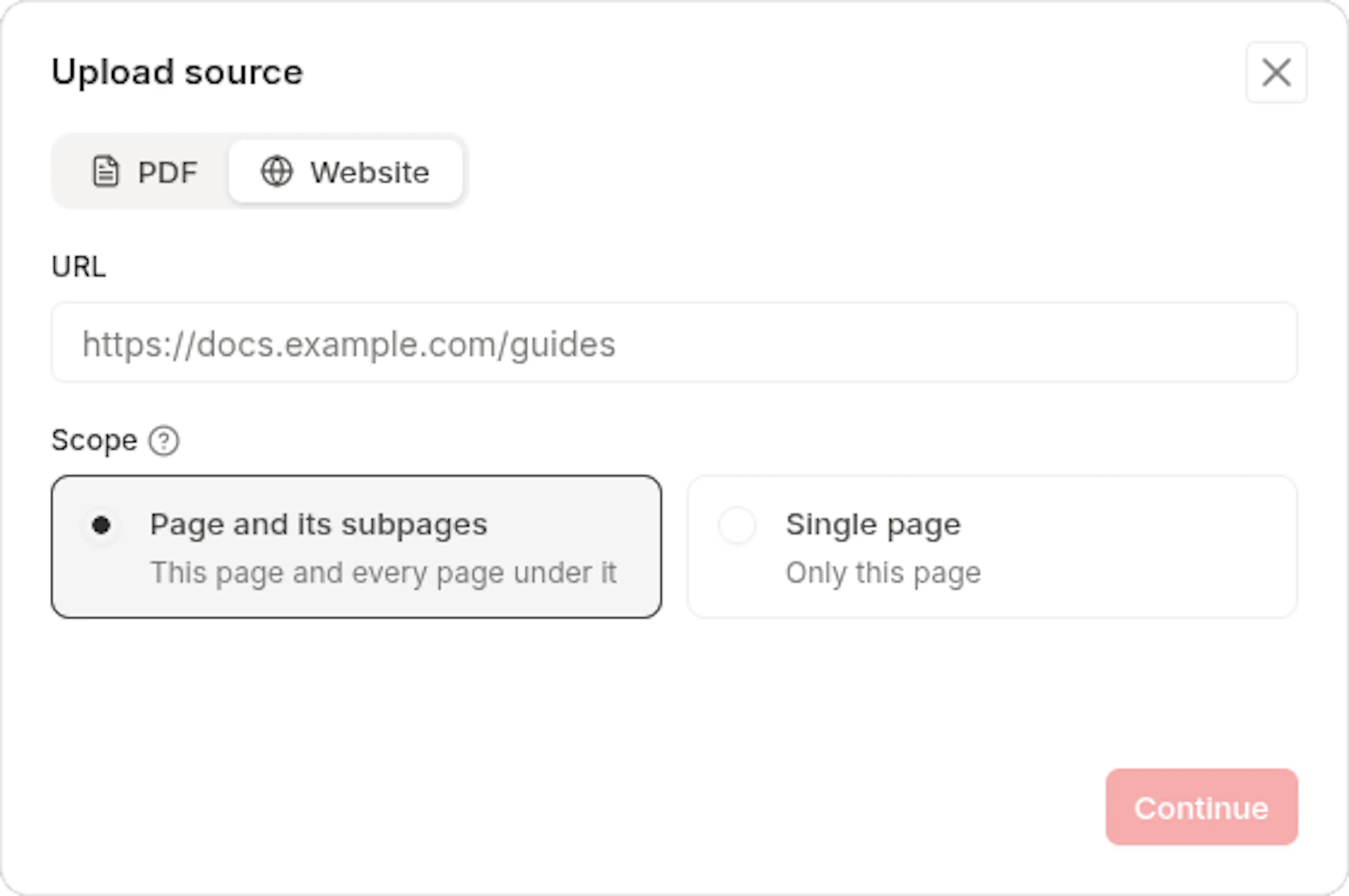
Enter the starting URL
Enter the URL of the page or website you want to add.
Choose the crawl scope
Choose Page and its subpages to crawl related pages, or choose Single page to add only the URL you entered.
Review the crawl preview
Wait for discovery to finish. The crawler checks the site's sitemap first. If the sitemap does not provide usable pages, it follows links from the starting page. The preview displays the discovered pages in a folder tree.
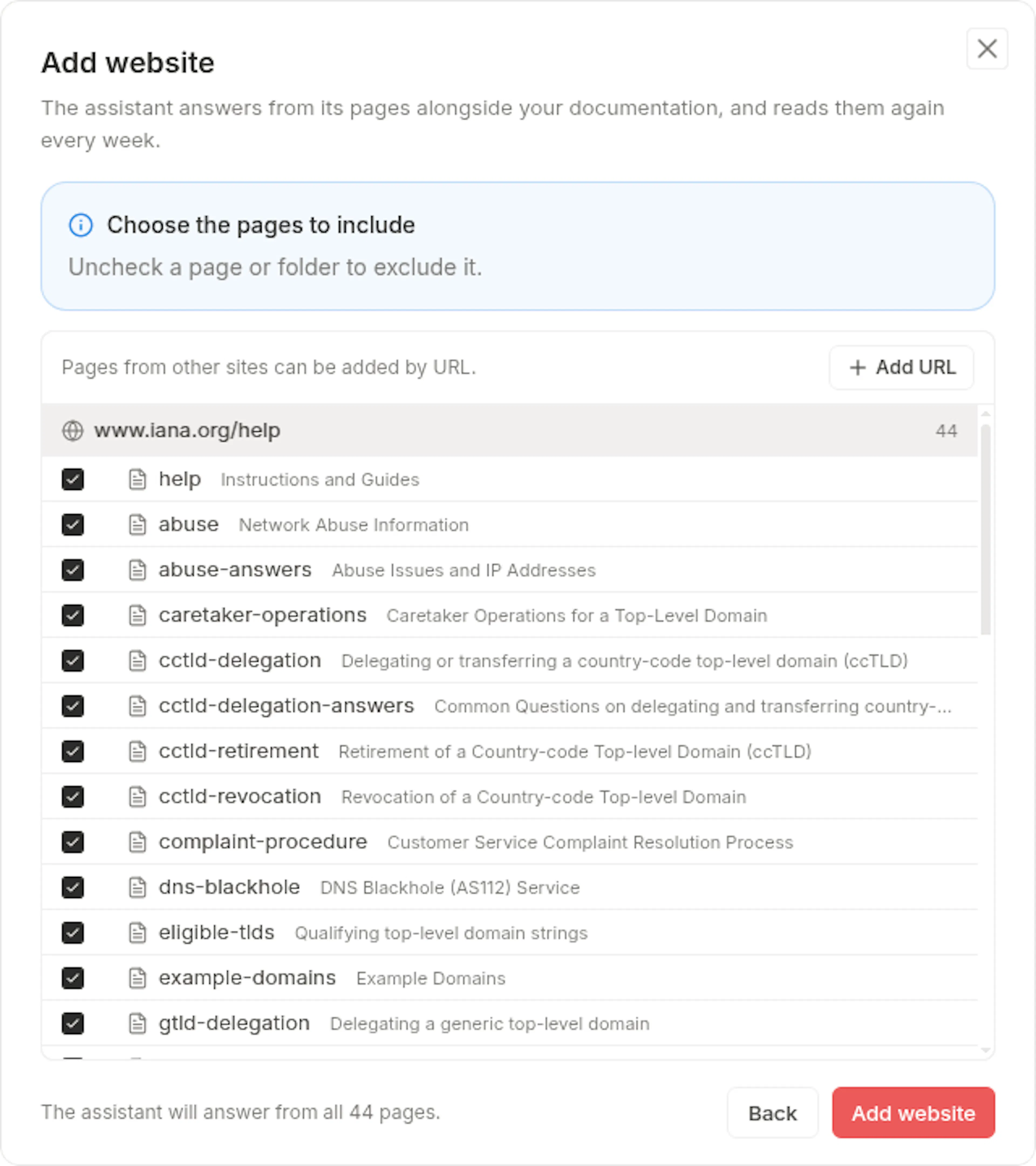
Exclude pages or folders
Uncheck individual pages or folders that you do not want to index. Excluded content will not be available to the AI Assistant.
Add extra URLs when needed
Add individual URLs manually if they are not included in the discovered page tree.
Add the website
Click Add website to confirm the selected pages and start indexing. The website becomes available to the AI Assistant after its status changes to Ready.
Website discovery has these limits:
- A site crawl can include a maximum of 500 pages.
- A crawl without a usable sitemap can include a maximum of 100 pages.
- Crawl depth is limited to 5 levels.
- Discovery can take up to two minutes.
- A partial crawl may find fewer pages than the website contains. Review the preview before adding the source.
Source states
Each PDF and website moves through an indexing lifecycle:
- Queued: Upload or source creation is complete, and indexing is waiting to start.
- Processing: Content is being extracted, chunked, and embedded.
- Ready: Content is indexed and available to the AI Assistant.
- Failed: Indexing did not complete. Hover over the status badge to see the error. Failed PDFs are read-only except for deletion.
Retry a failed source after addressing the reported problem. You can also refresh or delete failed sources from the source list.
Source settings
Configure how the AI Assistant identifies, retrieves, and restricts each source.
Name
The name is the display label for the source in the External Sources table. Use a name that helps you identify the content, such as a product name, policy name, or partner site.
Active
Turn Active off to retain a source without allowing the AI Assistant to retrieve content from it. Inactive sources remain configured and can be re-enabled later.
Priority
Set priority to a value from 0 to 1. Your published documentation has a priority of 1, and external sources use 0.5 by default.
When an external source and your documentation give conflicting answers, the source with the higher priority value takes precedence. Your documentation always has a priority of 1.
Visibility
Choose one of two visibility levels:
- Public: The source is available to anyone reading the documentation.
- Protected: The source is available only to signed-in readers who meet the source's access requirements.
Access roles
For a protected source, select the reader roles that can access answers citing that source. This setting requires role-based access to be configured for your documentation project.
Website refresh
Choose how often a website source should check for updated content:
- Weekly
- Monthly
- Manual
Scheduled refreshes run automatically once per day. Use Refresh now to start a refresh immediately. You can manually refresh a website a maximum of three times per day.
After three consecutive refresh failures, the scheduled refresh is paused. Refresh now bypasses the paused state so you can try again manually.
A refresh re-embeds only pages whose content changed. If a partial crawl finds substantially fewer pages than the previous crawl, the system retains the missing pages instead of deleting them immediately. This prevents temporary discovery failures from removing valid source content.
Edit a source
Open a source's edit dialog to change any source setting, then click Update to save.
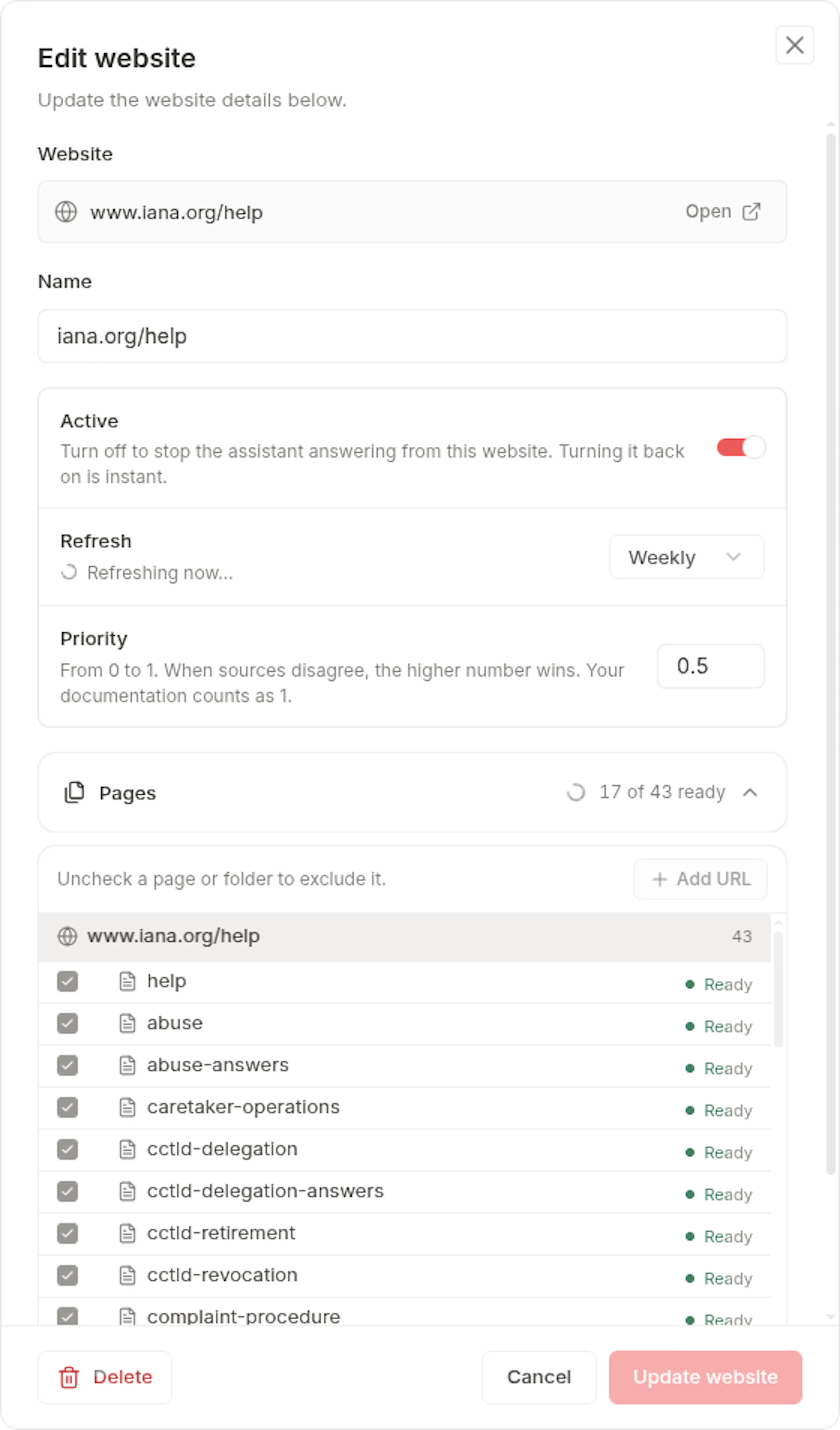
Website sources also support excluding or re-including pages and folders, adding extra URLs, changing the refresh schedule, and viewing the status of each page. For PDF sources, you can download the original file.
Delete a source
Remove a source at any time from the External Sources table. Deleting a source removes its content from the search index and frees up the page budget it consumed. Open the source's menu and select Delete. You can also delete failed sources that cannot be retried.
Plan limits and page budget
External Sources uses a shared page budget for each documentation project.
| Plan | External Sources | Page budget |
|---|---|---|
| Starter | Not available | Not available |
| Standard | Available | 100 pages |
| Professional | Available | 300 pages |
| Enterprise | Available | Custom |
The page budget is shared across all PDFs and websites in a documentation project. PDF usage comes from each file's page count. Website usage comes from the number of crawled and indexed pages.