

Icons
Pick icons from Lucide, Font Awesome and Tabler in one place, put icons in text, use your own icon files, and set which library icon names come from.
Every icon on your site, in components like Card, Step, Tab, Callout and Board, on navigation items, products, versions and languages, and inside text, comes from Lucide, Font Awesome Free, Tabler or your own files in the media library. The icon picker shows all three libraries together, so you can choose by look rather than by name.
Before you begin
- You need the Admin or Editor role to change icons.
- Font Awesome icons are the free set: solid, regular and brands. Pro styles such as light, thin, duotone and sharp aren't available.
- Tabler icons come in outline and filled.
- Your own icons are SVG, PNG or WebP files in your media library.
Web editor
How to pick an icon
Open the picker
Click the icon slot on a Card, Step, Callout or Board card, or Select Icon in a tab's or navigation item's settings.
Find the icon
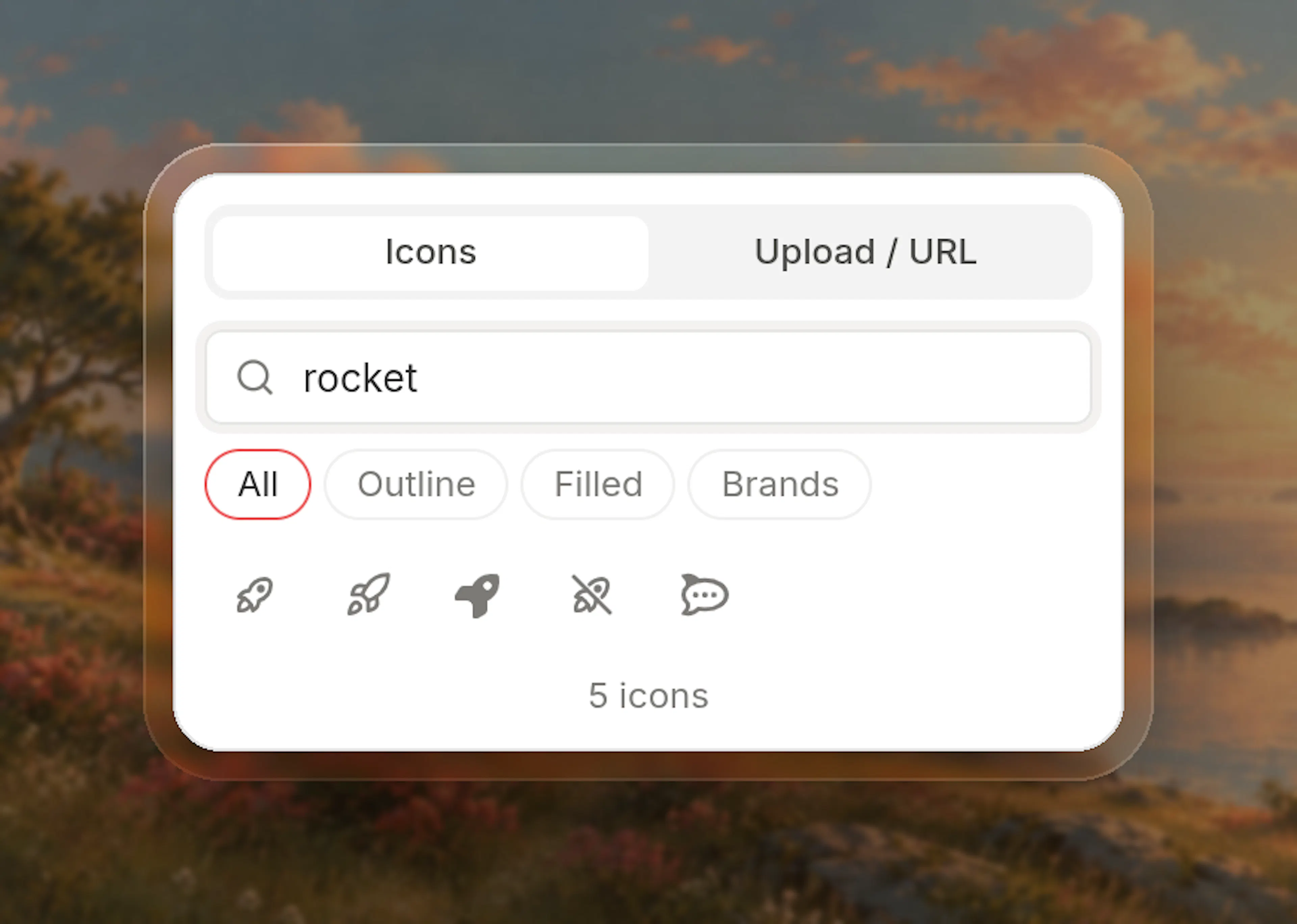
On the Icons tab, type part of the icon's name, such as arrow or credit card. Icons with the same name from Lucide, Font Awesome and Tabler appear side by side, and more load as you scroll.
If you want one look only, pick Outline, Filled or Brands. See Picker styles for what each shows.
Select it
Hover an icon to see its name and library, then click it.
An icon from your site's library is saved by name alone, such as rocket: Lucide, Font Awesome solid or Tabler outline. Any other icon is saved with its library, such as fa-brands:github, so it always keeps its look.
How to use your own icon
Open the Upload / URL tab
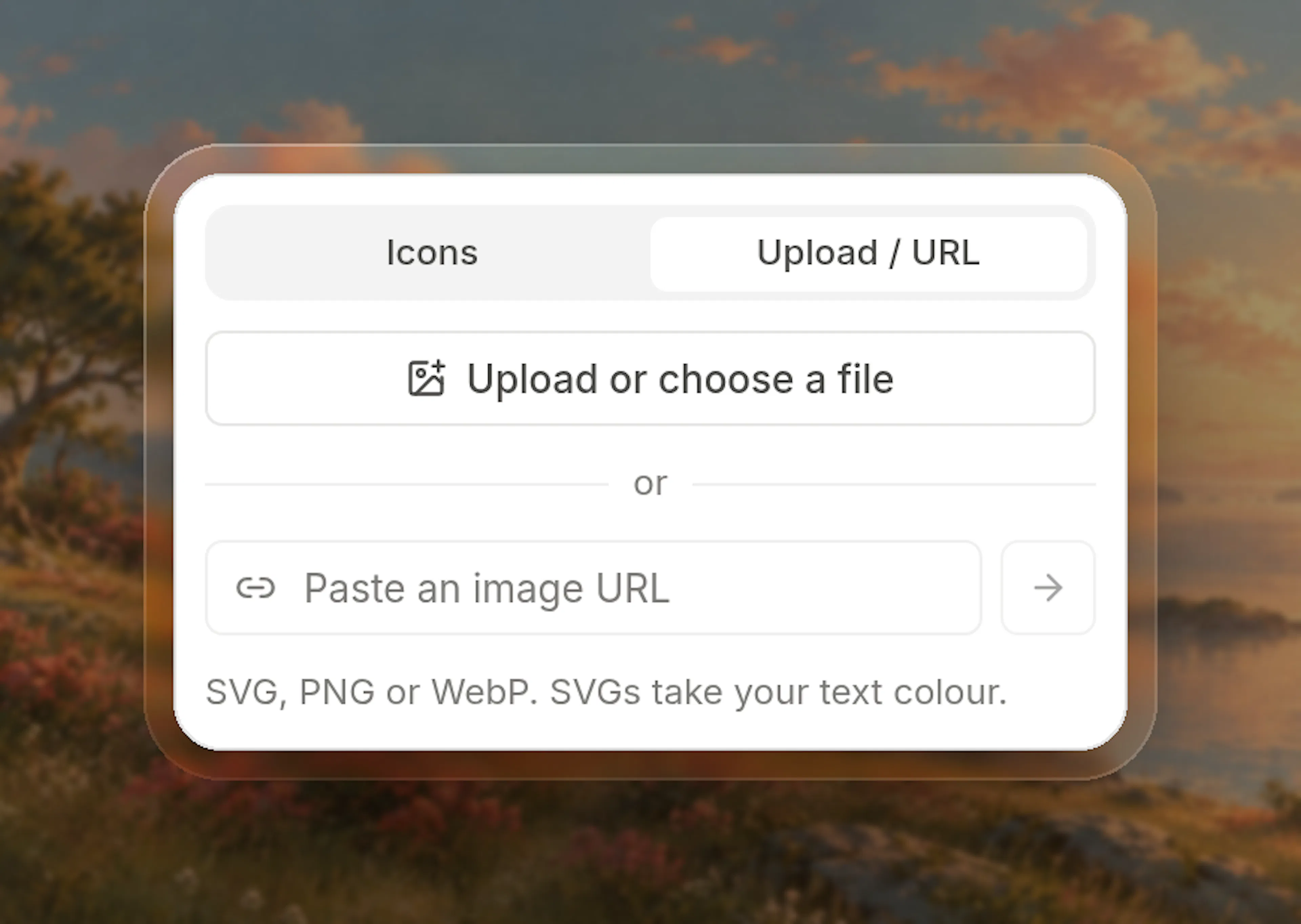
Open the icon picker and select Upload / URL.
Add the file
- If the file is on your computer or already in your media library, click Upload or choose a file.
- If the file is on the web, paste its address into Paste an image URL and press Enter. It is copied into your media library, so it loads fast and an SVG takes your text colour.
An SVG from your media library takes the text colour around it, like the library icons do. PNG and WebP files keep their own colours.
How to add an icon to text
To put an icon inside a sentence, heading or table cell, type /icon and pick one. For props such as size and color, and for MDX syntax, see Icon.
Code editor (Git)
How to set the icon library
Add icons.library to documentation.json:
{
  "name": "Acme Docs",
  "icons": {
    "library": "fontawesome"
  }
}
The value is lucide, fontawesome or tabler. Leave icons out to use Lucide.
Changing icons.library redraws every icon written by name alone. To keep how an icon looks, add its library first, such as lucide:rocket.
How to write an icon
Every icon attribute and every icon field in documentation.json takes one string:
<Card title="Quickstart" icon="rocket" href="/quickstart">
  Uses your site's icon library.
</Card>

<Card title="Source code" icon="fa-brands:github" href="https://github.com/acme/sdk">
  Always the Font Awesome GitHub logo.
</Card>

<Card title="Acme" icon="https://blob-cdn.documentation.ai/org-…/doc-…/1757300000000-abc123-acme.svg?rasterize-bypass=true" href="/about">
  An SVG from your media library, in the theme colour.
</Card>
See Icon values for every form.
How to write an icon in text
Put <Icon> anywhere text goes: a sentence, a list item, a table cell, a heading or a callout.
Click the <Icon icon="settings" /> button to open settings.

Follow us on [<Icon icon="fa-brands:github" />](https://github.com/acme).

A <Icon icon="star" size="20" color="#f59e0b" /> rating.
icon takes the same values as any icon. size and color are optional. See Icon for every prop.
How to use your own icon
Upload the file to your media library and use its address. An icon linked from another website is not drawn, and neither is a file path in your repository, such as /icons/brand.svg.
Common questions
If an icon does not show
The Upload / URL tab shows these messages:
- Icons must be SVG, PNG or WebP files.: choose a file in one of those formats.
- That address is not an SVG, PNG or WebP file.: paste the address of an SVG, PNG or WebP file.
- Enter an https:// address.: paste the full address, starting with
https://. - Could not copy that file into the media library.: download the file, then add it with Upload or choose a file.
An icon written in code that cannot be drawn shows nothing, with no message. A Callout shows its kind's icon instead, and a Step its number.
- The name is misspelled or not in your site's library: check the spelling in the icon picker, or add the library the icon comes from, such as
fa-brands:github. - The icon is a Font Awesome class name, such as
fa-solid fa-rocket: writefa-solid:rocket. - The icon is a file on another website or in your repository, such as
/icons/brand.svg: upload it to your media library and use its address.
Icon values
| Value | Draws |
|---|---|
rocket | The icon by that name in your site's library. On a Font Awesome site: solid, then brands, then Lucide. On a Tabler site: outline, then filled, then Lucide. |
lucide:rocket | Lucide only. |
tabler:rocket | Tabler outline, then filled. |
tabler-filled:star | Tabler filled only. |
fa:rocket | Font Awesome solid, then brands. |
fa-solid:rocket, fa-regular:bell, fa-brands:github | That Font Awesome style only. |
https://blob-cdn.documentation.ai/… | An .svg, .png or .webp file in your media library. Icons linked from other websites, and file paths in your repository, are not drawn. |
Names are lowercase words joined by hyphens, without an Icon suffix. Older names, such as home for house, still work. Browse the libraries at lucide.dev/icons, fontawesome.com/search?ic=free and tabler.io/icons.
Picker styles
| Style | Shows |
|---|---|
| All | Every icon. |
| Outline | Lucide, Tabler outline and Font Awesome regular. |
| Filled | Font Awesome solid and Tabler filled. |
| Brands | Font Awesome brands. |
Licences
Font Awesome Free icons are licensed under CC BY 4.0, Lucide under the ISC licence, and Tabler under the MIT licence. Every site lists these notices at /_dai/api/notices, and each Font Awesome icon carries its attribution. Brand icons are trademarks of their owners; use them only to refer to that company or product.