

Page Actions
Configure quick AI-friendly actions in the sidebar so readers can copy or open any page in external AI tools using optimized Markdown.
Overview
Page Actions provide quick shortcuts in the table of contents sidebar that let readers send your documentation directly to external AI tools. Each action uses a clean Markdown representation of the current page, optimized for large language models.
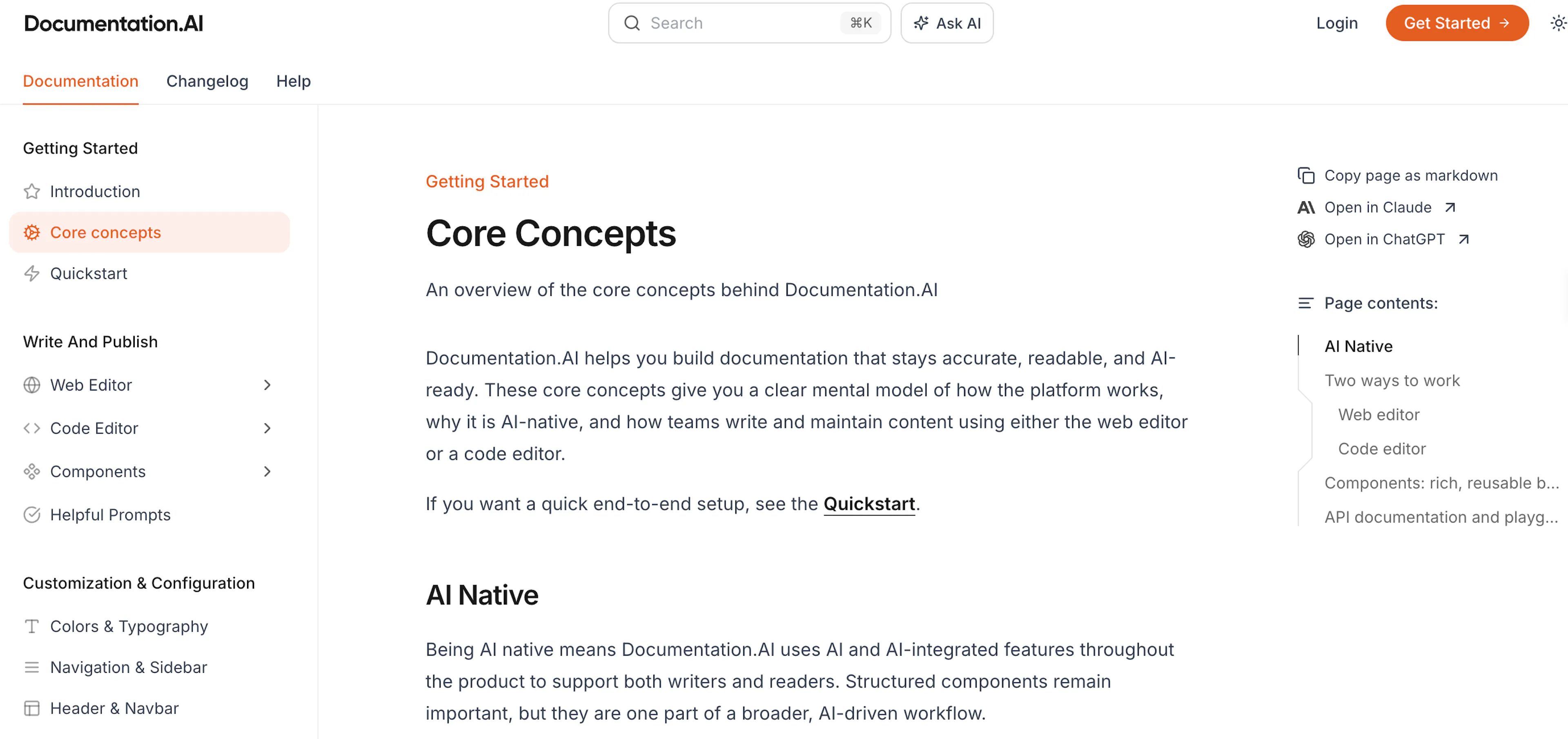
Page Actions appear in the same location on every published page, giving readers consistent access to AI‑ready exports and integrations.
Configure Page Actions
Control which actions appear either from the Dashboard or by editing the ai.page-actions key in your documentation.json file. Configuration is stored as an array of action identifiers.
Configure from the Editor
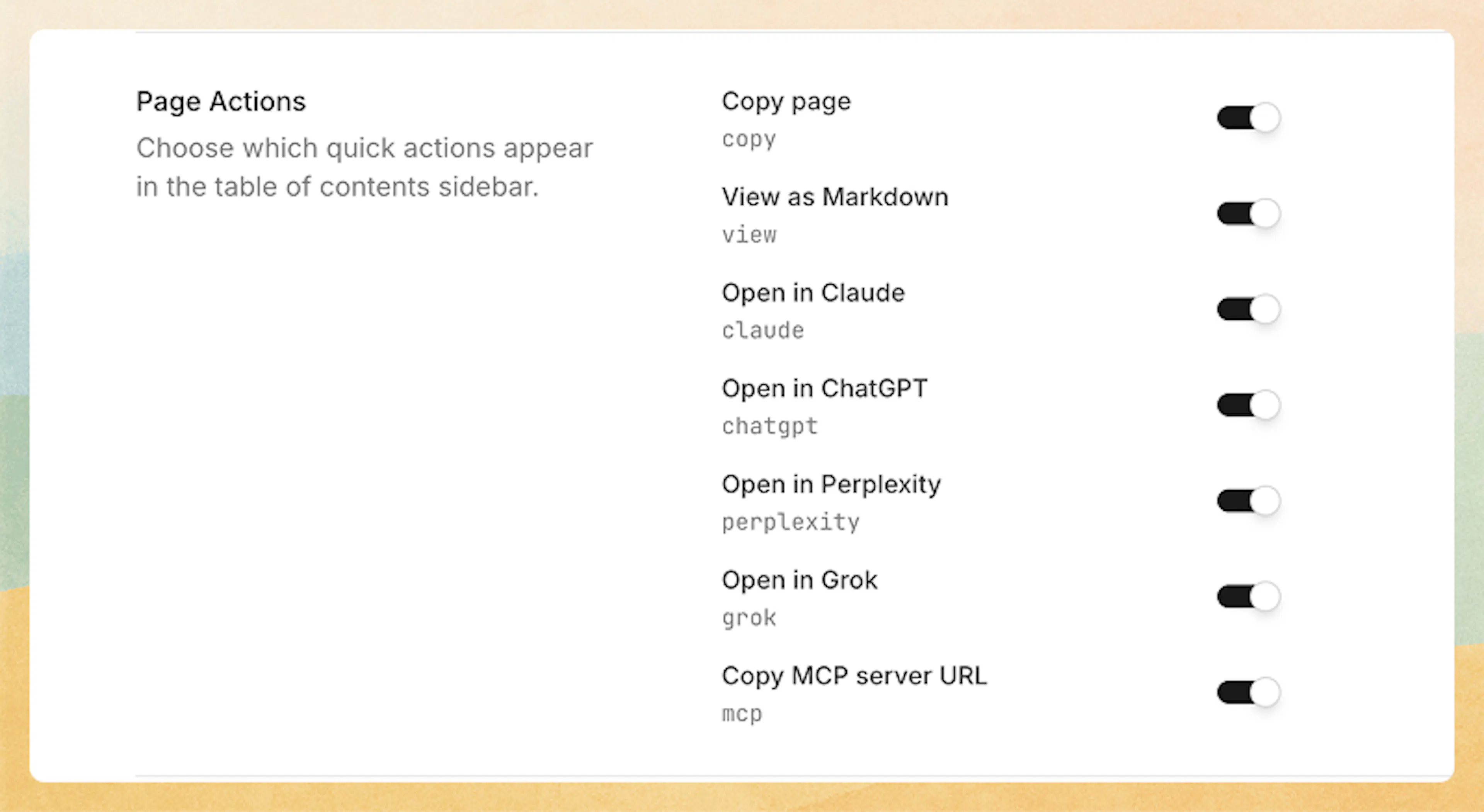
In the Editor, click Site Config in the top toolbar, then select AI Agent to find Page Actions.
-
You can enable or disable the options you want.
-
If you want to completely remove Page Actions, disable all options.
After you make changes, publish the documentation to apply them.
Configure from documentation.json
If you prefer to manage configuration in code, update the ai.page-actions key directly in documentation.json.
Enable specific actions
Set ai.page-actions to include any combination of supported actions:
{
  "ai": {
    "page-actions": [
      "copy",
      "view",
      "claude",
      "chatgpt",
      "perplexity",
      "grok",
      "mcp",
      "pdf"
    ]
  }
}
Use this to show only the actions that match your readers' tools and workflows.
Disable all actions
To hide Page Actions entirely, set ai.page-actions to an empty array, or omit the key:
{
  "ai": {
    "page-actions": []
  }
}
If you remove the key completely, the site behaves as if no Page Actions are configured.
Available options
Page Actions currently support the following options:
-
Copy page (
copy) -
View as Markdown (
view) -
Open in Claude (
claude) -
Open in ChatGPT (
chatgpt) -
Open in Perplexity (
perplexity) -
Open in Grok (
grok) -
Copy MCP server URL (
mcp) -
Download as PDF (
pdf)
Copy page (copy)
Copy page exports the current page as Markdown and places it on the clipboard. Readers can paste the content into any AI prompt, editor, or workflow without additional formatting.
View as Markdown (view)
View as Markdown opens a new browser tab that shows the raw Markdown representation of the current page. Readers can review, save, or copy this Markdown directly from the browser.
Open in Claude (claude)
Open in Claude launches Claude in a new browser tab and passes the page's Markdown file URL. Claude retrieves that file and uses the content as context for the chat session.
Open in ChatGPT (chatgpt)
Open in ChatGPT creates a shareable Markdown link that loads the full page content into ChatGPT. ChatGPT can then summarize, analyze, or transform the page with accurate context.
Open in Perplexity (perplexity)
Open in Perplexity opens Perplexity with a link to the page's Markdown content. Perplexity can use that Markdown as trusted source material when generating answers.
Open in Grok (grok)
Open in Grok sends the page's Markdown link to Grok in a new tab. Grok uses this content as reference material for the conversation.
Copy MCP server URL (mcp)
Copy MCP server URL copies the MCP server endpoint for your documentation project to the clipboard. Use this in compatible MCP clients to give them structured, AI‑ready access to your docs.
Download as PDF (pdf)
Download as PDF lets readers save the current page as a PDF file directly from the table of contents sidebar. The page is rendered with print-optimized styles and opens the browser's print dialog, where the reader can save or print the document.
Full PDF export is available on Standard plans and above. For full-site PDF exports, use the dashboard Settings → Advanced → Exports panel.
The Open in Claude, Open in ChatGPT, Open in Perplexity, and Open in Grok actions rely on public, crawlable URLs. Enable SEO for your documentation site so these external AI tools can access the Markdown content.