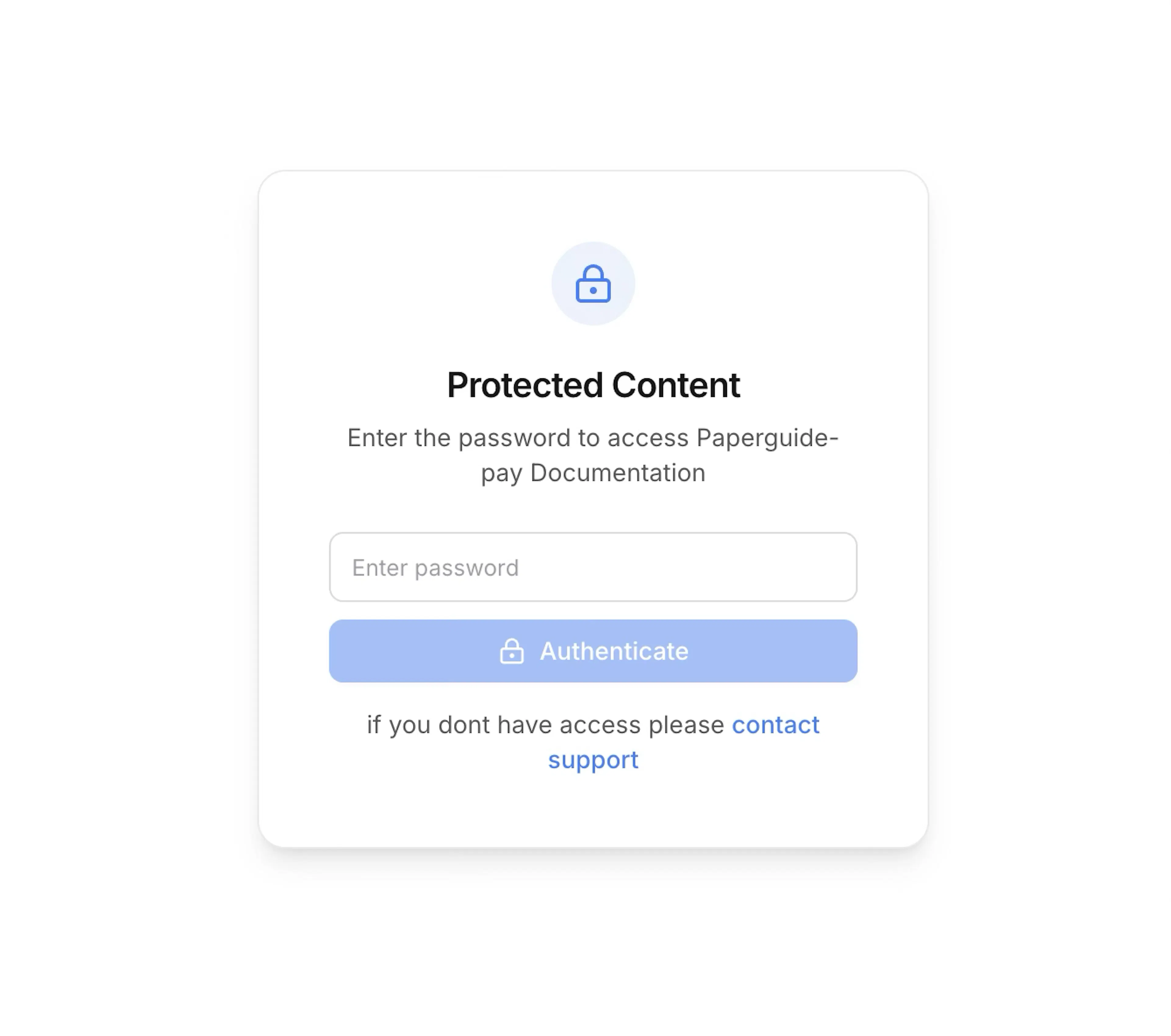
Password Authentication
Protect your documentation with a shared password.
Password authentication is available on Standard plans or higher.
Password authentication provides simple access control using a shared password. It does not support user-level personalization or individual user tracking.
Password is the only authentication method available in both Private and Partial modes:
- Private: All pages require the password.
- Partial: A mix of public and protected pages. You configure which pages are public using the
publicproperty in your navigation.
Set up
Choose access mode
In your dashboard, go to Settings > Access Control and select either Private (all pages protected) or Partial (mix of public and protected pages).
Select Password method (Private mode only)
If you selected Private, choose Password in the Authentication Method selector.
In Partial mode, the password form appears directly since password is the only available method.
Set a password
Set a strong password.
- If you already have a password configured, leaving the password field blank keeps the current password.
- Use Clear password only if you intend to remove password protection.
Add optional helper text
Optionally add Helper text shown below the password prompt on your protected site. Use it to explain who should have access or where to request it.
Helper text supports simple markdown links in the form [label](https://example.com), which render as clickable links under the password field.
Save and re-publish
After saving your access control settings, re-publish your documentation so the deployed site uses the updated configuration.
Distribute access
Securely share the docs URL and password with authorized users.
Partial access control
When using the Partial mode, Documentation.AI determines whether a page is public or protected using the public flag on navigation nodes.
Inheritance rules
- Default: If no
publicflag is set anywhere, pages are treated as Protected in partial mode. - Closest wins: The closest (nearest) explicit
publicflag in the navigation tree determines the effective visibility for that node and its subtree. - Explicit override: A child node can override its parent by setting its own
publicflag.
Visibility values
- Inherit: Do not set
publicon the node (the effective value comes from the nearest parent that haspublic). - Public:
public: true - Protected:
public: false
Configure public pages
You can make specific pages or groups public in two ways:
Use the Web Editor to visually configure which pages are public or protected.
Open the Web Editor
Navigate to your project dashboard and click on Editor to open the visual editor.
Navigate to the page or group
In the navigation panel, find the page or group you want to make public or protected.
Configure visibility
Click the visibility icon and change to Public, Protected, or Inherit.
Publish changes
After configuring visibility for your pages, publish your documentation to apply the changes.
Changes made in the Web Editor are automatically synced to your documentation.json file.
Configure the public property directly in your documentation.json file.
{
  "navigation": {
    "groups": [
      {
        "group": "Guides",
        "public": true,
        "pages": [
          {
            "title": "Overview",
            "path": "guides/overview"
          },
          {
            "title": "Internal Runbook",
            "path": "guides/internal-runbook",
            "public": false
          }
        ]
      }
    ]
  }
}
public: true: Marks the node as public and makes its descendants public unless overridden.public: false: Marks the node as protected and makes its descendants protected unless overridden.- No
publicfield: The node inherits from its nearest parent. If no parent has it, the default is protected.
Open documentation.json
Open the documentation.json file in your code editor.
Add the public property
Add the public property to the navigation nodes you want to configure.
Commit and push
Commit your changes and push to your repository. The changes will be applied on your next deployment.
Example
You host documentation at docs.example.com and want basic access control without managing individual user accounts. Use Password authentication and share the password with authorized teammates.