

Workflows
Automate documentation tasks with AI workflows, including setup requirements, templates, triggers, run history, and current limitations.
Automate recurring documentation work with workflows
Workflows run AI-powered documentation tasks in the background so you can catch issues, sync docs from code, and generate updates without repeating the same manual process.
What workflows are
Workflows automate common documentation jobs inside Documentation.AI. You can use them to audit content, enforce standards, generate updates, and run repo-aware tasks that use your connected documentation and code context.
Each workflow starts from a template or a custom setup. After you create it, the workflow can run on a trigger such as a pull request merge or a schedule, and you can also run it manually when you need an on-demand result.
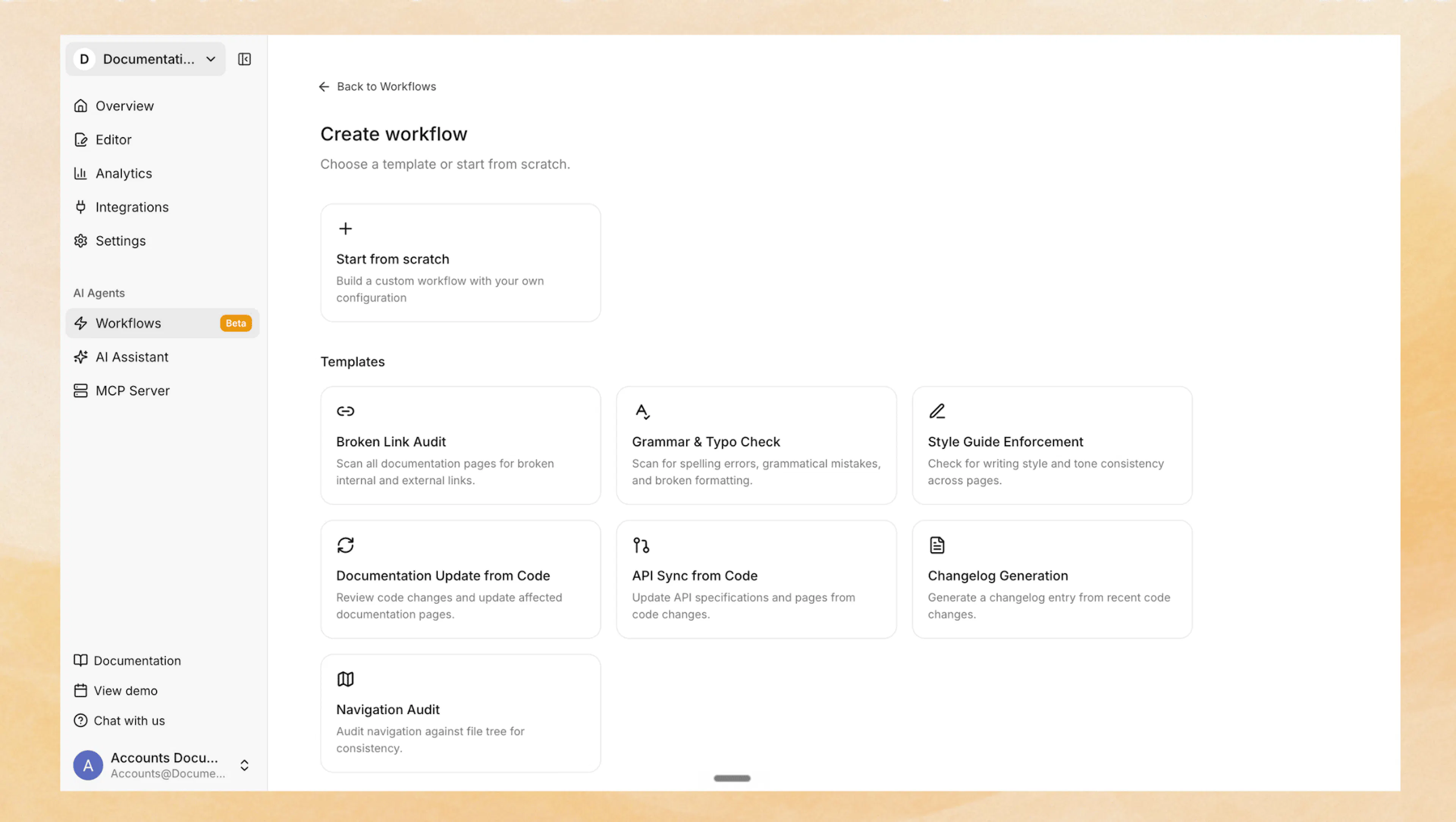
Where to find workflows
Open the dashboard, then go to Agent Settings → Workflows. The Workflows area is where you create workflows, review previous runs, and inspect results.
Workflows are currently in beta. Expect the feature set to expand, and review workflow output before you merge or publish changes.
Before you start
Workflows depend on your plan and repository connection setup. Confirm these requirements before you try to create one.
You need all of the following before Workflows are available:
-
A Standard plan or higher
-
A documentation site synced to a connected Git repository (GitHub or GitLab)
-
Any repository you want to use as a trigger repo or context repo connected in Documentation.AI
-
Optionally, connect Jira or Confluence as additional context sources for the AI agent
-
Optionally, enable the User & Agent Feedback connector from Agent Settings to use the Self-Heal by User Feedback template
If your repositories are not connected, you can still explore the Workflows area, but repo-based workflow setup and repository selection will be limited.
Built-in workflow templates
Start with a built-in template when you want a focused workflow for a common task. Choose Custom when none of the preset templates matches your process.
Templates are organized into two categories in the template picker:
- Self-updating templates generate or update documentation content based on code changes, repository activity, or user feedback.
- Auditing templates check and report on documentation health without modifying content directly.
Self-updating templates
Documentation Update from Code
Use connected repository context to update docs when code changes affect product behavior.
API Sync from Code
Review code-aware changes that affect API documentation and generate updates from repository context.
Changelog Generation
Create changelog content based on recent repository activity and documentation context.
Self-Heal by User Feedback
Analyze page ratings, user comments, and AI assistant confidence scores to find documentation gaps and propose fixes backed by evidence. Requires the User & Agent Feedback connector.
Auditing templates
Broken Link Audit
Scan your published live site for broken internal links, anchors, redirects, and external URLs. Results include a grouped findings report with an AI-written summary. Use Chat with Agent on a finished run to open the findings in the editor chat and propose fixes.
Grammar and Typo Check
Find writing issues across your documentation and generate suggested fixes.
Style Guide Enforcement
Check content against your documentation standards and highlight places that need revision.
Navigation Audit
Check documentation structure for navigation issues and identify areas that need cleanup.
The best template depends on the job you want to automate. Content-only checks such as grammar or style usually require less setup than repo-aware workflows such as code-driven updates or API sync tasks.
Create a workflow
Create your first workflow from the Workflows page in a few steps. The setup flow asks you to choose a template, define how it should run, and select repository context when needed.
Open the Workflows page
In the dashboard, go to Agent Settings → Workflows.
If your account and documentation site meet the requirements, you can start a new workflow from this page.
Choose a template
Select one of the built-in templates or choose Custom.
Pick the template that matches the task you want to automate. For example, choose Broken Link Audit for content health checks or Documentation Update from Code when documentation changes depend on repository activity.
Configure the trigger
Choose how the workflow should start:
-
Pull request merge to run after merges in the selected trigger repository
-
Schedule to run daily, weekly, or monthly
-
Manual run after creation when you want to start the workflow yourself
After you save the workflow, it becomes available in your Workflows list.
Select repositories
Choose one trigger repository for repo-based runs. This repository determines where the workflow watches for repository-driven activity.
You can also add additional context repositories. These repositories give the workflow more source material to reference while planning and executing the task.
Select connectors
The workflow form includes a connector selector that lets you include or exclude specific connectors for this workflow: GitHub, Jira, Confluence, and User Feedback.
If a template requires a connector that is not yet enabled, the create button prompts you to enable it before proceeding.
Save and verify the workflow
Finish the setup and save the workflow.
A saved workflow appears in the Workflows list. From there, you can wait for its trigger or run it manually to confirm the configuration works.
Run the workflow manually after creation if you want to verify the setup before waiting for the next merge or scheduled window.
Triggers and repository context
Triggers control when a workflow runs. Repository selection controls what context the workflow uses.
Trigger options
Use the trigger that matches how often the task should happen:
-
On pull request merge for workflows that should react to repository changes
-
On a schedule for recurring checks such as audits or maintenance tasks
-
Manual run after creation when you want to start a run on demand
If you schedule a workflow monthly, pick a day from 1 through 28. Monthly scheduling does not support days later in the month.
Trigger repo and additional context repos
The trigger repo is the single repository tied to the workflow's repo-based trigger behavior. If the workflow runs from a merge event, that event comes from the trigger repo.
Additional context repos do not trigger runs. They expand the repository context available to the workflow so it can produce better updates, checks, or summaries across related code and docs.
You can only select repositories that are already connected in Documentation.AI.
In addition to repository context, the AI agent can also read from connected Jira issues and Confluence pages during workflow runs. Connect them from Settings → Integrations and enable them as agent connectors for your documentation project.
Review workflow runs
Workflow runs happen in the background. You can leave the page and return later to check progress or inspect the result.
Run history shows the state of each run as it moves through the workflow lifecycle. You may see statuses such as queued, planning, executing, validating, committing, completed, human needed, no action needed, failed, and cancelled.
When a run finishes, the result can include:
-
A summary of what the workflow found or changed
-
A downloadable report
-
A commit link when the run produced a commit
-
A Chat with Agent button that opens the editor chat pre-loaded with the run's findings, so you can ask follow-up questions or request fixes based on the results
Those outputs help you decide whether to accept the result, investigate further, or continue the task in a conversational workflow.
Credit usage
Workflows consume AI credits. Credit usage depends on the type of workflow and the amount of work required to complete it.
Simple checks usually use fewer credits than repo-aware or multi-step workflows. If a workflow analyzes multiple repositories or performs more planning and validation, expect higher credit usage.
Current limitations
The current Workflows experience covers the most common user-facing automation paths, but a few constraints affect setup and scheduling today.
Current limitations include:
-
Workflows are in beta
-
Workflows require a documentation site synced to a connected Git repository (GitHub or GitLab)
-
You can only choose from connected repositories for trigger and context selection
-
Monthly schedules are limited to days 1 through 28
-
Not every backend workflow capability is exposed in the current UI