

Monorepo
Publish your documentation from a folder of a GitHub or GitLab repository, and publish several sites from one repository.
Overview
By default, Documentation.AI expects documentation.json at the root of your repository. If your docs live in a folder, such as docs next to your application code, turn on Monorepo and enter that folder. This works the same way for GitHub and GitLab.
The folder you enter is the documentation root: the folder that holds documentation.json.
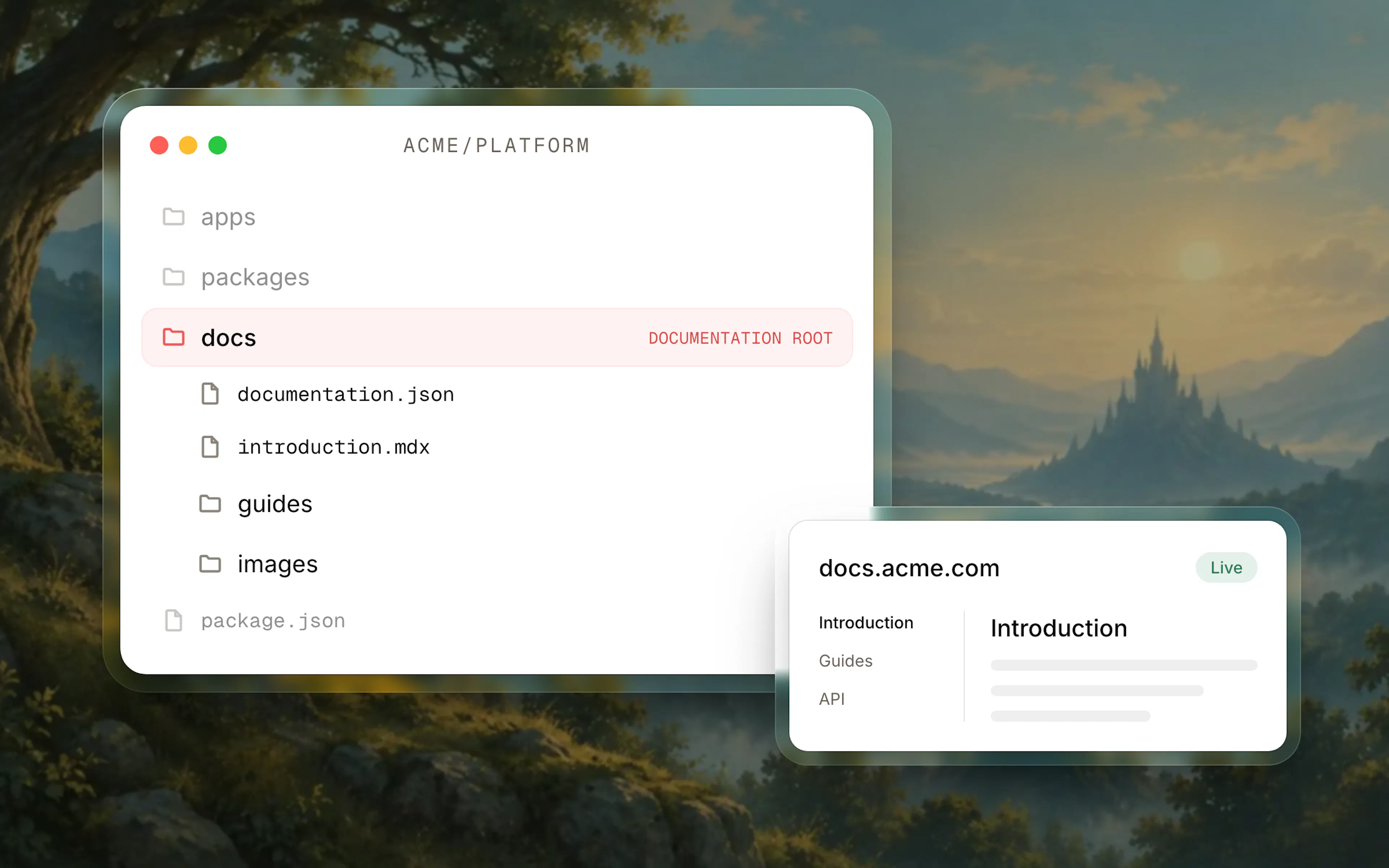
- Paths start at the folder: every page, image, and OpenAPI path is relative to the documentation root.
- The editor shows only the folder: files outside it do not appear in the dashboard.
- Publishing stays inside the folder: changes you publish from the dashboard are committed inside it.
- Pushes outside the folder do not deploy: your site deploys when a push changes files inside the folder.
Before you start
- A GitHub repository or GitLab project with
documentation.jsonin the folder you want to publish from - The folder's path from the repository root, such as
docsorapps/docs. A slash at the start or the end is ignored.
Set the folder when you connect a repository
Connect an existing repository
When you create a documentation project, choose Git, then Connect an existing repository. Install the GitHub App and connect the repository.
Turn on Monorepo
Turn on Monorepo and enter the folder that holds documentation.json.
Create the project
Click Create project. Documentation.AI checks the folder first. If it has no documentation.json, the reason appears under the folder field and the project is not created until you correct it.
To move an existing project to a repository that keeps its docs in a folder, see Change the source repository. The Change source repository dialog has the same Monorepo switch.
Enter your project details
Connect your GitLab project as described in Connect a GitLab project, when you create a documentation project or from Settings → Git Settings.
Turn on Monorepo
In the same form, turn on Monorepo and enter the folder that holds documentation.json.
Connect
Finish connecting the project. Documentation.AI checks the folder and refuses the connection, with the reason, if it has no documentation.json.
Change the folder later
These steps are the same for GitHub and GitLab.
Open Git Settings
Go to Settings → Git Settings and find the Monorepo row in the Source repository box.
Enter the folder
Turn on Monorepo and enter the folder, or turn it off to publish from the repository root. Click Save.
Confirm
In the Change Documentation Root dialog, click Change Root.
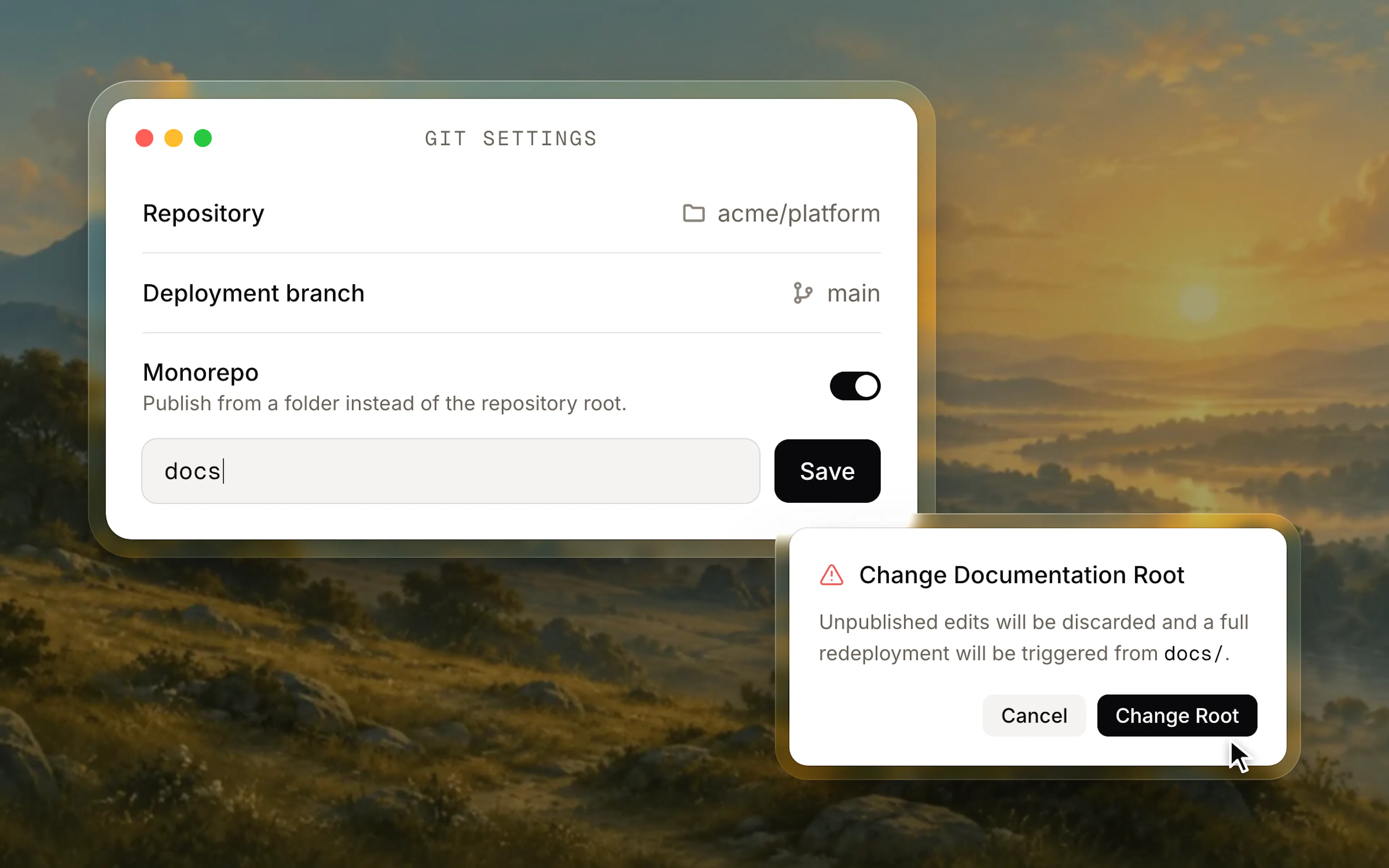
Changing the documentation root discards unpublished edits and redeploys your whole site from the new folder.
Publish several sites from one repository
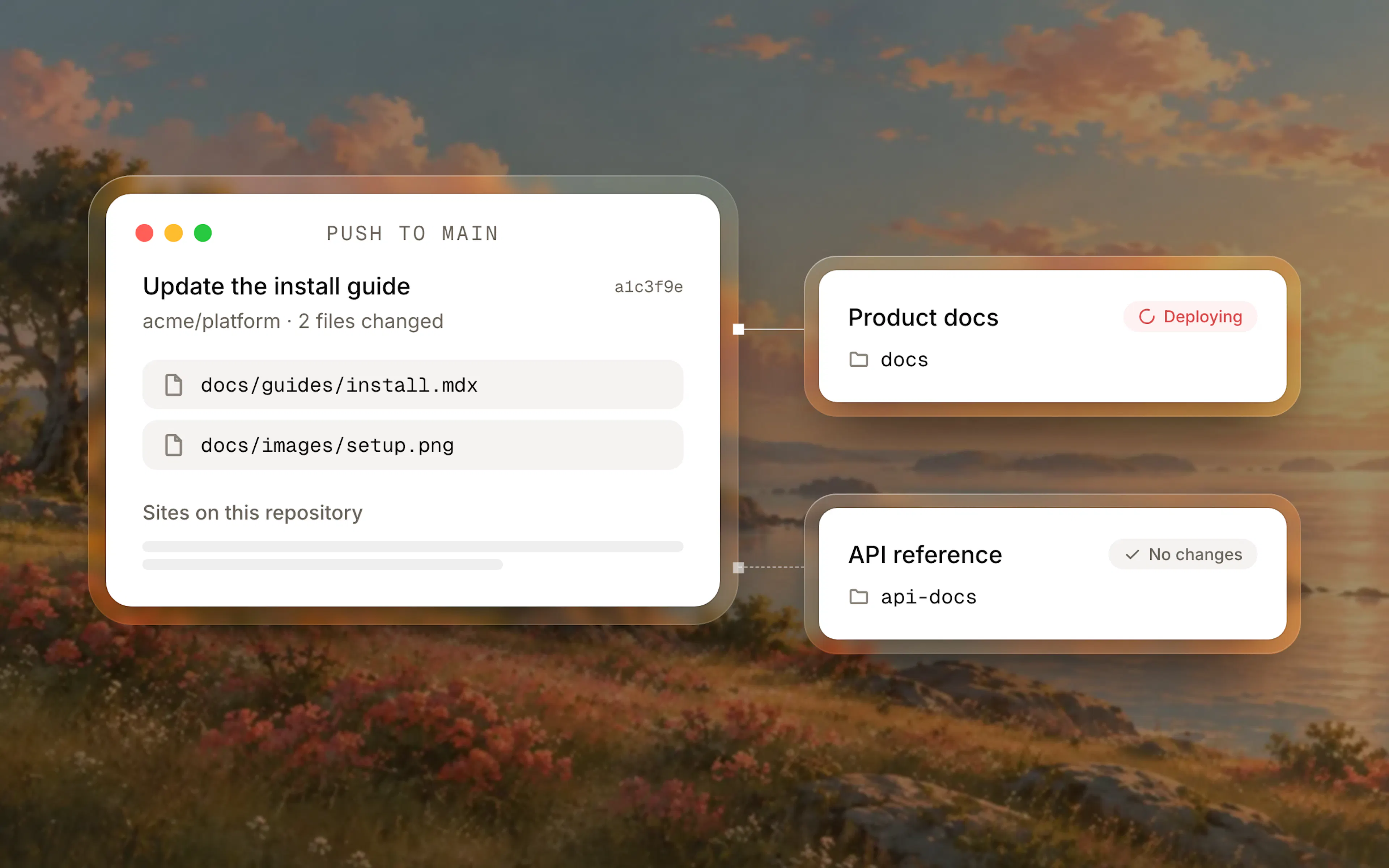
Several documentation projects can publish from the same repository, each from its own folder, such as docs and api-docs. Connect the repository to each project and enter a different folder for each.
- Folders cannot overlap: two projects cannot use the same folder, and one folder cannot be inside another. A project that publishes from the repository root cannot share the repository.
- A push deploys only what it changed: a push deploys the projects whose folder it changed. A push that only changes files outside a project's folder does not deploy that project.
- One deployment branch: projects that share a repository share its deployment branch.