

Team Management & Roles
Invite people, give each person a role on each documentation project, and change or remove their access.
Access has two layers. Your organization role decides who manages the organization. Your documentation role decides what you can do in a documentation project, and you can have a different one on each project: edit one, and only read another.
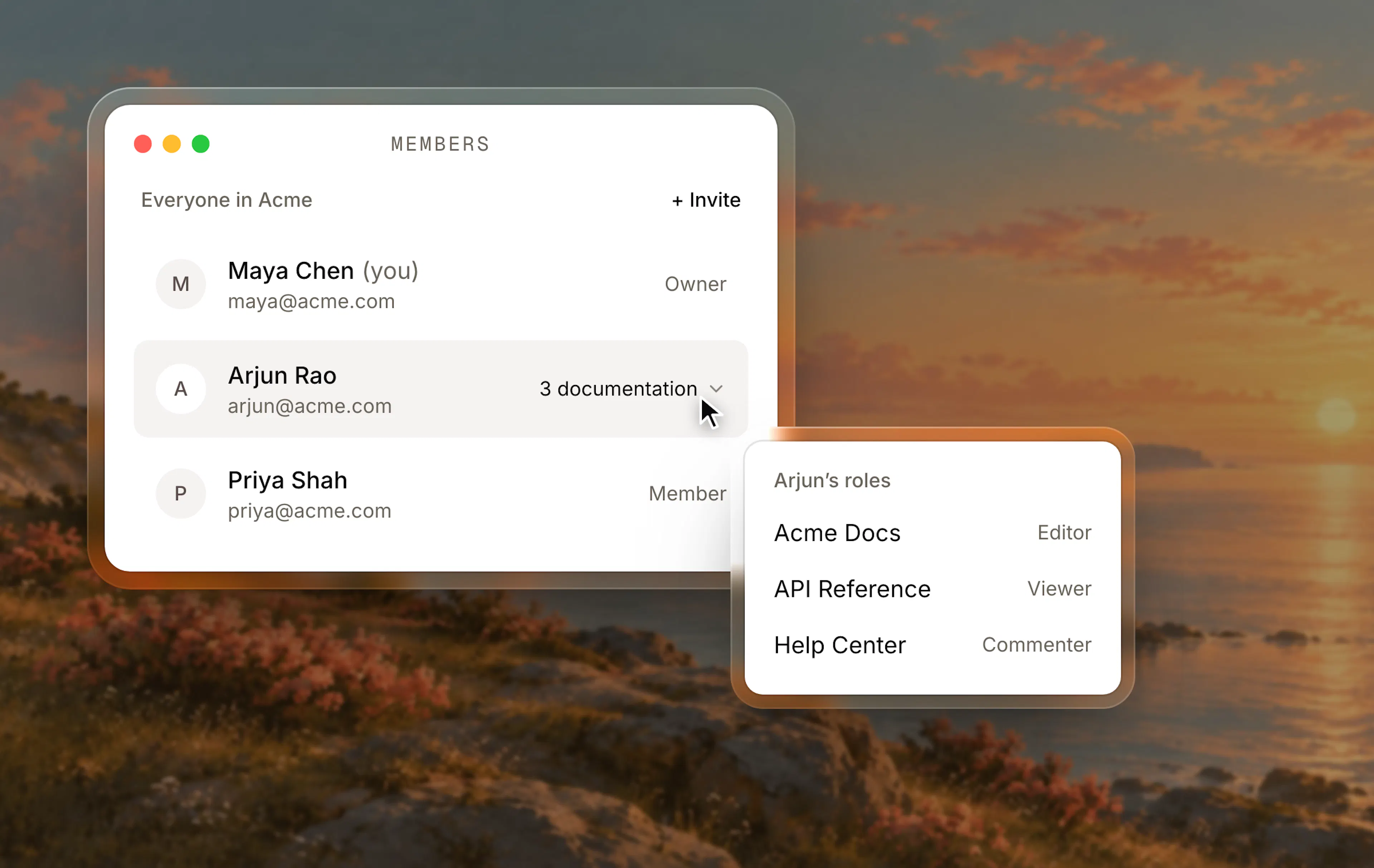
Organization roles
| Role | What they can do |
|---|---|
| Owner | Admin on every documentation project, including new ones. Manages members, invitations, billing, AI credits, GitHub and GitLab connections and integrations. Can delete the organization. |
| Member | Sees only the projects they're added to. Can create a project and becomes its Admin. Sees the members list but can't change it. |
An organization can have several owners, and always has at least one. Every member uses a seat, whatever their roles.
Documentation roles
Each person has one role on each documentation project they're on.
| What you can do | Viewer | Commenter | Editor | Admin |
|---|---|---|---|---|
| Read pages, analytics and settings | ✓ | ✓ | ✓ | ✓ |
| Use the AI agent, which acts with your role | ✓ | ✓ | ✓ | ✓ |
| Comment, reply and resolve your own threads | ✓ | ✓ | ✓ | |
| Edit pages, navigation and media, and resolve anyone's comments | ✓ | ✓ | ||
| Publish, and work with branches and merges | ✓ | ✓ | ||
| Manage settings, domains, access control, API keys, connectors and PDF export | ✓ | |||
| Delete media files and the project | ✓ | |||
| Add, invite and remove people, and change their roles | ✓ |
The Authoring MCP Server follows the same roles, and every API key carries a role of its own.
Editor, Commenter and Viewer come with the Professional plan and above, and AppSumo tier 3 and above. On other plans everyone on a project is Admin. See Roles and your plan.
Invite people
Open Members
Go to Settings > Organization Settings > Members and click Invite members.
Enter their emails
Add one or more addresses, separated by commas or new lines.
Choose their roles
Pick Member or Owner. For a member, tick each project they should get and choose their role on it. An owner becomes Admin on every project.
Send
Click Send invitations. They get an email, and join with those roles when they accept it.
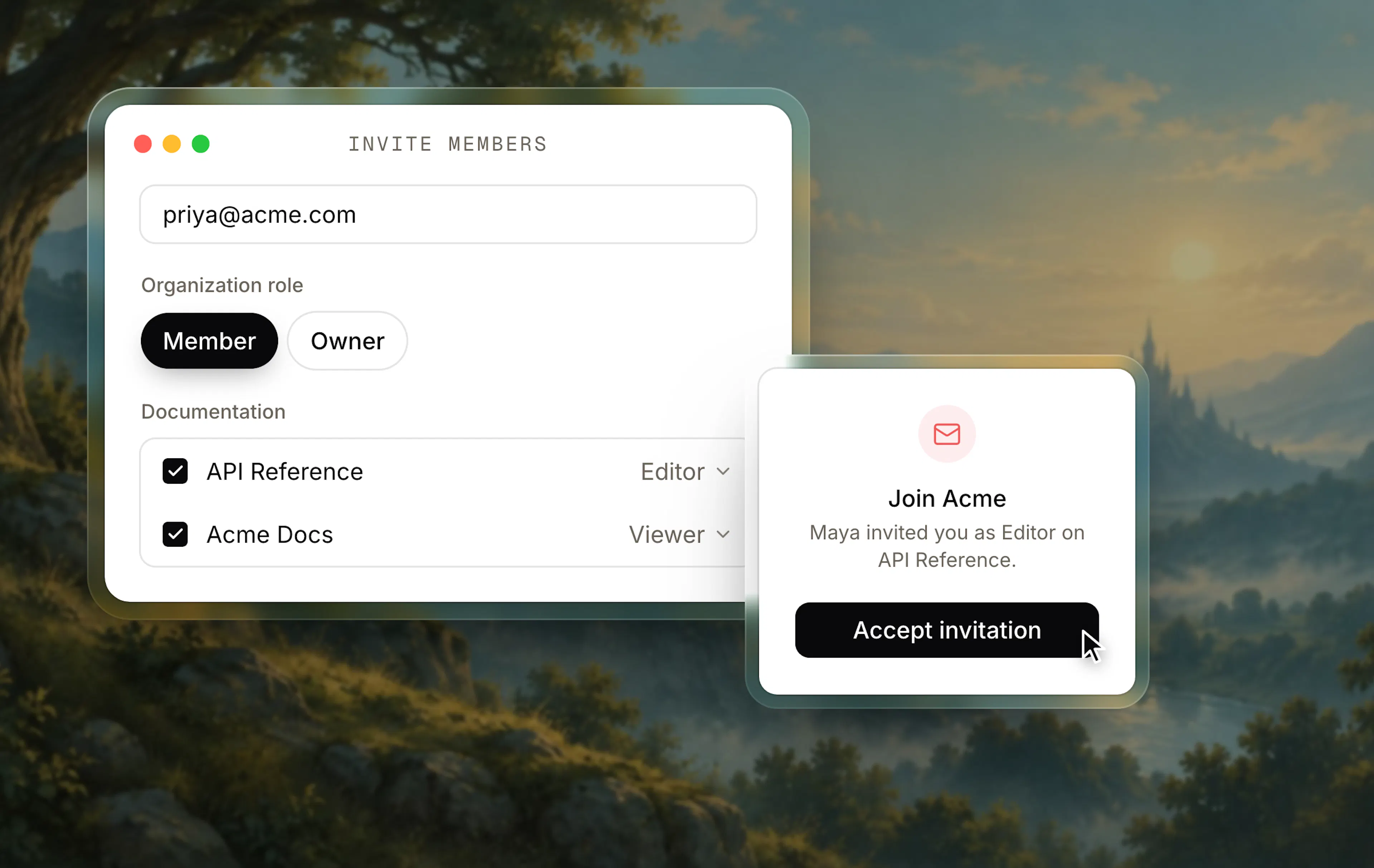
A project's admins can invite people from that project's Members page too. Their invitations give access to that project only.
Until someone accepts, their invitation is listed on the Pending invitations tab of Settings > Organization Settings > Members. Click Resend to send the email again, or Revoke to cancel it.
Manage a project's members
Go to Settings > Documentation Settings > Members to see everyone on the project you have open. Its admins can:
- Add members: give people already in the organization a role on this project. Invite someone new by email from the same dialog.
- Change a role: open the role next to a person and pick another.
- Remove from documentation: in the same menu. They stay in the organization and keep their roles on other projects.
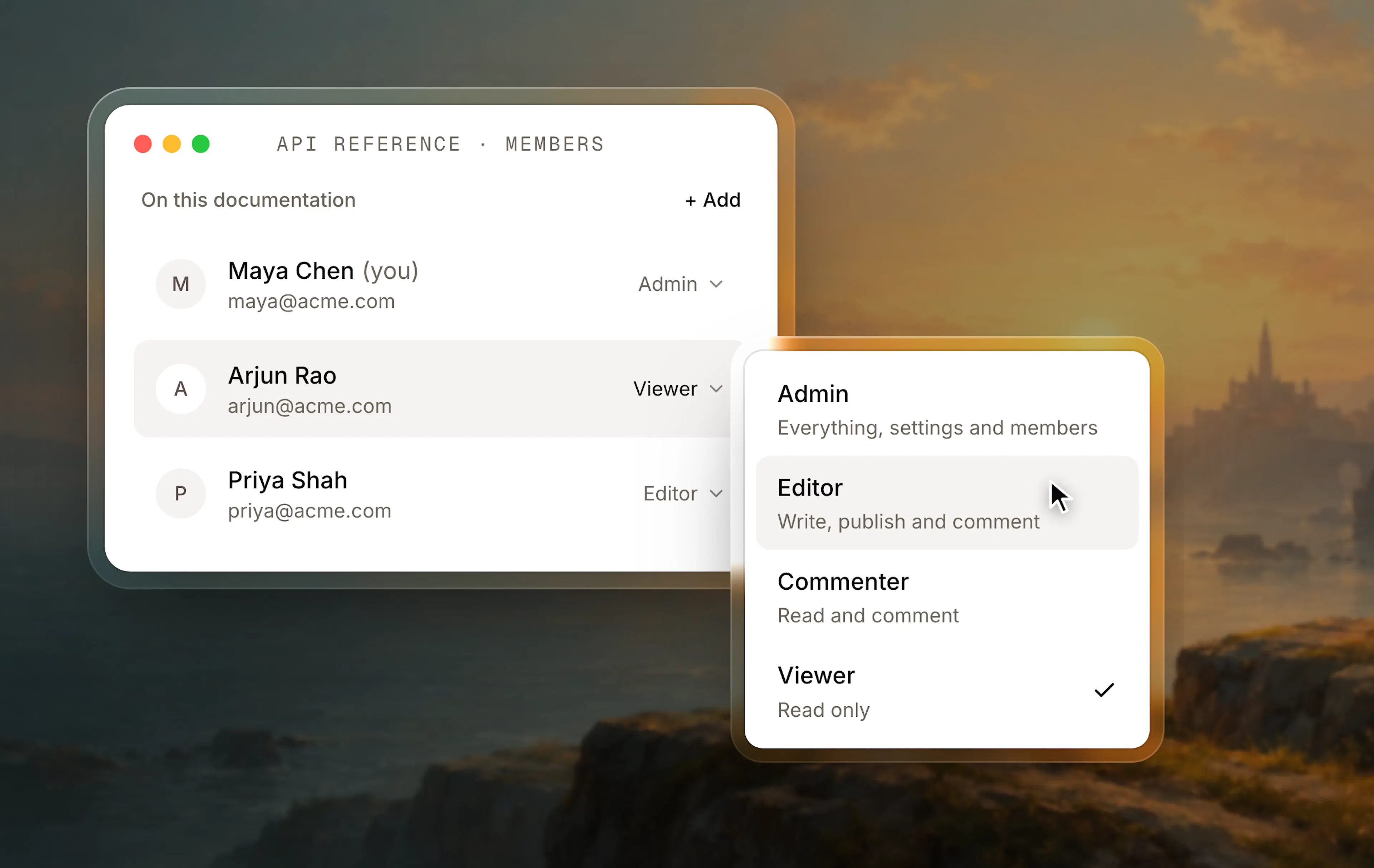
Owners are marked Organization owner. They're Admin on every project, so their role can't be changed or removed here. To change it, make them a member first.
Change an organization role or remove someone
Owners manage the organization from Settings > Organization Settings > Members. Open the … menu next to a person:
- Make owner: they become Admin on every project.
- Make member: they keep their role on each project.
- Remove member: they leave the organization and every project in it.
The last owner can't be made a member or removed. Make someone else an owner first.
Leave
- Leave a project: in Settings > Documentation Settings > Members, click Leave documentation. You lose access until an admin adds you again.
- Leave the organization: in Settings > Organization Settings > Organization, click Leave organization. The last owner can't leave.
Roles and your plan
On Starter, Standard and AppSumo below tier 3, everyone on a project is Admin. Editor, Commenter and Viewer still show in every role picker, greyed out with a Pro badge. Click Upgrade beside one to see the plans that include them.
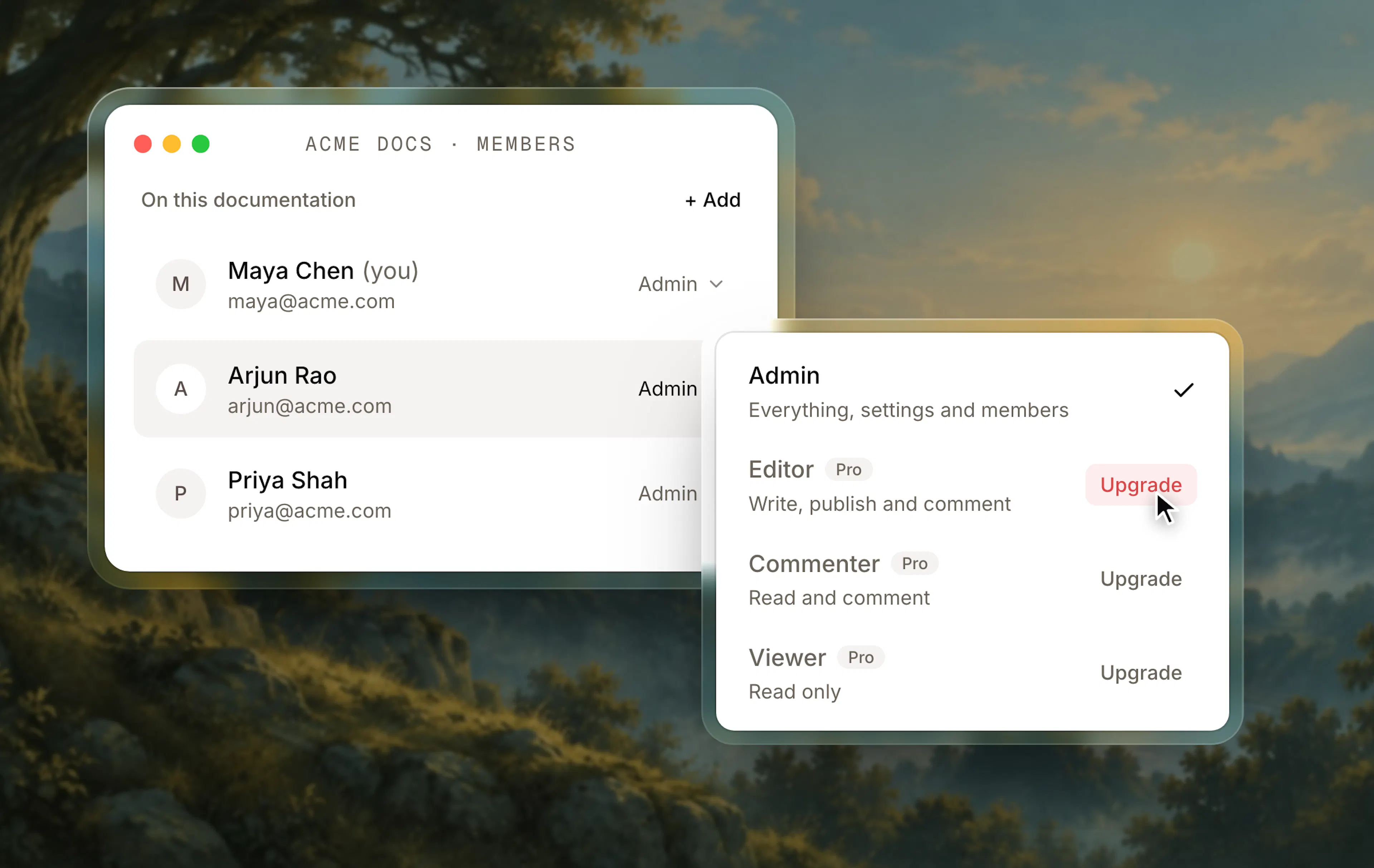
If you move to a plan without roles, everyone acts as Admin until you upgrade again. The roles you set are kept, and come back when you do.
Troubleshooting
Someone can't see a project. Members only see the projects they're on. An admin of that project, or an owner, adds them from its Members page.
Editor, Commenter and Viewer are greyed out. Your plan doesn't include documentation roles. See Roles and your plan.
An invitation didn't arrive. Ask them to check spam or promotions, then click Resend on the Pending invitations tab.